
- Published on
Best AI Rendering for Enscape: Connected or Browser?
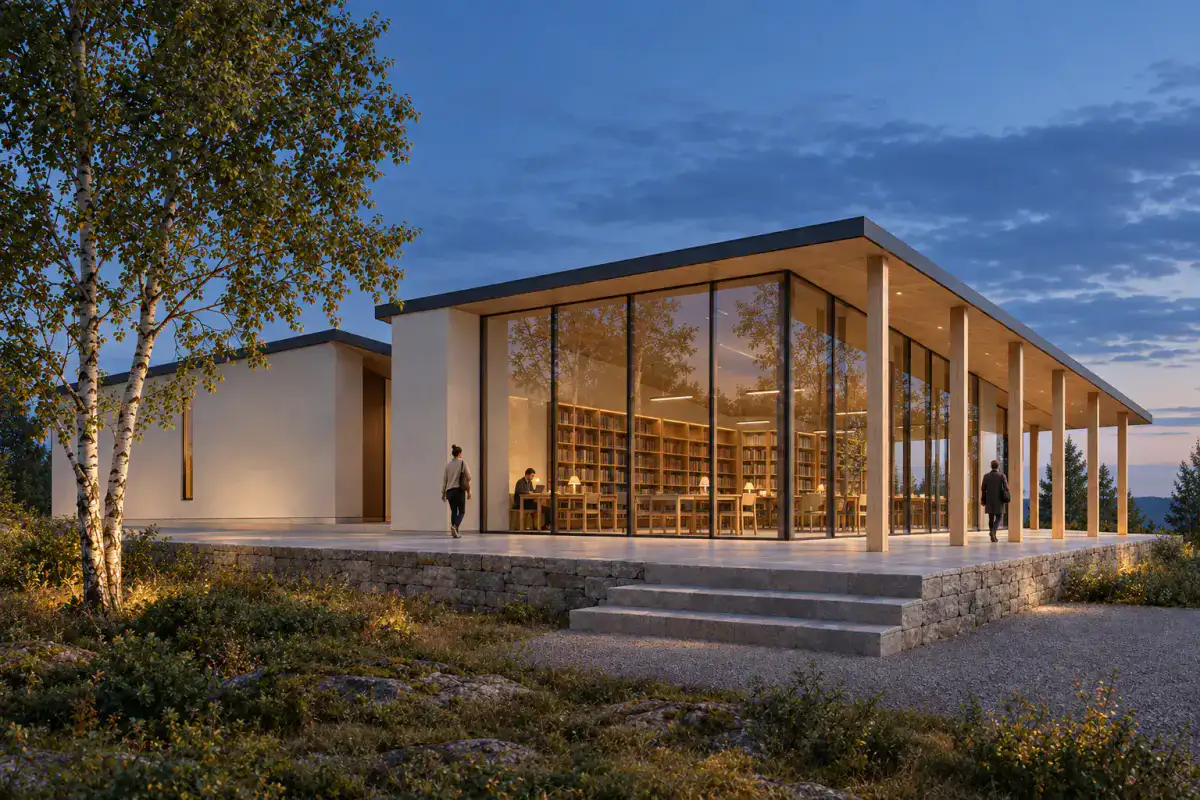
The best AI rendering route for an Enscape user depends on what must stay connected. Keep Enscape with Veras when the live CAD or BIM model should guide design options. Choose CAD Scene when Enscape is one source in a mixed software stack and the deliverable is a set of still-image studies. Lumion Cloud fits browser review and AI refinement around a wider approval process. Visualizee fits image and motion work in one browser project. D5 Render fits teams ready to move back to the source model and adopt another real-time renderer.
Test two serious routes on one fixed view. Use the same brief, one local correction, and one delivery size. Judge the accepted image and the handoff required to reach it.
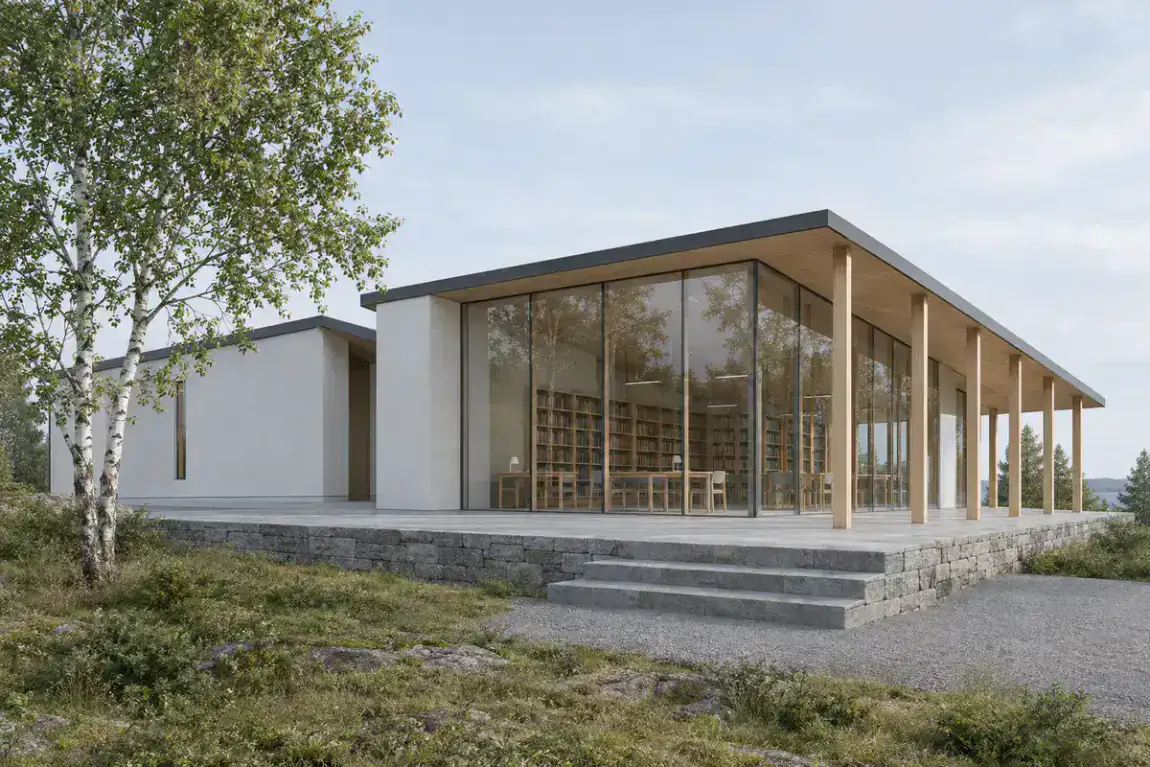 Synthetic source
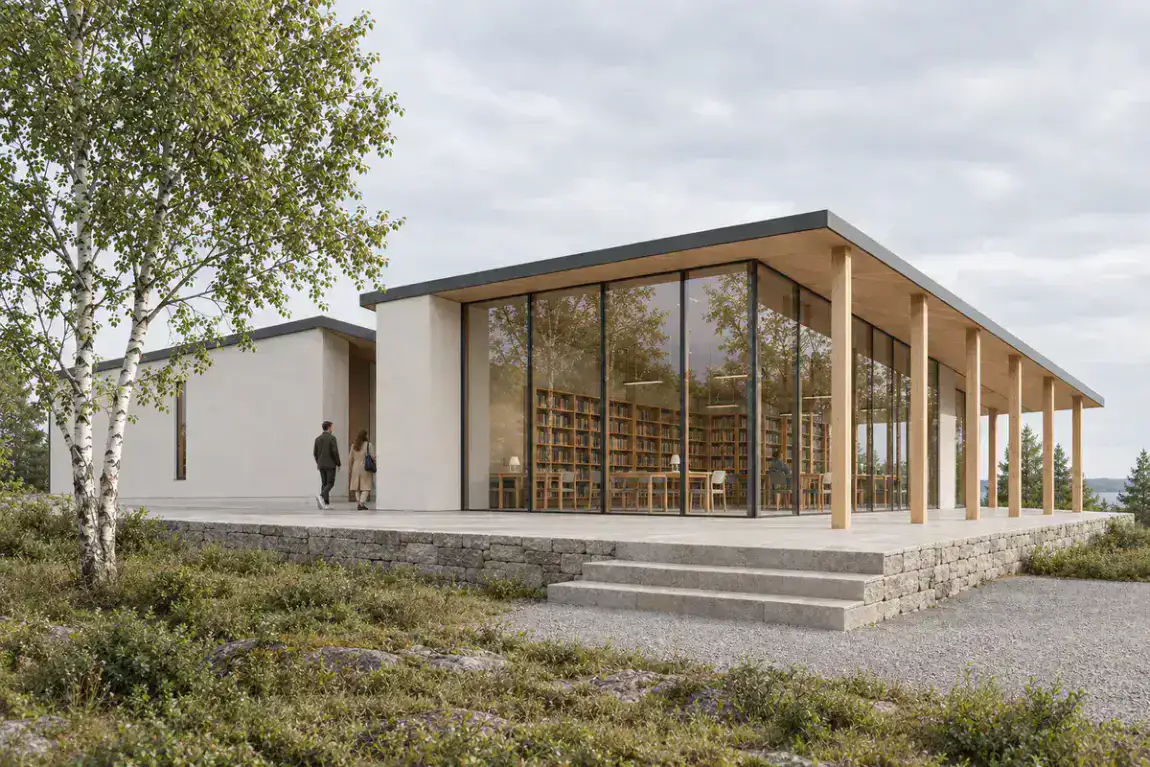 Render study
What is the honest verdict for Enscape users?
Start with source context. Enscape already includes an AI route. Chaos now includes Veras AI on every Enscape plan, including Solo. Veras can explore materials, massing, and styles from CAD or BIM context.
| Decision | Best starting route |
|---|---|
| Direct CAD or BIM context | Enscape with Veras |
| Mixed software stack | CAD Scene |
| Cloud review and AI refinement | Lumion Cloud |
| Image and motion in one browser project | Visualizee |
| Move to another real-time renderer | D5 Render |
| Ray-traced walkthrough from an Enscape scene | Chaos Envision |
CAD Scene should not replace a model-connected route by default. It earns its place when a portable image handoff is useful. That can matter when one studio works across Revit, SketchUp, Rhino, Archicad, Vectorworks, or another source tool.
The practical guide to Enscape and AI rendering compares the two core workflows. This page widens the decision to other current routes.
How was this Enscape shortlist researched?
The review uses official product and documentation pages accessed on 4 October 2026. It checks source context, image edits, project continuity, outputs, and the handoff from an Enscape view.
This is a desk review. We did not run private competitor accounts. Vendor claims about fidelity, speed, and preservation remain vendor claims. Unknown behavior stays unknown.
Every route must still pass one project test. A gallery can show visual range. It cannot prove that your openings, mullions, materials, and camera will hold.
What should an AI route around Enscape do well?
A useful route should preserve the design evidence before adding atmosphere. It should also make correction work clear.
Check six things:
- Source context. Does the route read a live model or only visible pixels?
- Camera behavior. Does the frame keep its height, lens, horizon, and crop?
- Visible geometry. Do openings, roof edges, and repeated parts remain useful?
- Edit control. Can one local issue change without restarting the image?
- Project continuity. Can later views reuse the same visual direction?
- Delivery scope. Do you need stills, walkthroughs, VR, motion, or approvals?
A direct model connection carries more information than a screenshot. A screenshot creates one portable handoff. Neither route guarantees an accepted image.
Which AI rendering routes fit Enscape work?
The strongest options solve different handoffs. The order starts with the existing Enscape path, then moves toward portable and replacement routes.
Enscape with Veras for connected design options
This is the natural first test for an Enscape-centered studio. Current Chaos pages list Veras AI on every Enscape plan. It can generate design alternatives, material variations, and style studies from CAD context.
Veras also supports object and material selection. Chaos says those edits can start with one click and avoid manual masking. Choose this route when the active model should remain the center of the study.
Direct context is not a guarantee of source accuracy. Check every result against the model. Inspect small openings, repeated parts, material edges, and changed massing.
The CAD Scene and Chaos Veras comparison covers current integrations, controls, output, and commercial terms.
CAD Scene for mixed-stack still studies
CAD Scene starts from an exported Enscape view in Enhance. The image constrains camera, framing, visible geometry, and proportions. Generated output can still drift. Compare it with the source.
Create, Enhance, and Edit share one Project. Its Composition also stays at Project level. Style, Scene, Lighting, Materials, and Entourage apply across every study. Named Edit regions support focused corrections.
Choose CAD Scene when Enscape is one source among several. The same image handoff works across a mixed stack. CAD Scene does not read the Enscape scene or send image changes back to the model.
The screenshot-to-render workflow explains what an image can constrain. The public retention review method explains how to check the result.
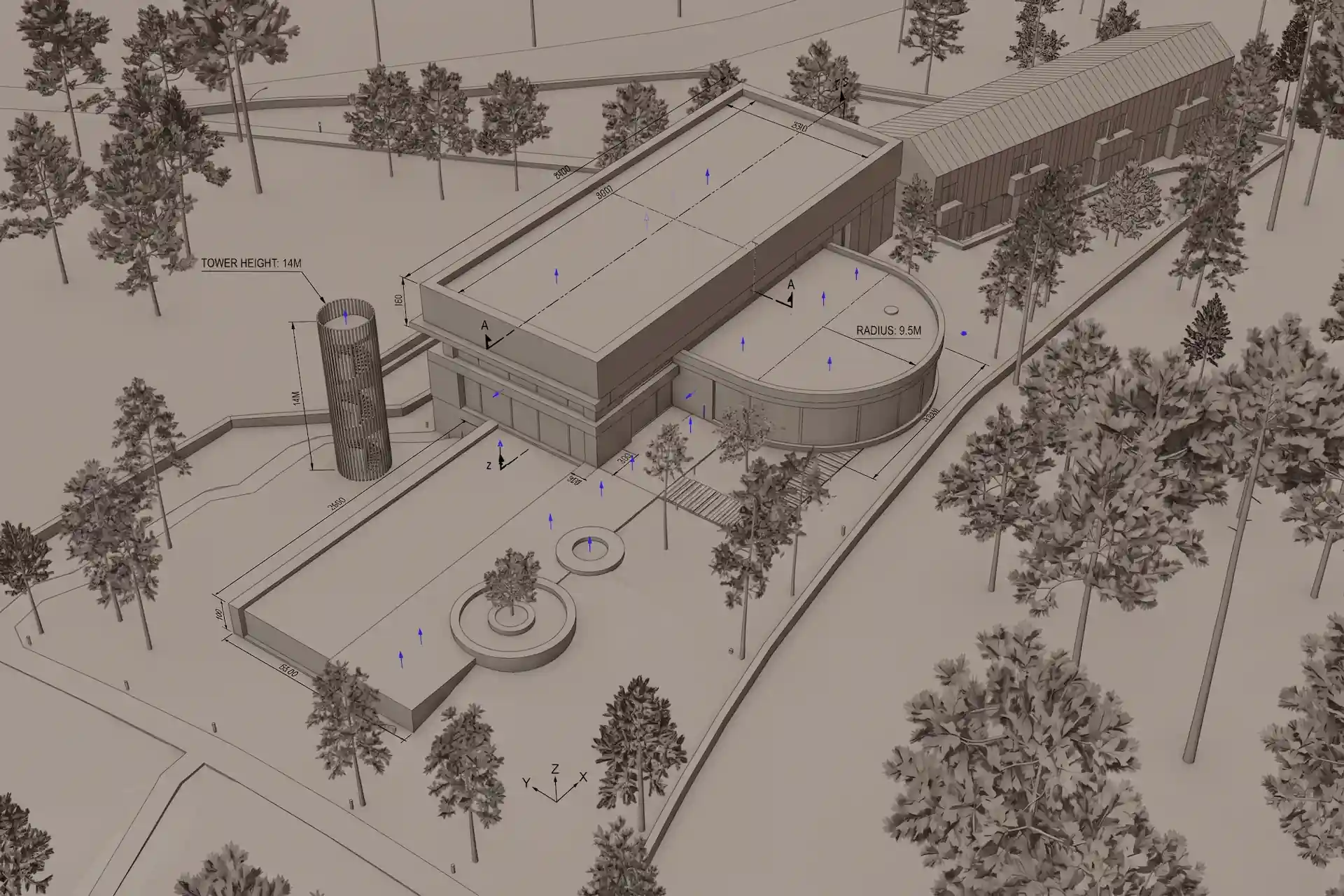
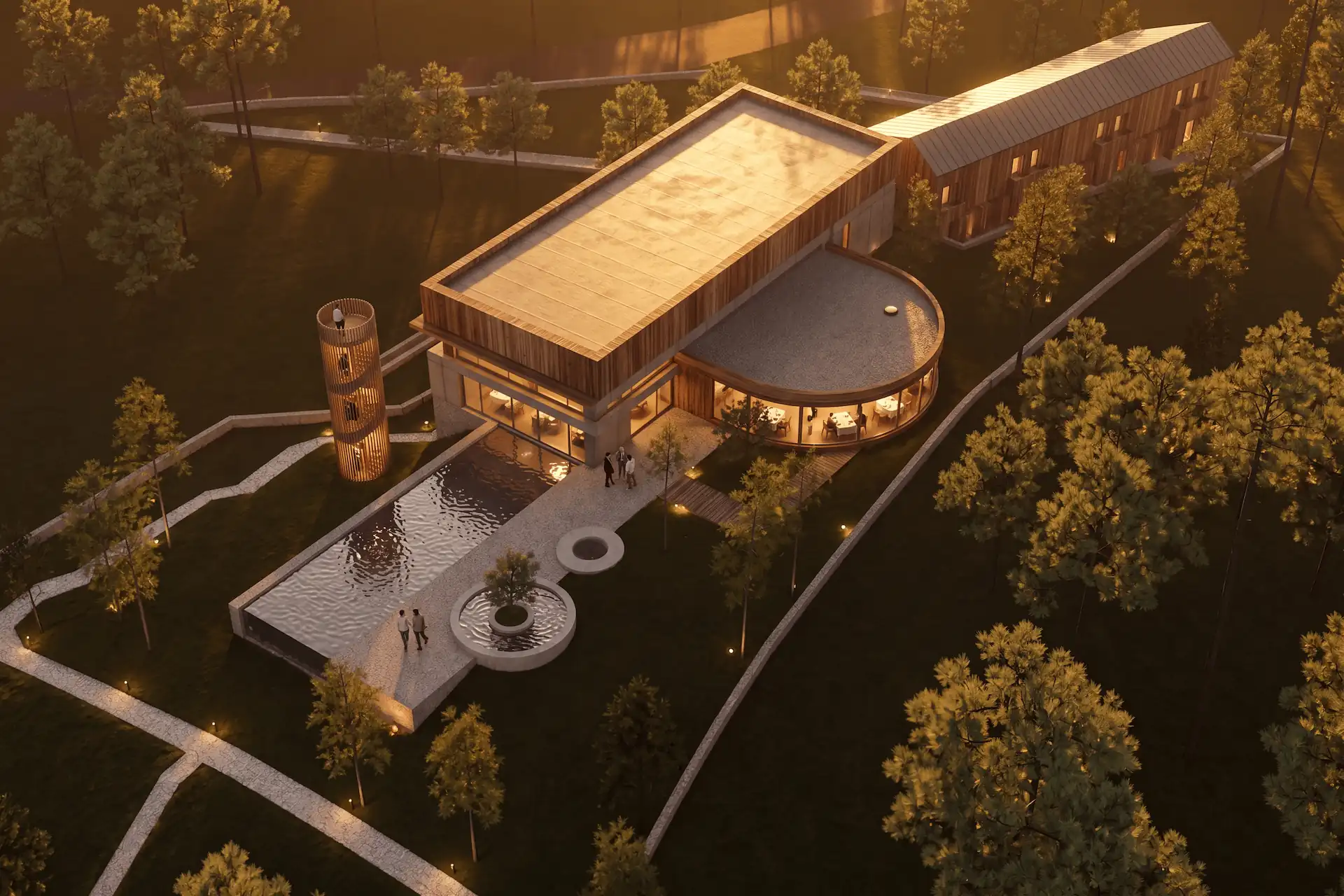
Before / after
Test one fixed Enscape view in CAD Scene.
Lumion Cloud for browser review and AI refinement
Lumion Cloud accepts existing images and adds AI refinement inside a wider review space. Its current AI Enhancer offers Guided and Expert modes. The same Cloud project can hold versions, variations, comments, markups, and approvals.
Choose it when browser review is part of the decision. It can also suit a team moving toward Lumion Pro. The route is not a direct Enscape model connection. It starts from an uploaded image or a Lumion Cloud image.
The AI alternative to Lumion guide explains the broader model-to-render-to-Cloud path.
Visualizee for a broader image and motion project
Visualizee accepts a 3D screenshot, sketch, or photo. Its documentation describes a geometry-aware image workflow. Vizzy infers the route from the attached image and request. Studio supports local region work after generation.
Choose Visualizee when one browser project must extend into motion or larger image batches. Treat its preservation language as a vendor claim. Test it on your view.
The CAD Scene and Visualizee comparison covers its project, batch, edit, model, and output differences.
D5 Render for a new model-connected route
D5 Render is a separate real-time renderer. Its current AI tools cover spatial concepts, material maps, atmosphere matching, image enhancement, and style transfer.
Choose D5 when the studio wants another model-connected visualization process. Return to the source CAD or BIM model for the handoff. Do not assume an Enscape scene, material setup, or asset placement will transfer directly.
This is a larger process change than sending one still to a browser tool. Test model sync, materials, lights, assets, cameras, and team setup before switching.
Chaos Envision for larger presentation work
Envision extends the current Chaos path. Chaos now documents a direct Enscape live link for larger ray-traced scenes and walkthroughs. It also carries camera paths and visual settings into the presentation stage.
Choose it when the Enscape scene should progress into a more resolved walkthrough. It is not the shortest route for one fast still-image option.
Is an Enscape-connected route better than a browser workflow?
Neither route is always better. The useful question is what must remain connected after the view is fixed.
| Decision point | Browser image route | Connected model route |
|---|---|---|
| Source handoff | Exported image | Active model or scene |
| Works across source tools | ||
| Host setup | No renderer plugin required | Install and version checks |
| Model context | Visible pixels only | Product-dependent scene context |
| Live review | ||
| Best fit | Mixed-stack still studies | One model-centered process |
Some studios use both. They keep Enscape for live review and send selected stills to a browser workbench for separate image studies.
Prompt library · 28 promptsSource-preserving conversionsBrowse prompts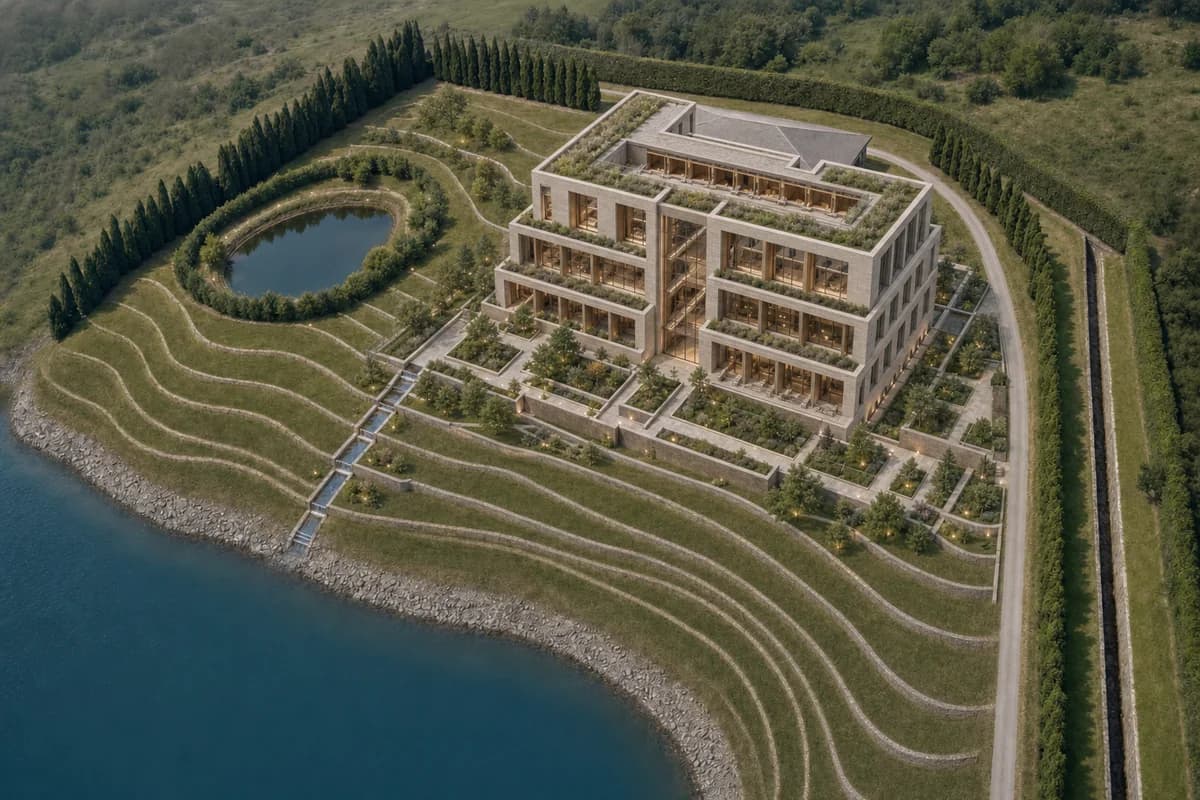
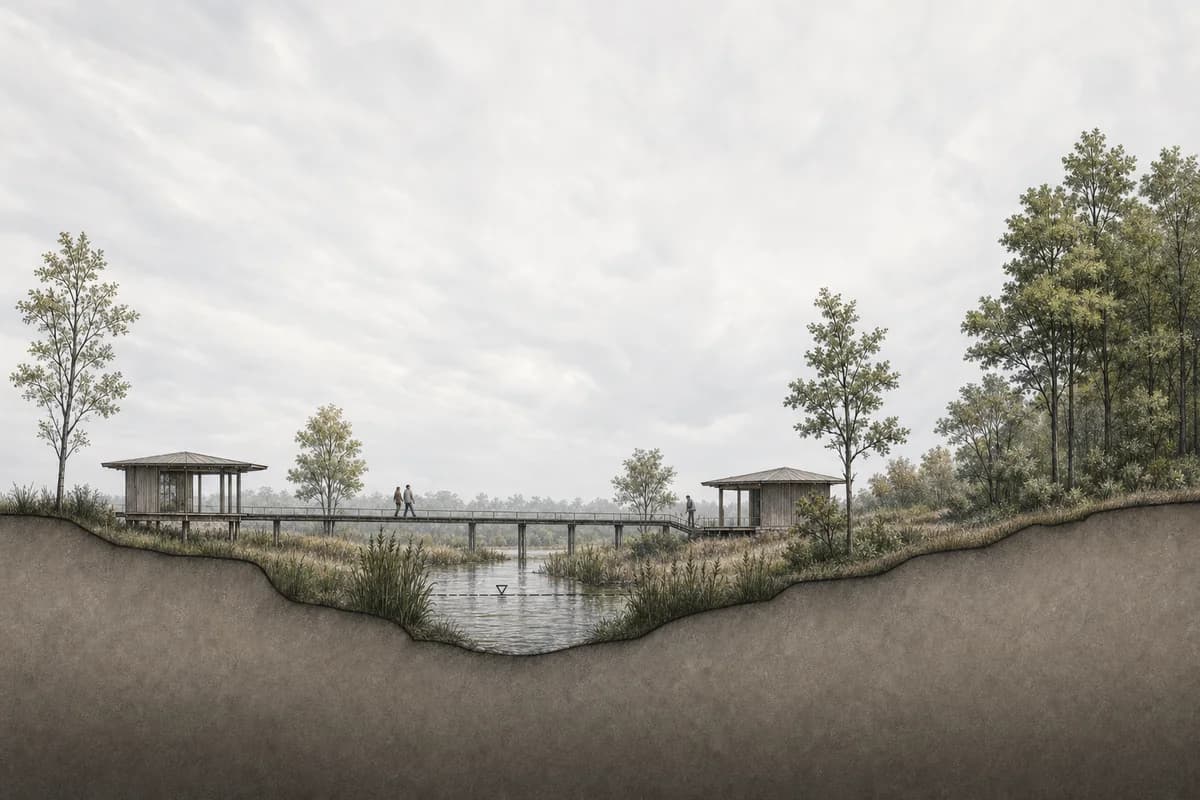
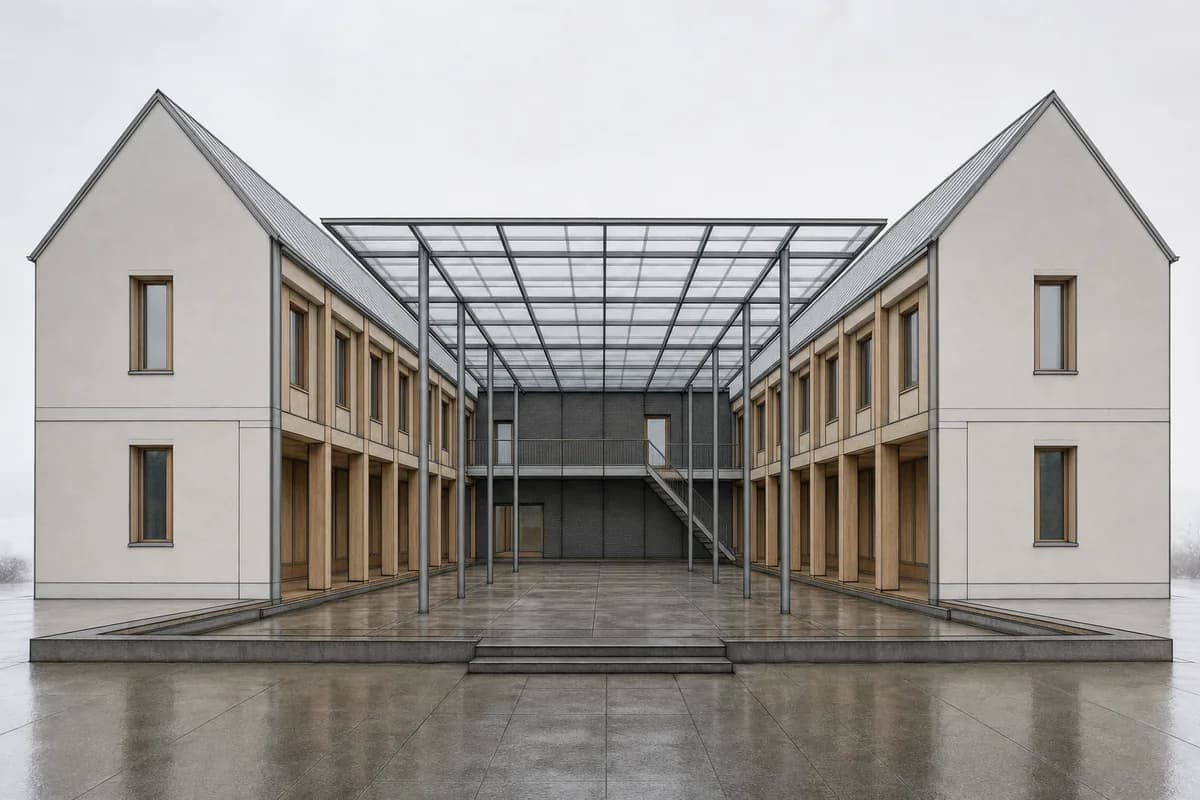
How should you prepare one fair Enscape test?
Use one approved view. Keep the source, brief, review size, and required correction fixed.
Save the intended view
Fix the camera, crop, visual settings, and required design evidence.Remove conflicting effects
Reduce unwanted people, fog, depth of field, and strong color grading.Write one bounded brief
Name materials, light, landscape, and atmosphere without redesigning the building.Request one local correction
Change one finish or object after the first acceptable image.Review the complete handoff
Record setup, generation, correction, export, and approval steps.
Use the cross-tool screenshot guide to prepare a clean raster source. Keep UI, safe-frame guides, temporary entourage, and unapproved effects out of the export.
What should you check in each result?
Check source adherence before realism. Place the Enscape view beside the new image. Review camera height, crop, major edges, openings, levels, and repeated parts.
Then inspect the requested finish:
- glazing should remain inside the intended openings;
- timber and masonry should stop at plausible boundaries;
- roof edges should not gain false trim;
- planting should not cover design evidence;
- people should keep believable scale;
- a local edit should leave unrelated areas acceptable.
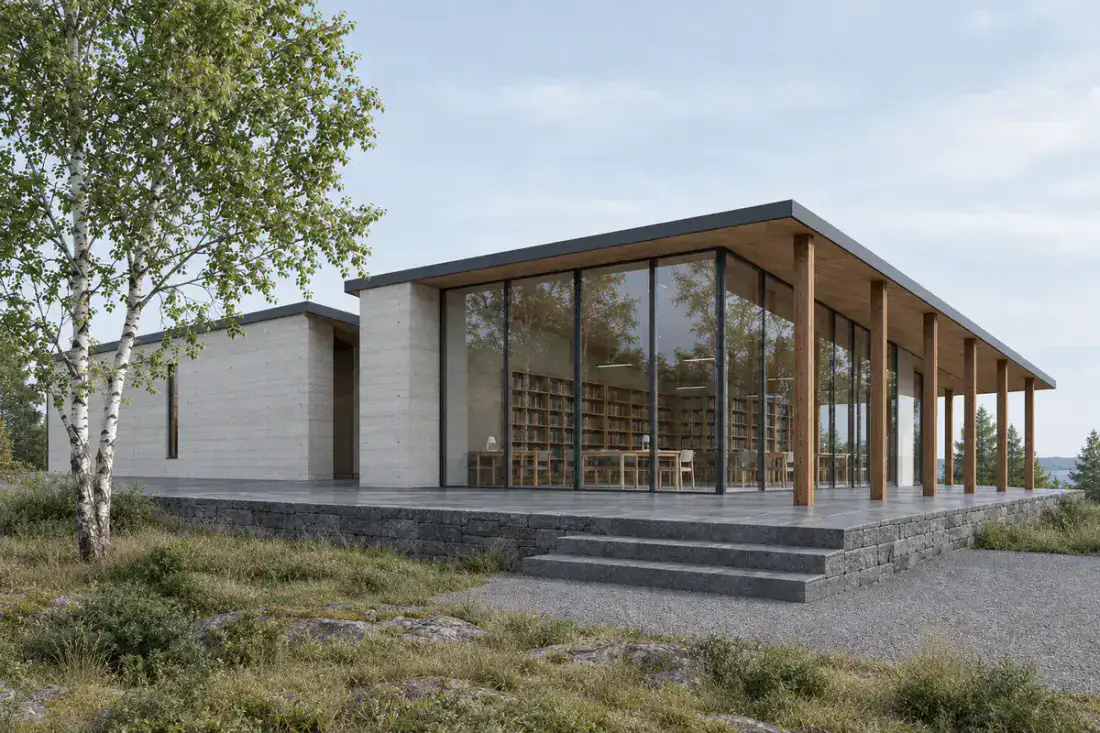
Record the full approval path. Count first options, local edits, reruns, export, and review. A striking first image can still be the wrong route if every correction restarts the scene.
How should you compare prices and credits?
Price the accepted deliverable, not the cheapest plan card. Enscape plans, Chaos AI credits, browser credits, seats, storage, motion, and output rights do not map cleanly.
CAD Scene uses model-dependent credits. Quality and Resolution can change the cost. The Composer shows the exact total before submission. Current figures live on the pricing page. The AI rendering pricing guide explains the credit model.
Estimate monthly render credits
Choose one current setup and the number of images you plan to generate. The estimate reads CAD Scene's live pricing matrix.
Generation only. Existing rollover credits can change plan fit. Current top-ups range from 50 to 450 credits. The Composer shows the final cost before every send.
For every competitor, confirm the current public card and checkout. Also check tax, annual billing, included AI credits, required host software, and the delivery formats your studio needs.
Sources reviewed
- Enscape current workflow and Veras inclusion, reviewed 4 October 2026
- Enscape product and model-connected workflow, reviewed 4 October 2026
- Enscape plan and credit details, reviewed 4 October 2026
- D5 Render AI features, reviewed 4 October 2026
- Lumion Cloud AI and review workflow, reviewed 4 October 2026
- Visualizee design-preserving workflow, reviewed 4 October 2026
- CAD Scene Product, Glossary, Help, and pricing code, reviewed 4 October 2026
What is the best AI rendering tool for Enscape users?
Stay with Enscape and Veras when direct CAD or BIM context matters. Choose CAD Scene when one browser image path must span Enscape and other source tools. Test both on one fixed view.
Does Enscape include AI rendering?
Yes. Chaos currently includes Veras AI on every Enscape plan. Enscape also provides an AI Enhancer for people and vegetation in captures.
Can CAD Scene replace an Enscape walkthrough?
No. CAD Scene outputs images. Enscape provides a live model-connected viewport, walkthroughs, VR, video, panoramas, and cloud review.
Will a browser AI renderer keep my Enscape camera?
The exported view can constrain camera and framing, but generated output can still drift. Compare camera height, perspective, crop, openings, and subject scale against the source.
How should I compare two Enscape AI workflows?
Use one saved view, one brief, one local correction, and one delivery size. Compare source adherence, edit behavior, outputs, total cost, and approval steps.
Table of Contents
- What is the honest verdict for Enscape users?
- How was this Enscape shortlist researched?
- What should an AI route around Enscape do well?
- Which AI rendering routes fit Enscape work?
- Is an Enscape-connected route better than a browser workflow?
- How should you prepare one fair Enscape test?
- What should you check in each result?
- How should you compare prices and credits?
- Sources reviewed
Authors

- Name
- Vladimir Mindru
Previous Article
Table of Contents
- What is the honest verdict for Enscape users?
- How was this Enscape shortlist researched?
- What should an AI route around Enscape do well?
- Which AI rendering routes fit Enscape work?
- Is an Enscape-connected route better than a browser workflow?
- How should you prepare one fair Enscape test?
- What should you check in each result?
- How should you compare prices and credits?
- Sources reviewed
Authors
- Name
- Vladimir Mindru