
- Published on
Best AI Rendering for Rhino: Plugin, Live Link, or Browser?
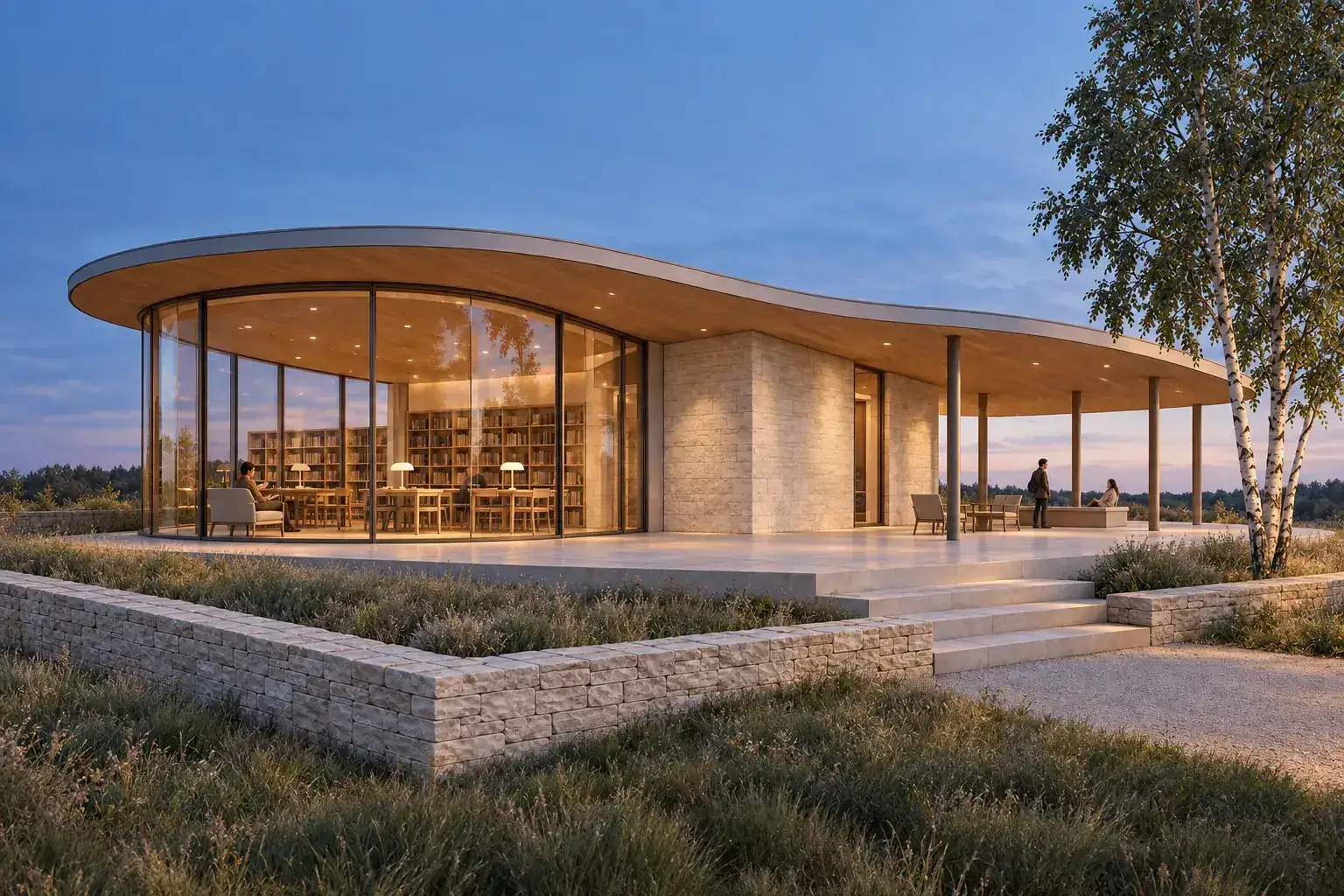
The best AI rendering tool for Rhino depends on what must stay connected. Choose CAD Scene for browser-based still studies across a mixed modeling stack. Choose Chaos Veras for direct AI work from Rhino context. Choose LookX for an architecture-specific AI plugin and browser platform. Choose D5 Render for live-link visualization. Choose V-Ray for a deeper production renderer inside Rhino and Grasshopper. Rhino Render remains the built-in route.
Do not choose from a gallery alone. Save one NamedView. Test the same source, brief, correction, and delivery size in two serious candidates. Check the camera, roof, openings, materials, and total path to an accepted image.
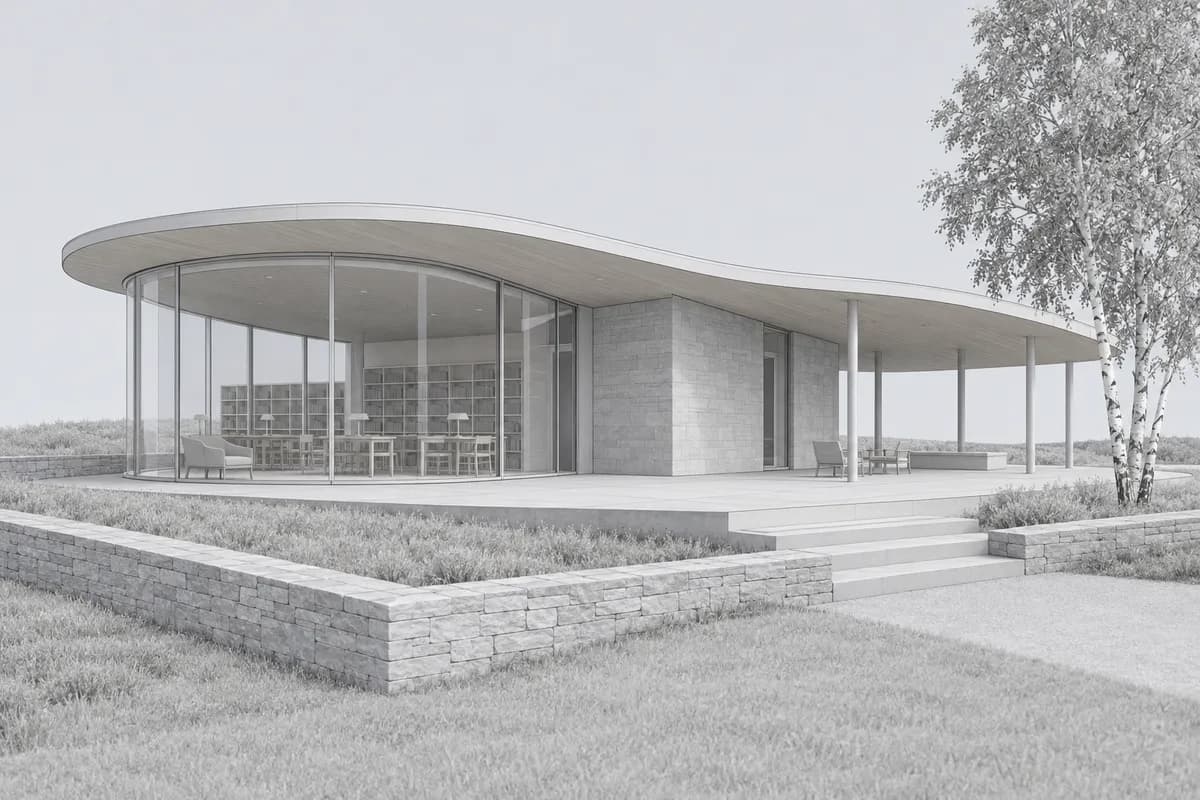 Synthetic source
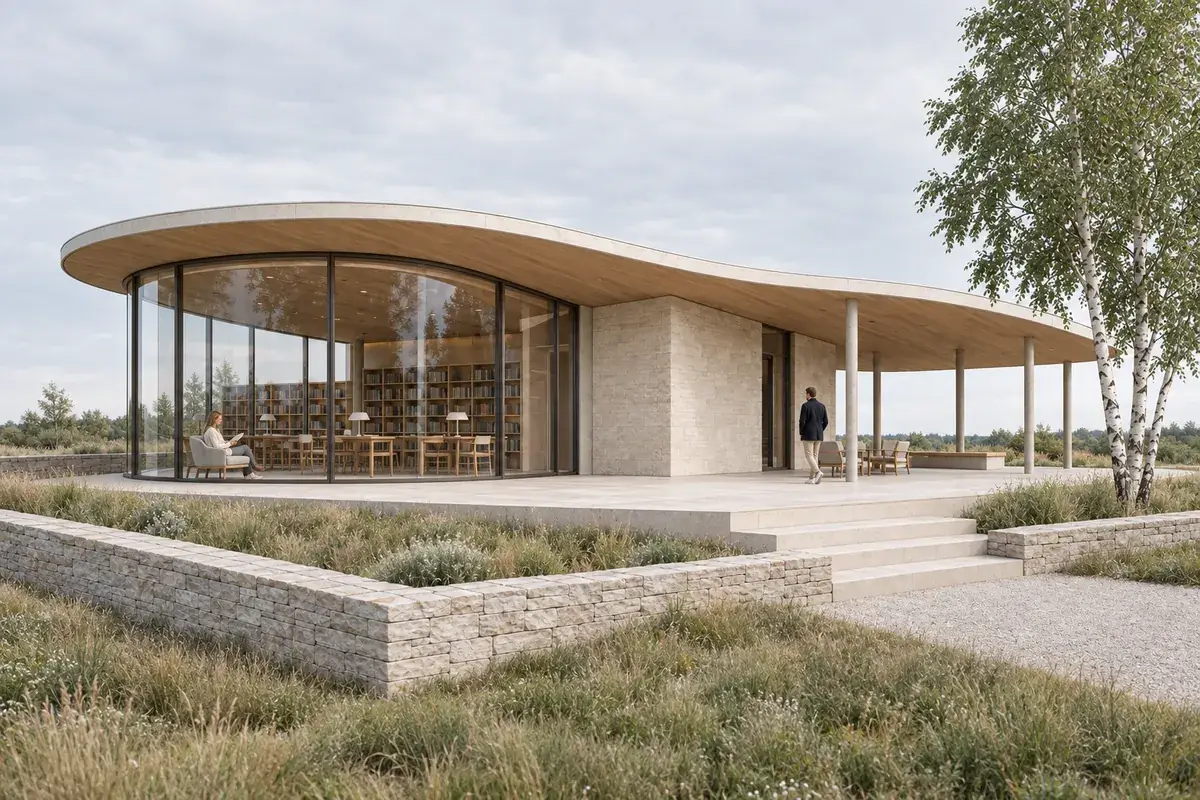 Render study
What is the honest verdict for Rhino users?
Start with the handoff. Rhino users can choose a flat image, a direct AI plugin, a live link, or a full rendering engine. Each route carries different source information.
| Decision | Best starting route |
|---|---|
| Mixed Rhino, Revit, SketchUp, or Blender stack | CAD Scene browser workbench |
| Direct AI ideation from Rhino context | Chaos Veras |
| Architecture-specific AI plugin and browser | LookX |
| Real-time Rhino live link | D5 Render |
| Production rendering and Grasshopper | V-Ray for Rhino |
| Built-in rendering without another product | Rhino Render |
The routes solve different jobs. CAD Scene leads when portable still-image studies matter. Veras leads when direct Rhino AI context matters. D5 and V-Ray fit model-connected visualization. Rhino Render avoids another plugin or subscription.
The broader AI rendering software guide for architects covers team, collaboration, pricing, and delivery needs beyond Rhino.
How was this Rhino shortlist researched?
This review uses current official product and documentation pages accessed on 28 September 2026. It checks Rhino input, model context, camera handling, correction tools, output scope, and the role of AI.
This is a desk review. We did not run private competitor accounts. Vendor statements about fidelity, speed, and source preservation remain vendor claims. Unknown behavior stays unknown.
The page serves a different task from the practical guide to rendering a Rhino viewport with AI. That guide covers NamedView, ViewCaptureToFile, Enhance, and source review. This page helps you choose the tool around those steps.
What should a Rhino rendering tool do well?
A useful tool should respect the chosen view before adding atmosphere. It should also support the correction work that follows.
Check seven things:
- Source path. Does it use a capture, plugin, live link, or full scene?
- Camera behavior. Does the result retain the NamedView and intended crop?
- Visible geometry. Do curves, roof edges, openings, and repeated parts hold?
- Material control. Can you revise one finish without losing its boundary?
- Correction path. Can you fix a local issue without restarting the image?
- Output scope. Do you need stills, animation, panoramas, or live review?
- Project continuity. Can later views reuse the accepted visual direction?
A longer feature list does not repair a moved column. Judge the accepted image and every step required to reach it.
Which AI rendering tools fit Rhino workflows?
The shortlist starts with portable still studies. It then moves toward direct AI, live-link, built-in, and production-rendering routes.
CAD Scene for mixed-stack browser studies
CAD Scene starts from an exported Rhino view in Enhance. The image constrains the visible camera, framing, geometry, and proportions. Generated output can still drift. Compare every result with the saved NamedView.
Create, Enhance, and Edit share one Project. The Composition stays at Project level. Its Style, Scene, Lighting, Materials, and Entourage fields apply across every study. Named Edit regions support focused corrections. Presets can carry an accepted direction into another project.
Choose CAD Scene when Rhino is one source among Revit, SketchUp, Blender, Archicad, Vectorworks, or another tool. CAD Scene does not read the .3dm model, layers, NURBS definitions, Grasshopper logic, materials, or lights.
The screenshot-to-render method explains what an image can constrain. The public retention review method explains how to check it.
Chaos Veras for direct Rhino AI context
Chaos lists Rhino as a direct Veras integration. Veras can also run through current V-Ray and Enscape versions or its web app.
The Veras 5.0 release documents a rebuilt Rhino sync. Chaos states that viewport materials, textures, block instances, and camera alignment now reach the Veras viewer. It also documents image-to-3D asset placement back into Rhino.
Choose Veras when Rhino context should guide AI ideation. Treat every source-preservation statement as a vendor claim. Check small openings, curved edges, blocks, units, material boundaries, and camera alignment on your model.
The source-backed CAD Scene and Chaos Veras comparison covers the wider product decision.
LookX for an architecture-specific AI platform
LookX publishes browser tools for generation, reference-led style, real-time work, editing, and custom models. Its current site also lists plugins for Rhino and SketchUp.
Choose LookX when architecture-specific AI generation and a direct Rhino entry matter. Its public product pages do not explain the exact Rhino sync depth. Confirm what model, material, layer, block, and camera data the current plugin uses before adopting it.
Test the plugin and browser paths separately. A listed integration does not prove that both paths carry the same context or controls.
D5 Render for live-link visualization
D5 publishes two Rhino routes. D5 Lite works inside Rhino. D5 LiveSync links Rhino to the full D5 Render application.
The current LiveSync documentation covers model and material updates, linked viewports, NamedView camera transfer, and manual light synchronization. D5 also publishes AI-assisted concept, style transfer, and inpainting tools.
Choose D5 when the project needs real-time model updates, scene assembly, and presentation beyond one still. Check supported Rhino and D5 versions before deployment. A live link adds installation, hardware, update, and office-support work that a flat image does not.
V-Ray for Rhino and Grasshopper production
V-Ray 7 for Rhino is a model-connected rendering engine. Its official pages cover Rhino and Grasshopper, materials, lights, cameras, animation, viewport rendering, CPU and GPU engines, and cloud rendering.
Current V-Ray plans also include Veras. V-Ray's own AI tools cover tasks such as material generation, lighting direction, people and vegetation refinement, and upscaling.
Choose V-Ray when deterministic scene setup, render passes, animation, Grasshopper context, or final-production control matters. It asks for more renderer setup than a screenshot study. That setup is useful when the deliverable depends on live scene data.
Rhino Render for the built-in route
Rhino 8 includes Rhino Render and an updated Cycles engine. McNeel documents a real-time Raytraced display mode, PBR materials, lighting, textures, environments, denoising, UV tools, and a dedicated final-render window.
Choose Rhino Render when the project needs model-connected stills without another rendering product. It is not an AI ideation workbench. It is the useful built-in baseline for material, light, and camera work.
The result can also become the controlled source for a later image study. Keep that second route separate from the Rhino model's authoritative scene.
Is a Rhino plugin better than a browser workflow?
Neither route is always better. The decision is how much model context must remain live after the camera is framed.
| Decision point | Browser capture | Rhino plugin or live link |
|---|---|---|
| Source handoff | Exported image | Model, viewport, or linked scene |
| Works across source tools | ||
| Host setup | No Rhino plugin | Install and version checks |
| Model context | Visible pixels only | Product-dependent scene context |
| Best fit | Mixed software stack | Rhino-centered studio |
Choose a plugin when Rhino remains open through each study. Choose a browser route when consultants and staff supply images from several tools. Some studios use both.
How should you prepare one fair Rhino test?
Save the source before opening any rendering tool. Rhino NamedView can restore the intended camera after revisions.
Save the intended NamedView
Fix the camera, projection, target, lens, crop, and visible layers.Clean the viewport
Hide grids, axes, control points, gumballs, selections, annotations, and temporary options.Prepare one controlled source
Use the same NamedView, geometry state, brief, aspect ratio, and delivery size.Request one local correction
Change one material or object after the first acceptable image.Review against Rhino
Check camera, curves, openings, repeated parts, ground contact, and material boundaries.
The official ViewCaptureToFile command can save the current viewport at a specified width and height. Use the cross-tool capture checklist before a browser test.
Prompt library · 28 promptsSource-preserving conversionsBrowse prompts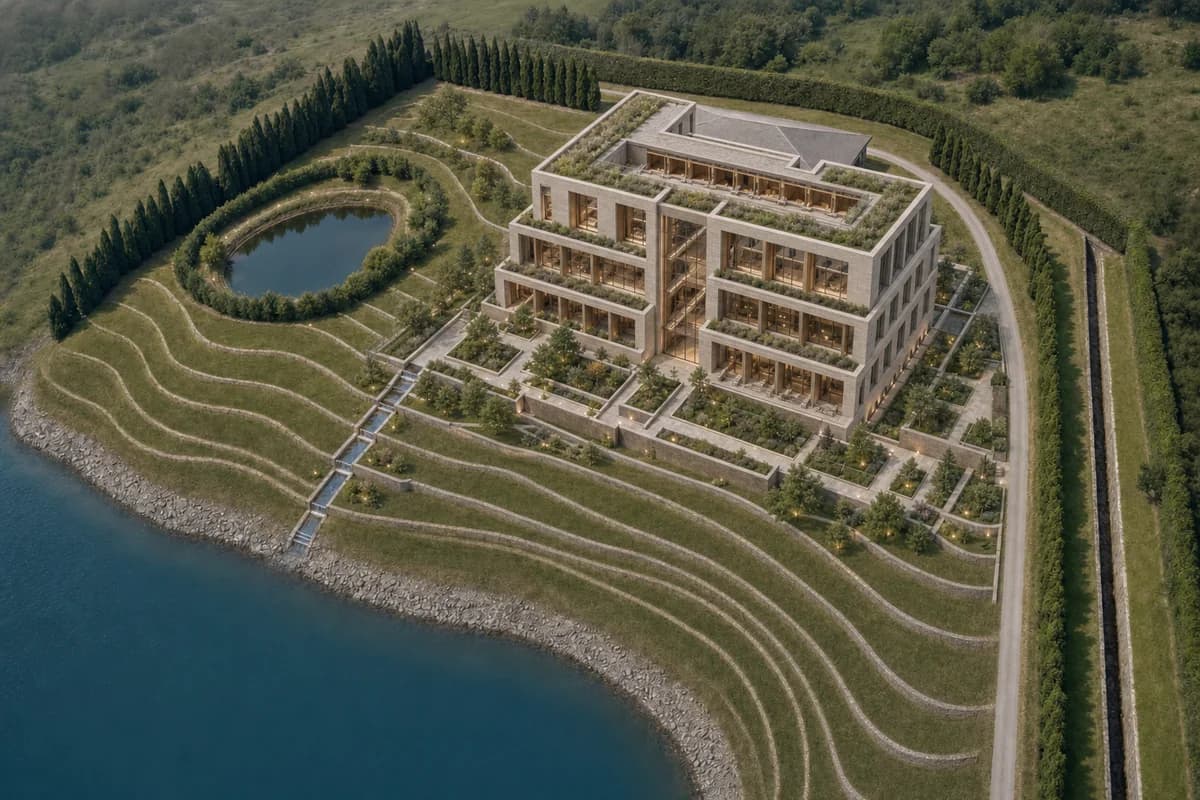
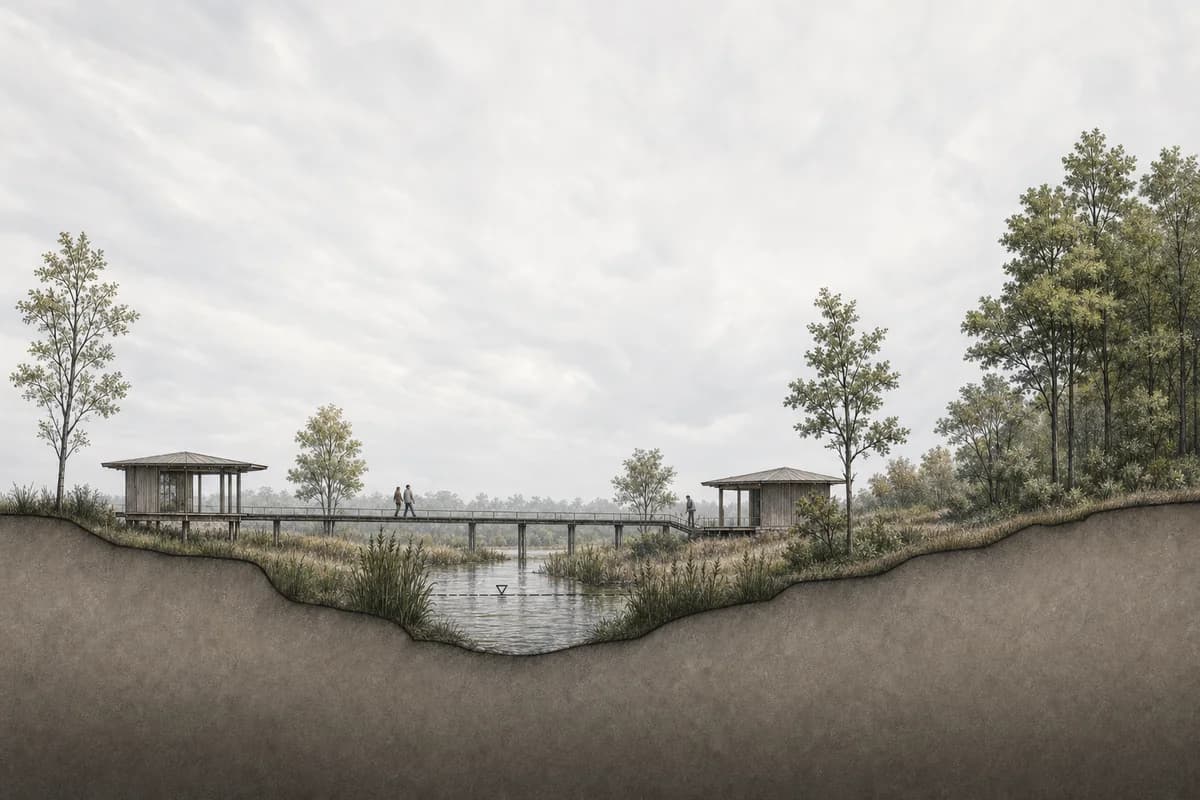
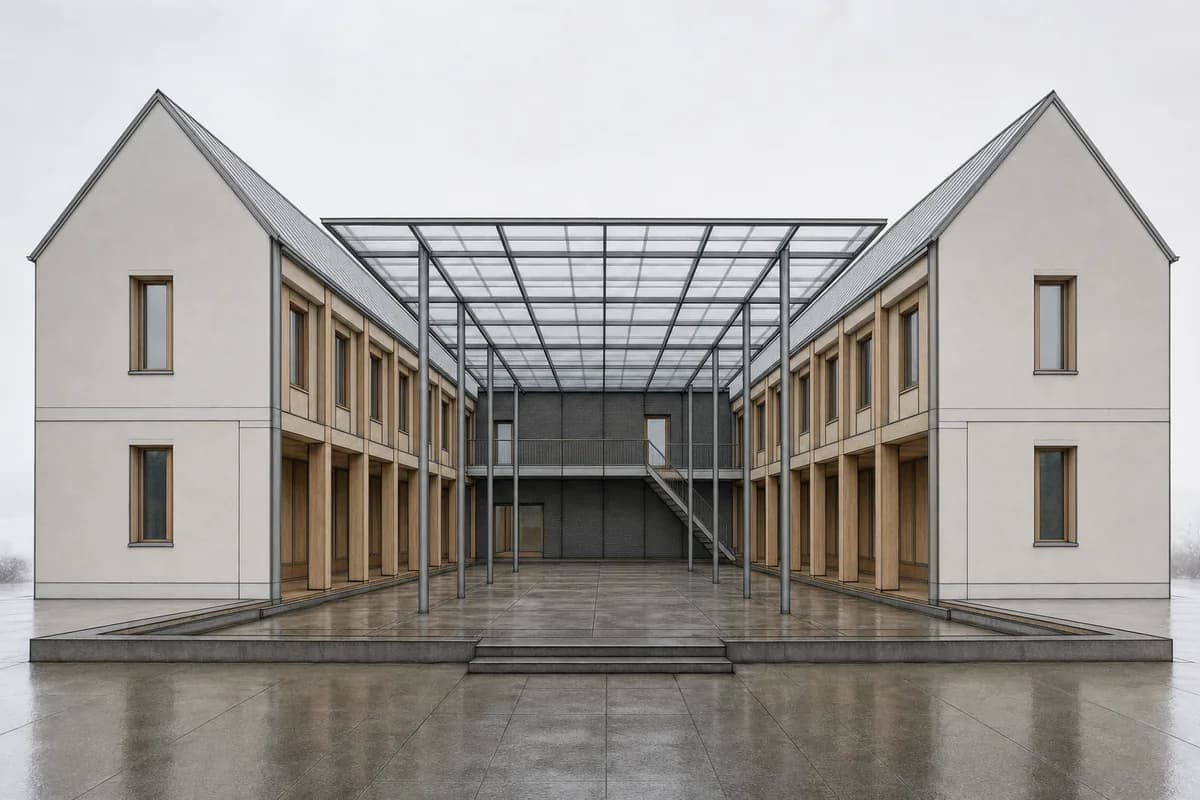
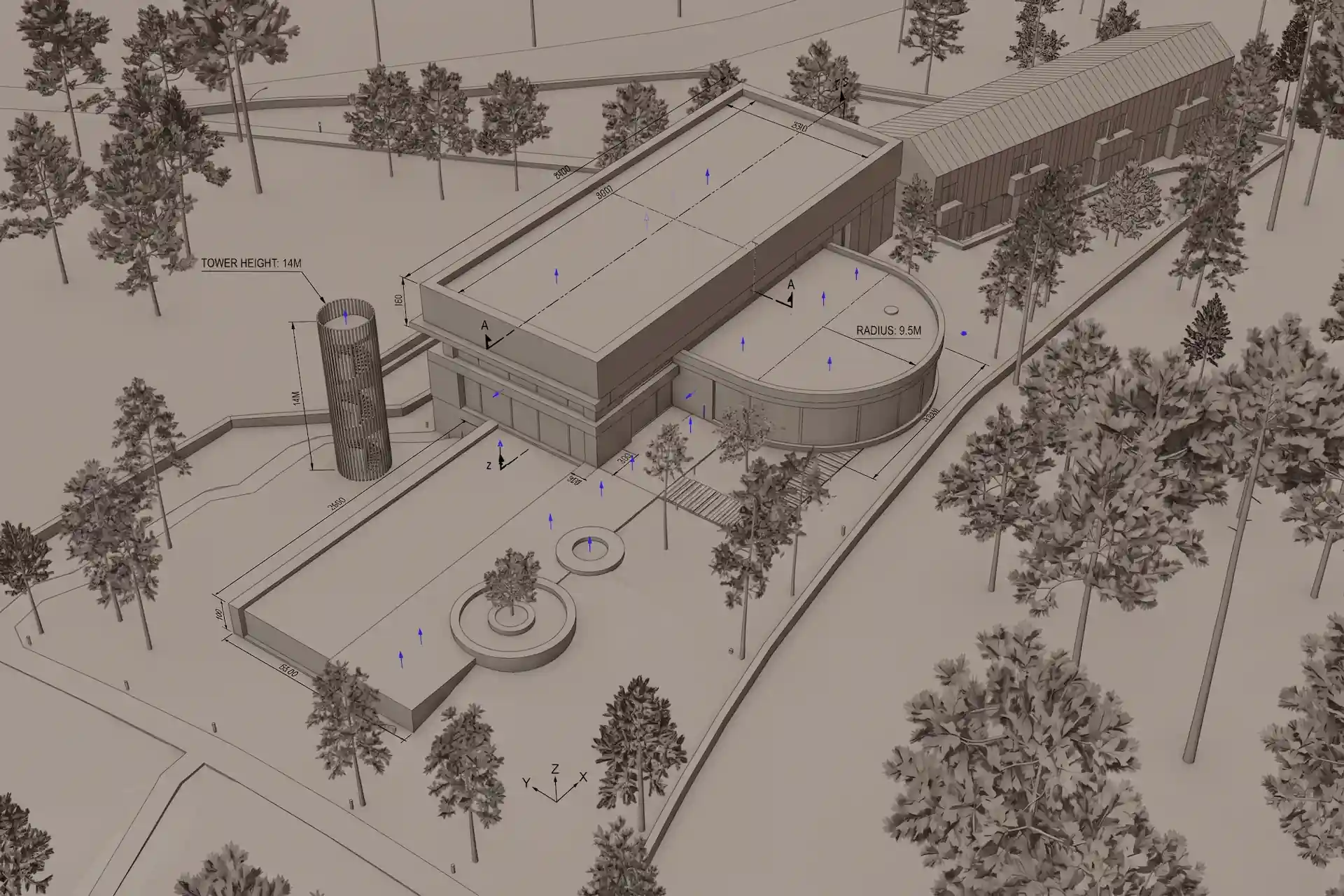
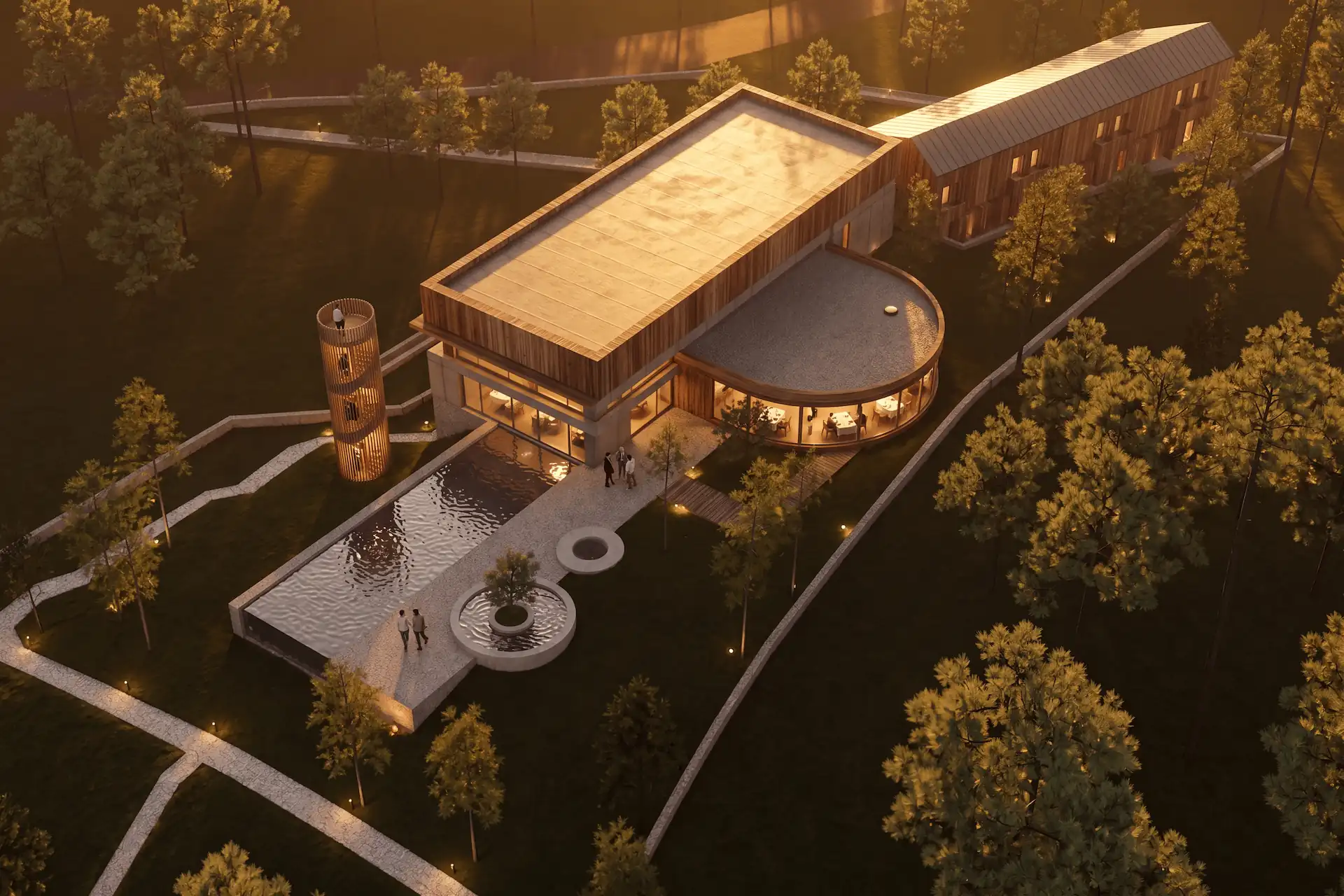
Before / after
Test one saved Rhino view in CAD Scene.
What should you check in each result?
Check source adherence before realism. Place the NamedView beside the result. Review the camera, crop, roof profile, curved edges, openings, columns, and repeated parts.
Then inspect the requested finish:
- glazing should stay inside the intended openings;
- timber and stone should stop at plausible boundaries;
- freeform surfaces should keep their visible profile;
- blocks should not multiply or disappear;
- planting should not hide design evidence;
- a local correction should leave unrelated areas acceptable.
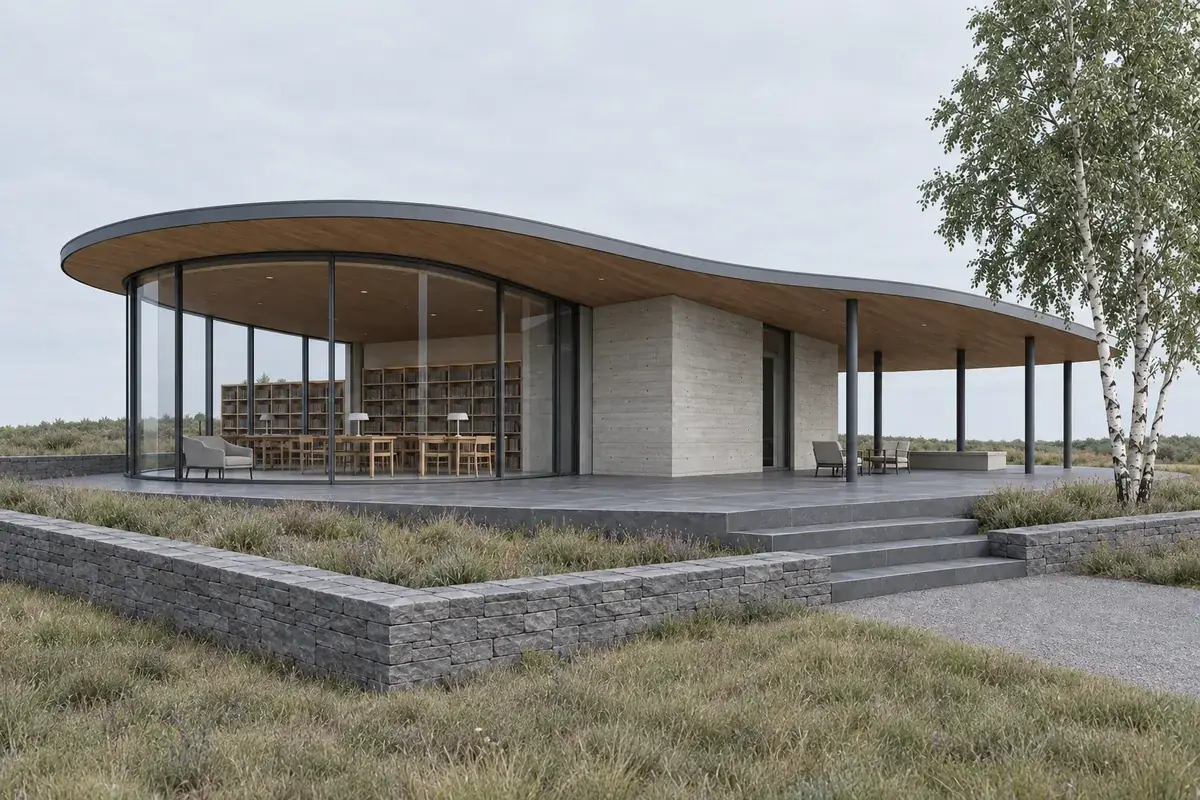
Record the full approval path. Include plugin setup, source preparation, initial options, local corrections, reruns, upscale, export, and review. A good first image can still be the wrong route when each correction restarts the scene.
How should you compare Rhino rendering costs?
Price the accepted deliverable, not the cheapest plan card. Include plugin licenses, billing terms, AI credits, hardware, cloud rendering, output types, seats, training, and office deployment.
CAD Scene uses model-dependent credits. Quality and Resolution can change the cost. The Composer shows the exact total before submission. Current plans and top-ups live on the pricing page. The AI rendering pricing guide explains the credit model.
Confirm each competitor's live plan and checkout. This article does not copy competitor prices because figures and inclusions can change before the core workflow.
Sources reviewed
- Rhino 8 rendering and Cycles, reviewed 28 September 2026
- Rhino 8 NamedView, reviewed 28 September 2026
- Rhino 8 ViewCaptureToFile, reviewed 28 September 2026
- Chaos Veras product and Rhino support, reviewed 28 September 2026
- Veras 5.0 Rhino sync, reviewed 28 September 2026
- LookX platform and Rhino plugin, reviewed 28 September 2026
- D5 Render for Rhino, reviewed 28 September 2026
- D5 LiveSync for Rhino documentation, reviewed 28 September 2026
- V-Ray 7 for Rhino, reviewed 28 September 2026
- CAD Scene Product, Glossary, Help, and pricing code, reviewed 28 September 2026
What is the best AI rendering tool for Rhino?
Choose CAD Scene for mixed-stack browser studies. Choose Chaos Veras when direct Rhino AI context matters. Choose D5 or V-Ray when a model-connected visualization process leads.
Do I need a Rhino plugin for AI rendering?
No. Rhino can export a clean NamedView for a browser workflow. A plugin is useful when live model context and fewer handoff steps matter more.
Does CAD Scene read a Rhino .3dm file?
No. CAD Scene Enhance reads the exported image. It does not receive Rhino layers, NURBS definitions, Grasshopper logic, materials, lights, or renderer settings.
Will an AI renderer keep my Rhino camera and geometry?
A source-guided route can use the view as a constraint. Exact retention is not guaranteed. Compare the result with the saved NamedView and model.
How should I compare two Rhino rendering tools?
Use one NamedView, one model state, one brief, one local correction, and one delivery size. Compare source adherence, correction work, output scope, and total cost.
Table of Contents
- What is the honest verdict for Rhino users?
- How was this Rhino shortlist researched?
- What should a Rhino rendering tool do well?
- Which AI rendering tools fit Rhino workflows?
- Is a Rhino plugin better than a browser workflow?
- How should you prepare one fair Rhino test?
- What should you check in each result?
- How should you compare Rhino rendering costs?
- Sources reviewed
Authors

- Name
- Vladimir Mindru
Previous Article
Table of Contents
- What is the honest verdict for Rhino users?
- How was this Rhino shortlist researched?
- What should a Rhino rendering tool do well?
- Which AI rendering tools fit Rhino workflows?
- Is a Rhino plugin better than a browser workflow?
- How should you prepare one fair Rhino test?
- What should you check in each result?
- How should you compare Rhino rendering costs?
- Sources reviewed
Authors
- Name
- Vladimir Mindru