
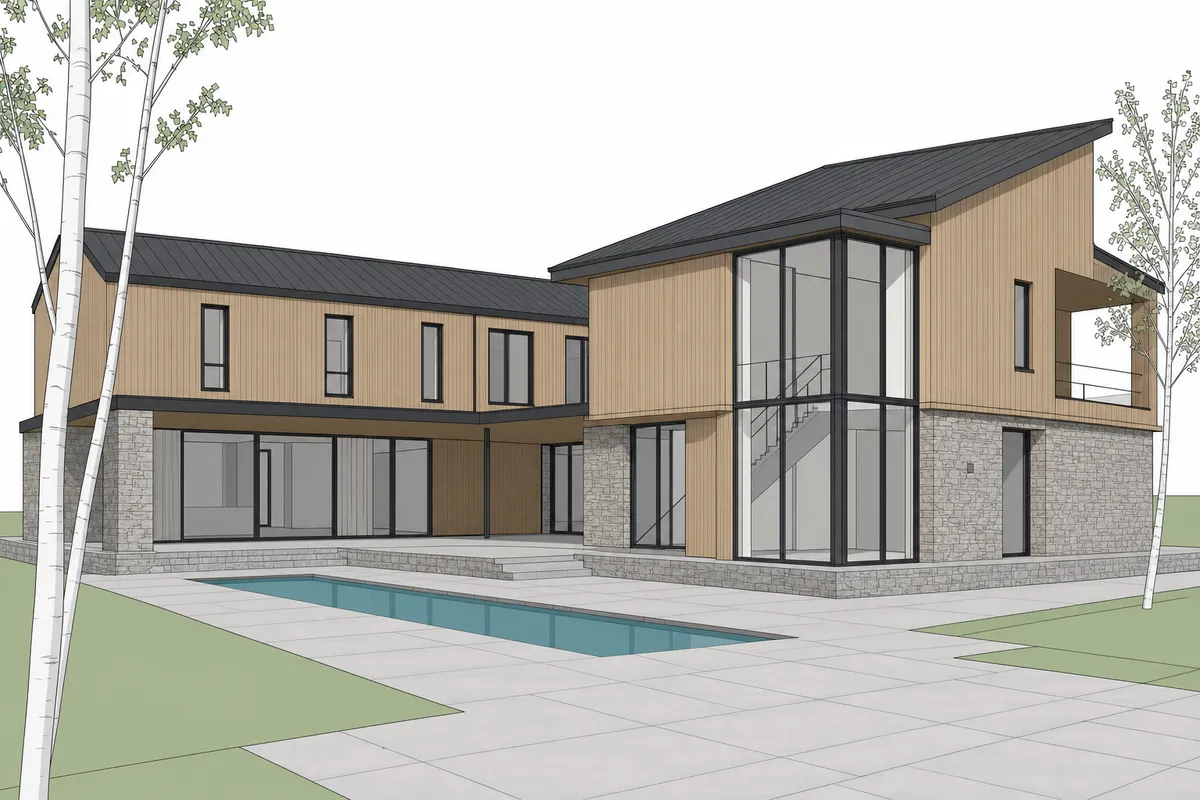
When
The view is ready to discuss
Start with clear massing or a developed view before building a full render setup.
SketchUp views for client review
SketchUp AI rendering turns a clean viewport capture into a client-ready review option. No plugin, model upload, or local GPU is required.
Your first renders are free. No credit card.
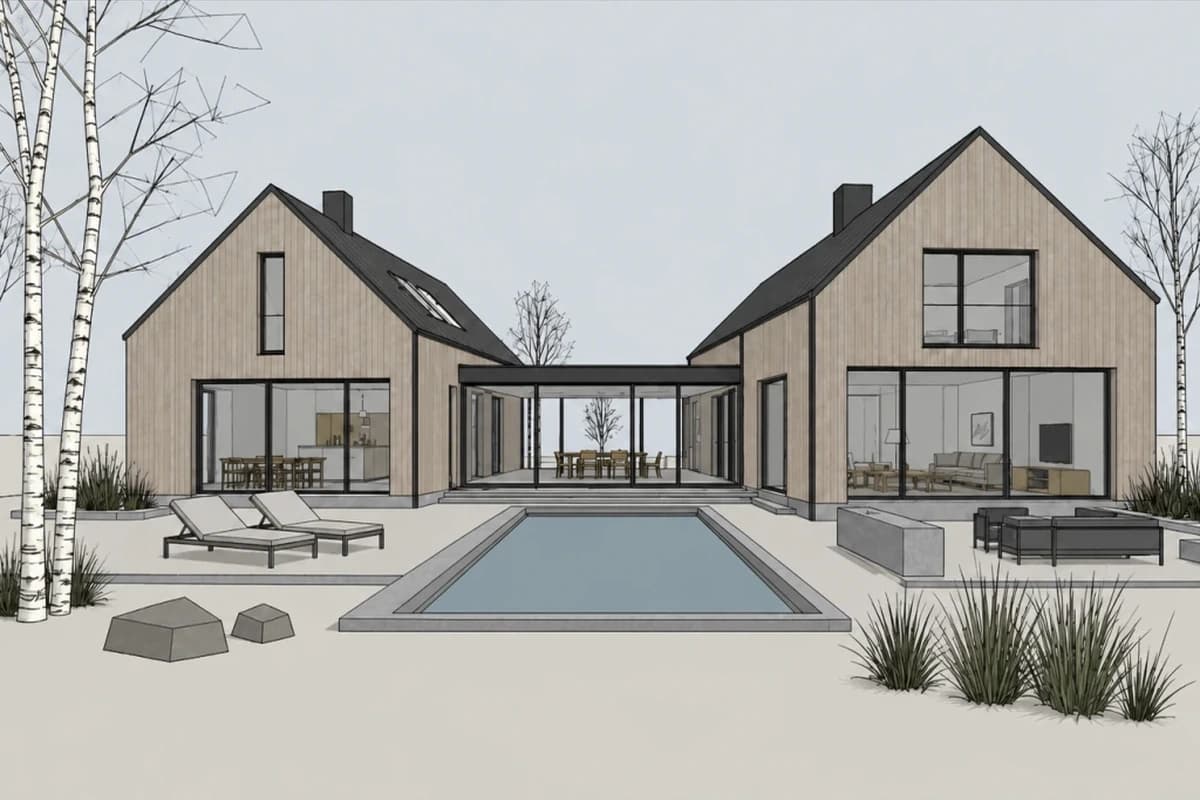 SketchUp view
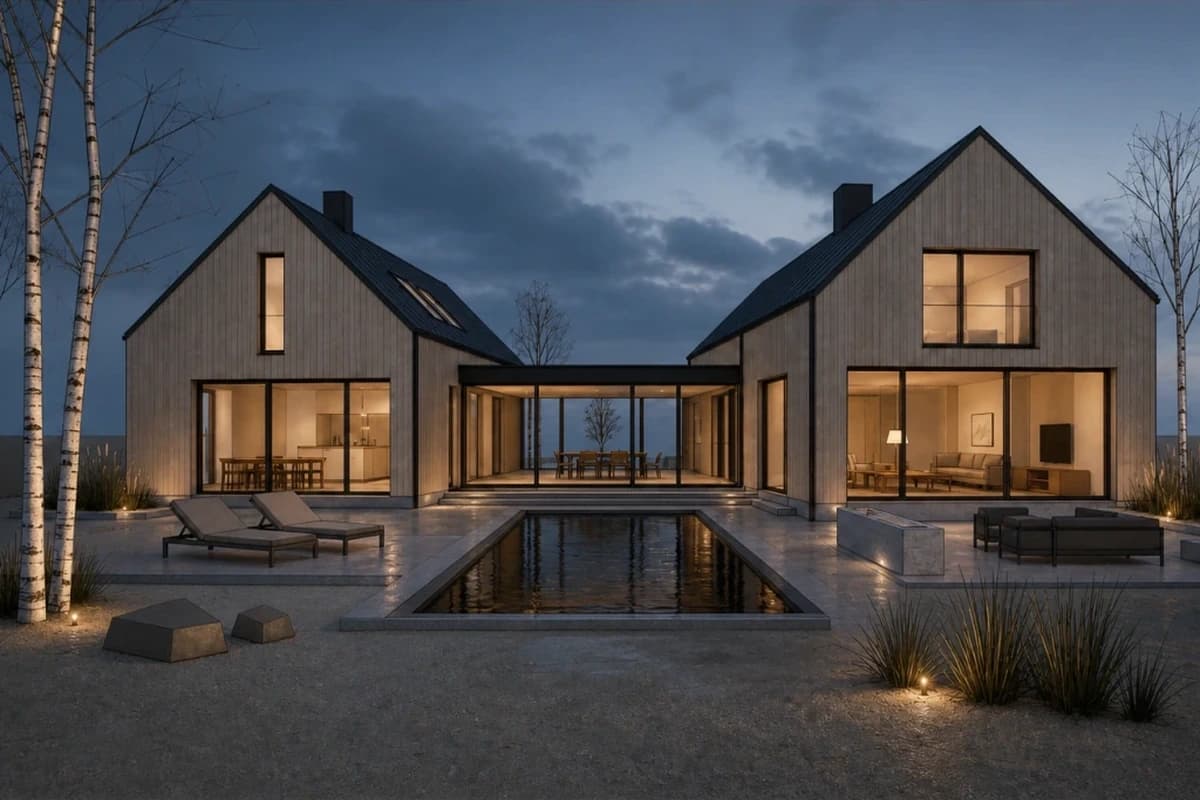 Rendered
Step through the same Nordic courtyard. Start with a clean SketchUp view. Render a direction, then mark one area for revision.
Start free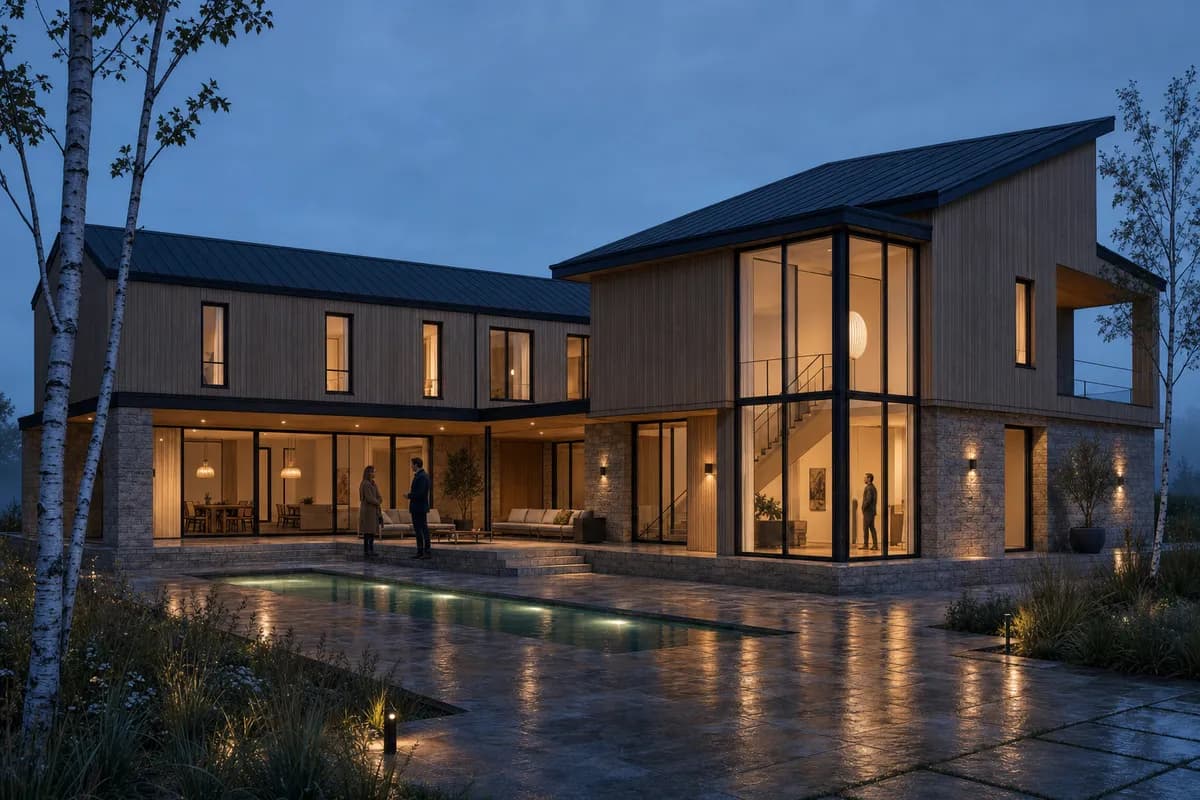
Blue hour, wet stone, warm interiors, restrained planting and entourage.
The same courtyard resolved as a blue-hour client review option.
Keep the chosen SketchUp camera while finish, light, and landscape establish the scene.
Client view · blue-hour study
The design needs a clear image, but not a full simulation.
When
Start with clear massing or a developed view before building a full render setup.
Direct
Name the light, materials, and context needed for the next client decision.
Review
Compare studies, then carry the preferred direction back into the SketchUp model.
Create starts from a prompt. Enhance develops your SketchUp view. Edit revises one marked area. Every study shares one project.
Read the SketchUp workflowCAD Scene produces design-review images, not physically exact simulations. Final delivery requiring verified light, materials, or geometry still needs a render engine.
Your first renders are free. No credit card.
Free
100 credits
No card
Hobby
$12 / month
250 credits
Studio
$35 / month
1000 credits
Clear answers for sketchup ai rendering, before you put a project in.
Yes. Capture a clean viewport image from either version and upload the flat image.
No. CAD Scene runs in the browser and works from the image you provide.
Use it once massing reads clearly or a developed view needs visual direction.
Use a deliberate camera. Hide axes, guides, selections, and clipped geometry.
Use one when final delivery requires verified light, materials, geometry, or precise technical control.
Test a client-ready direction before committing to a full render setup.
Start freeYour first renders are free. No credit card.