
- Published on
D5 Render or AI Rendering: Which Workflow Fits?
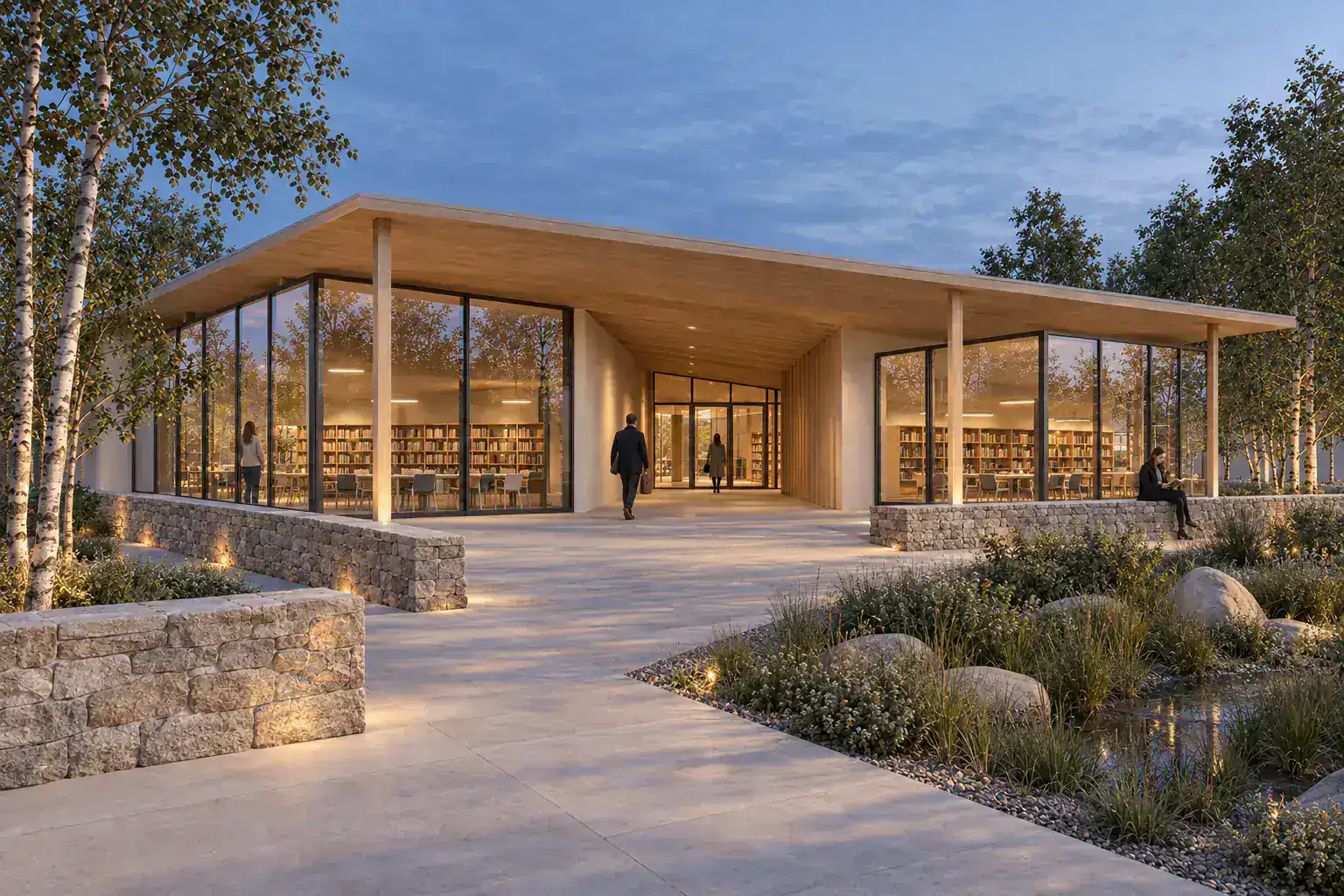
Choose D5 Render when the 3D scene remains the working center. It supports LiveSync, real-time ray tracing, scene editing, animation, tours, and VR.
Choose CAD Scene for separate still-image studies. It fits studios that need one browser Project for views from several modeling tools. Create, Enhance, and Edit share the same Composition and render history.
D5 Render 3.0 also includes its own AI tools. The decision is not real-time rendering versus AI. It is a connected Windows visualization scene versus a portable image workbench. Test both routes on one approved view. Check the camera, visible geometry, correction path, hardware, and required deliverables.
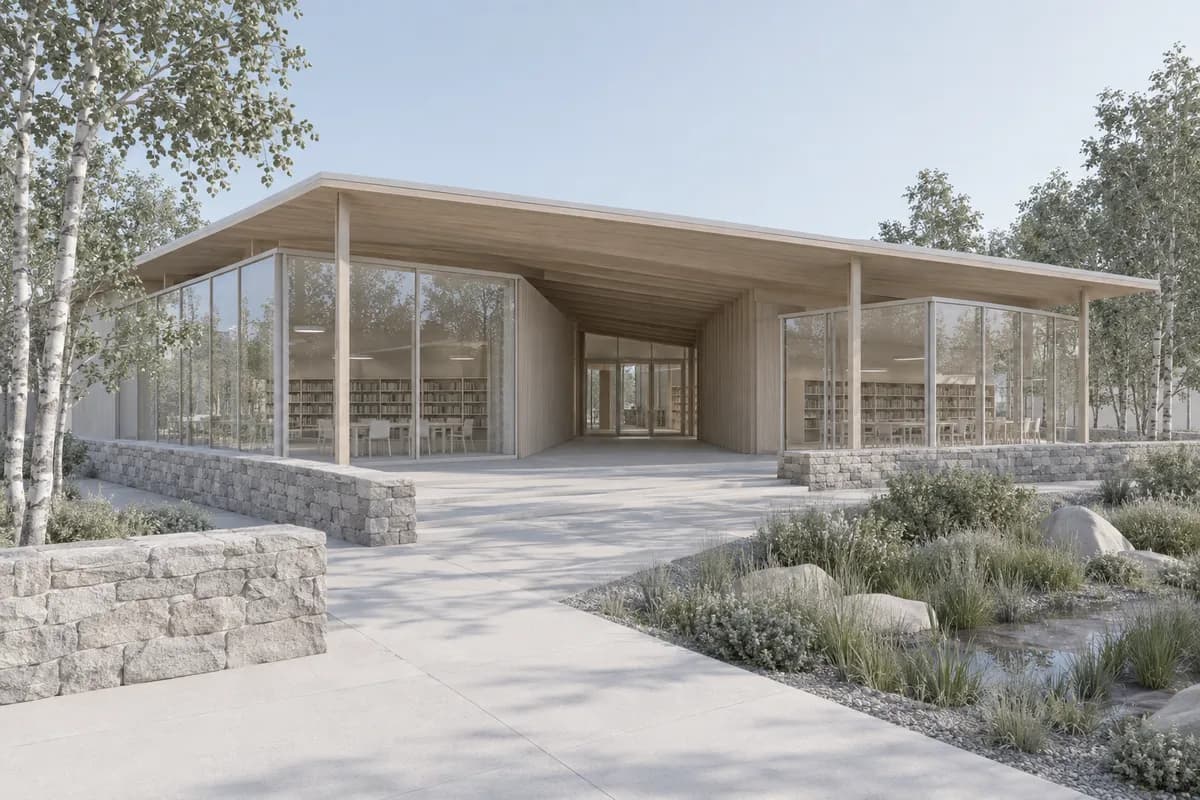 Synthetic source
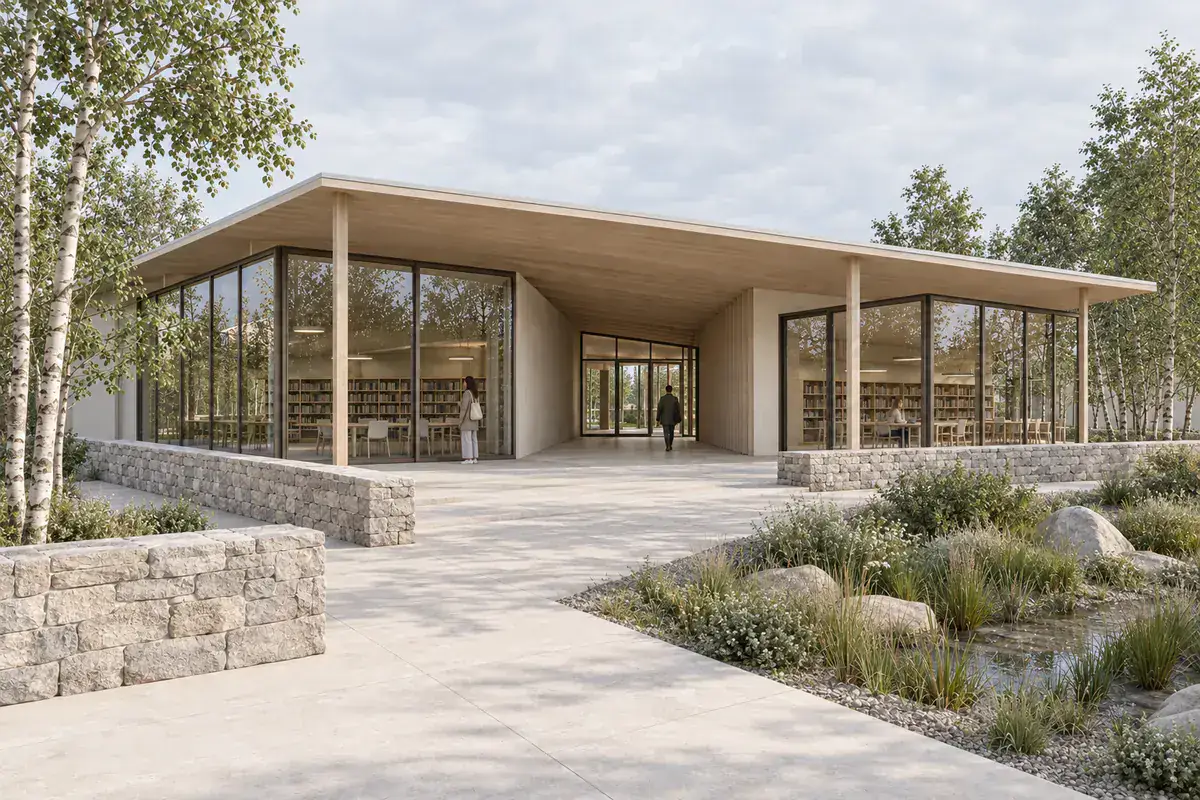 Still study
Should an architect choose D5 Render or CAD Scene?
Choose by the source of truth. D5 Render keeps the model, materials, lights, assets, cameras, and media inside an editable scene. CAD Scene starts from an exported image and creates separate visual studies.
| Decision | CAD Scene | D5 Render |
|---|---|---|
| Source context | Exported image | Imported or synchronized 3D scene |
| Source-tool fit | One image path across tools | Direct import and LiveSync |
| Primary output | Images | Images, panoramas, video, tours, and VR |
| Focused revision | Named masked Edit regions | Scene edits and AI post-processing |
| Local hardware | Browser workbench | Windows DXR system and supported GPU |
| Project continuity | Composition shared across studies | Connected scene, media, and assets |
| Best fit | Mixed-stack still studies | Model-connected visualization and delivery |
This is a workflow decision, not an image-quality ranking. We did not run a controlled cross-vendor benchmark. The latest fixed Search Console export also contains no disclosed D5 query. Current interest is directional, not measured buyer demand.
The broader AI rendering software guide for architects covers other tool and team needs.
What does D5 Render already do well?
D5 Render is a real-time visualization system. Its current feature page lists real-time path tracing, editable PBR materials, weather, assets, phasing, render passes, animation, panoramas, interactive presentations, tours, and VR.
The model connection guide documents direct import for common 3D formats. It also lists LiveSync for 3ds Max, Archicad, Blender, Cinema 4D, Rhino, Revit, SketchUp, and Vectorworks.
That connection matters when the model keeps changing. A revised wall, camera, material, or light can remain part of the scene. D5 can then produce several media types from that controlled state.
Choose D5 when the brief includes:
- a navigable real-time scene;
- coordinated cameras and scene variants;
- placed assets, lights, and PBR materials;
- animation, phasing, panoramas, tours, or VR;
- high-resolution output and render passes;
- direct updates from supported design software.
The AI rendering versus traditional rendering guide explains why scene control gains value as deliverables multiply.
Does D5 Render include AI tools?
Yes. D5 published Render 3.0 on 5 March 2026 with more than 15 built-in AI features. Its current product pages describe AI across scene setup, materials, assets, and post-processing.
AI Scene Match starts from the current scene and camera. A text description can produce a reference direction. D5 then applies related lighting and post-processing settings to the scene.
AI PBR Material Snap samples an uploaded image. D5 uses it to create a usable material and suggest related library assets. Other material tools generate texture maps, improve texture resolution, and remove visible seams.
AI Image to 3D creates an asset from an image. AI Asset Recommendation suggests library models from text or image context. These tools support scene building. They do not turn D5 into a flat-image-only generator.
AI Enhancer works after rendering. D5 says it can refine the whole image or selected regions. Its AI post-processing guide also documents an AI Post Channel for more accurate region selection.
Use these features when the D5 scene remains useful. A separate browser workbench should earn its place through portability or a different review path.
When does CAD Scene fit beside D5 Render?
CAD Scene fits when the deliverable is a set of still options. It can receive one fixed image from D5, SketchUp, Revit, Rhino, Blender, or another source. The source application does not need a CAD Scene plugin.
Enhance starts from one explicit source image. It instructs the image model to preserve camera, framing, geometry, and proportions. That remains a constraint, not a guarantee. Compare every result with the D5 scene.
Create, Enhance, and Edit share one Project context. The Composition stores Style, Scene, Lighting, Materials, and Entourage. Edit can target several named regions on one finished Render.
Choose CAD Scene when:
- several modeling tools need one image handoff;
- the team needs still studies rather than a live scene;
- browser access matters more than local ray-tracing hardware;
- a fixed view needs several visual directions;
- named image regions need focused corrections;
- related studies should share one Project Composition.
The screenshot-to-render method explains what an image can constrain. The public retention review method explains how to inspect it.
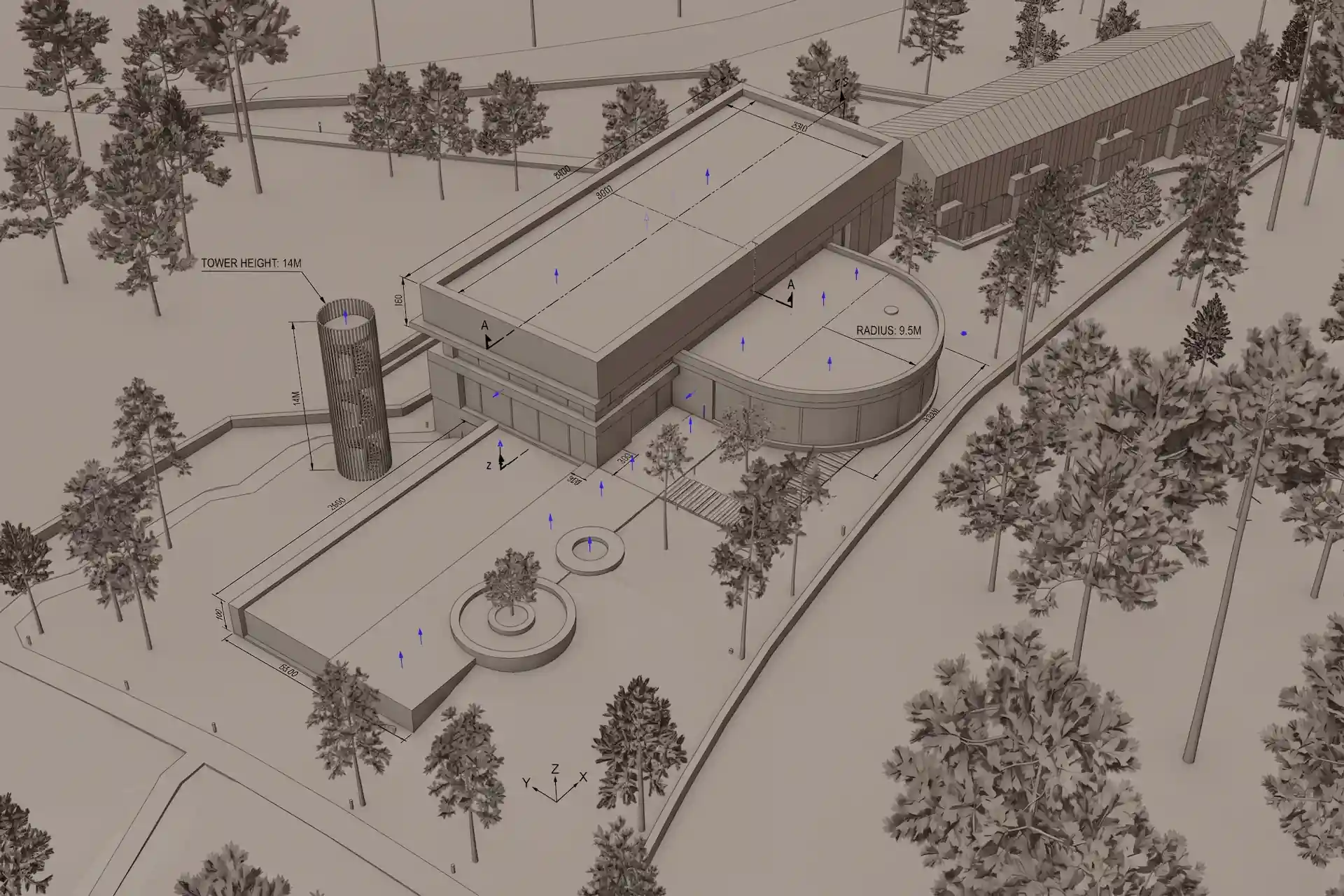
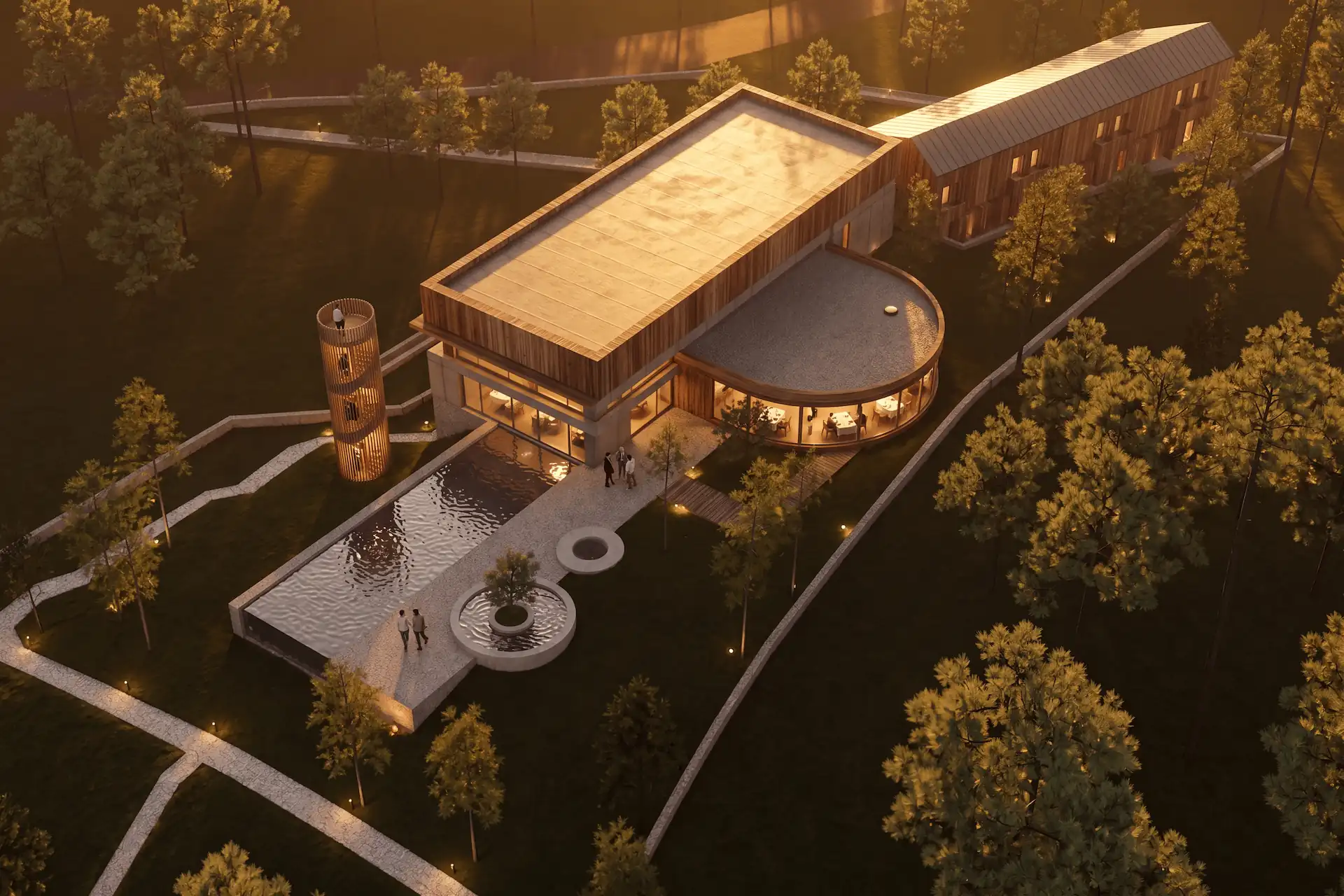
Before / after
Test one fixed D5 view in CAD Scene.
Can D5 Render and CAD Scene work together?
Yes. D5 can remain the model-connected source. CAD Scene can hold a separate still-image study from an approved camera.
Save the source scene
Fix the model state, camera, crop, visibility, materials, and required output.Export a neutral still
Reduce effects that conflict with the new material, light, landscape, or atmosphere brief.Set one bounded direction
Use Enhance for one visual question rather than asking for a redesign.Review beside D5
Check camera, openings, levels, repeated parts, material boundaries, and crop.Return approved facts to the scene
Treat the study as visual direction. Rebuild verified materials, lights, and assets in D5 when needed.
This split keeps responsibilities clear. D5 owns the editable model-connected scene. CAD Scene owns the separate image study. Neither route silently updates the other.
Prompt library · 28 promptsSource-preserving conversionsBrowse prompts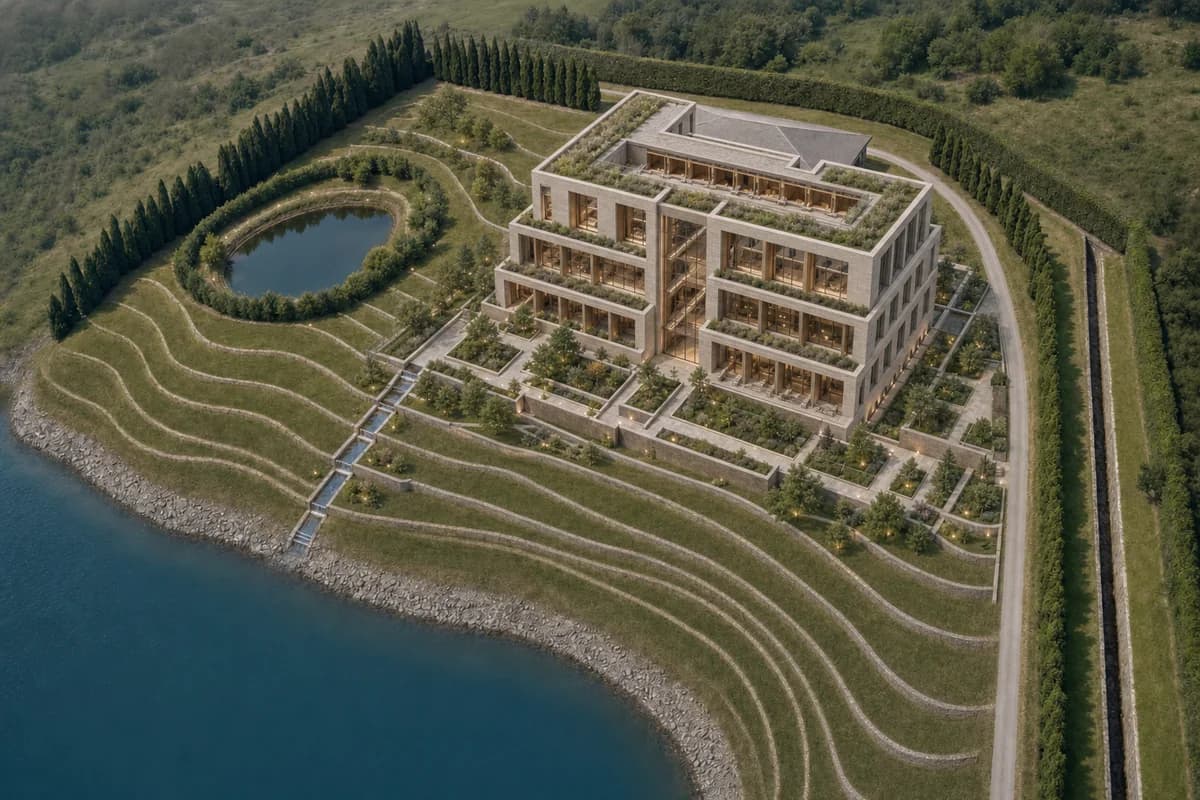
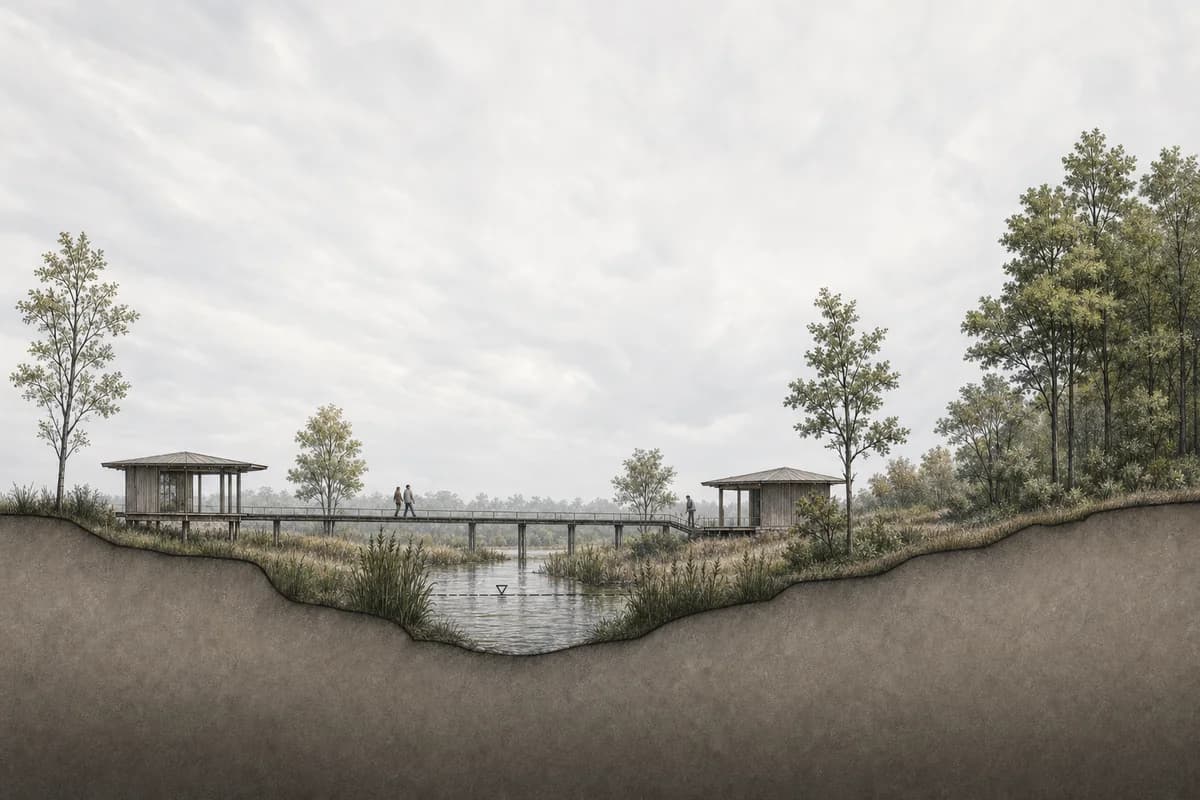
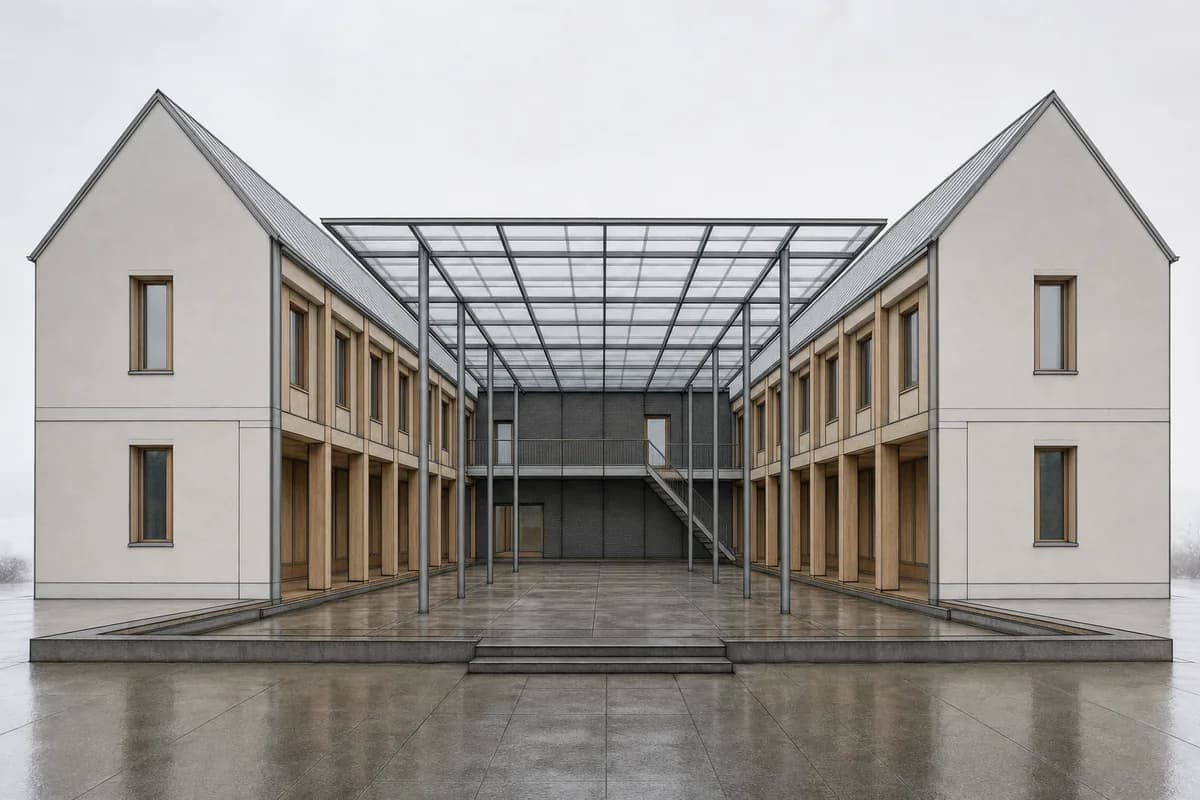
What should you check in a fair workflow test?
Use one camera and one review question. Do not compare a polished vendor sample with an unfinished office model.
First, check source adherence. Compare camera height, perspective, crop, major edges, floor levels, openings, and repeated elements.
Then inspect the requested finish:
- materials should stop at plausible boundaries;
- glazing should remain inside the intended openings;
- planting should not hide design evidence;
- people and vehicles should keep believable scale;
- one focused correction should not restart unrelated work;
- the final file should match the client delivery route.
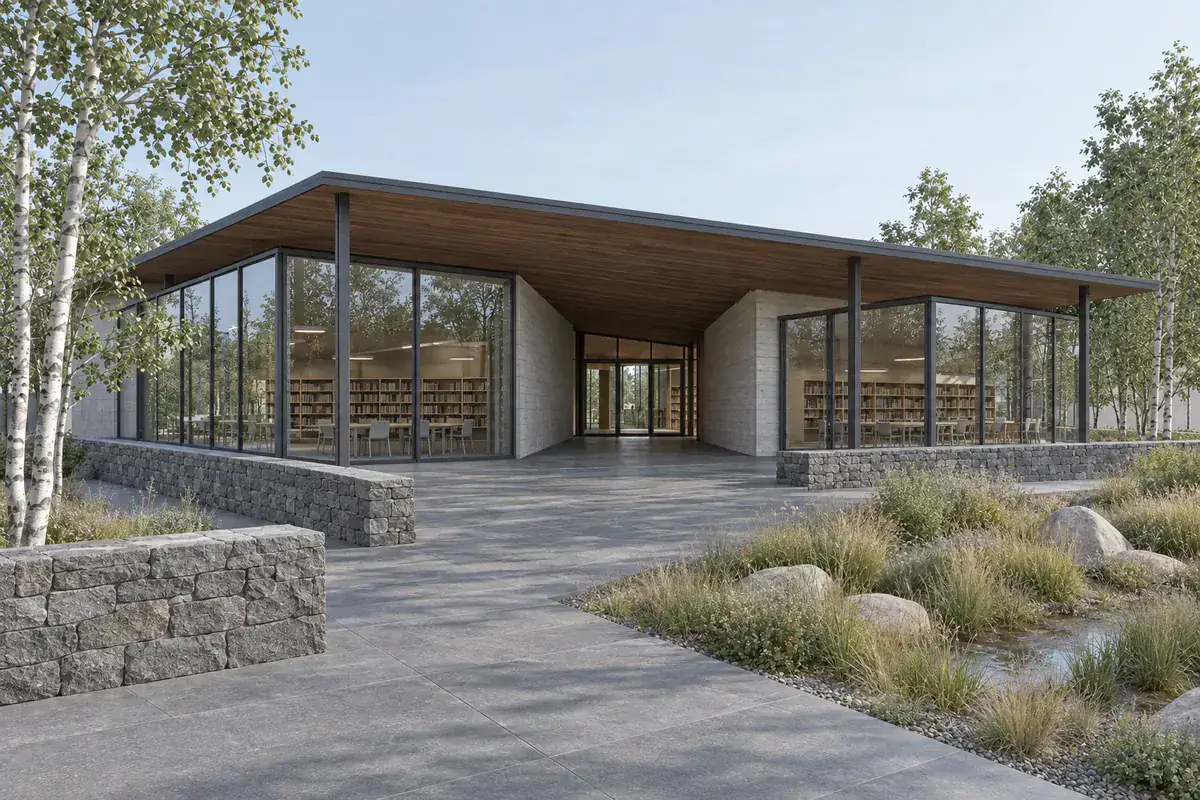
Record the full approval path. Include scene setup, export, generation, local edits, reruns, final size, and review. The shortest path to an accepted image matters more than the first attractive frame.
What hardware and licensing boundaries matter?
D5 Render is a local Windows application built around DXR ray tracing. Its current system requirements list Windows 10 version 1809 or later and supported NVIDIA, AMD, or Intel graphics hardware. D5 also recommends current graphics drivers.
Check the exact workstation before adoption. Complex scenes still depend on GPU memory and local performance. D5 says it does not combine several graphics cards for parallel operation.
D5 Community is for non-commercial learning, personal work, and evaluation. Professional work requires D5 Pro. D5 for Teams adds collaboration, administration, shared resources, and higher team storage. Confirm current terms on the official D5 pricing page.
CAD Scene uses monthly credits. Hobby is $12 a month with 250 credits. Studio is $35 a month with 1,000 credits. Render cost varies by model, Quality, and Resolution. The CAD Scene pricing guide explains the current credit model.
These plans buy different systems. Compare required outputs, host coverage, hardware, seats, AI limits, and commercial terms before comparing price.
When should you choose another route?
Choose D5 Render when a connected visualization scene is the deliverable. Choose CAD Scene when portable still studies across several tools are enough.
Choose Twinmotion for a live scene and interactive delivery when its Unreal-based route fits the studio. Choose Enscape with Veras when direct CAD or BIM context should guide AI options. The Lumion alternative guide covers another model-connected path.
No single product needs to own every stage. A studio can keep model-connected rendering for controlled delivery and use image studies for bounded decisions.
Sources reviewed
- D5 Render features, reviewed 7 October 2026
- D5 Render 3.0 release, dated 5 March 2026, reviewed 7 October 2026
- D5 model connection and LiveSync, reviewed 7 October 2026
- D5 AI post-processing, reviewed 7 October 2026
- D5 Render system requirements, reviewed 7 October 2026
- D5 pricing and license boundaries, reviewed 7 October 2026
- CAD Scene Product, Glossary, Help, pricing code, and retention method, reviewed 7 October 2026
Can CAD Scene replace D5 Render?
Not as a connected real-time visualization scene. CAD Scene fits still-image studies. D5 Render provides scene editing, LiveSync, animation, tours, VR, and model-connected delivery.
Does D5 Render already include AI?
Yes. D5 Render 3.0 includes AI for scene matching, asset recommendation, image-to-3D generation, materials, textures, enhancement, style transfer, and inpainting.
Can I use a D5 Render image in CAD Scene?
Yes. Export one clean fixed view, then use it as the explicit Enhance source. Compare every generated image with the D5 scene before approval.
Which route fits a mixed CAD and 3D stack?
CAD Scene offers one portable image handoff across source tools. D5 Render offers direct imports and LiveSync for supported applications. Choose based on whether the image or the connected scene should remain central.
Table of Contents
- Should an architect choose D5 Render or CAD Scene?
- What does D5 Render already do well?
- Does D5 Render include AI tools?
- When does CAD Scene fit beside D5 Render?
- Can D5 Render and CAD Scene work together?
- What should you check in a fair workflow test?
- What hardware and licensing boundaries matter?
- When should you choose another route?
- Sources reviewed
Authors

- Name
- Vladimir Mindru
Previous Article
Table of Contents
- Should an architect choose D5 Render or CAD Scene?
- What does D5 Render already do well?
- Does D5 Render include AI tools?
- When does CAD Scene fit beside D5 Render?
- Can D5 Render and CAD Scene work together?
- What should you check in a fair workflow test?
- What hardware and licensing boundaries matter?
- When should you choose another route?
- Sources reviewed
Authors
- Name
- Vladimir Mindru