
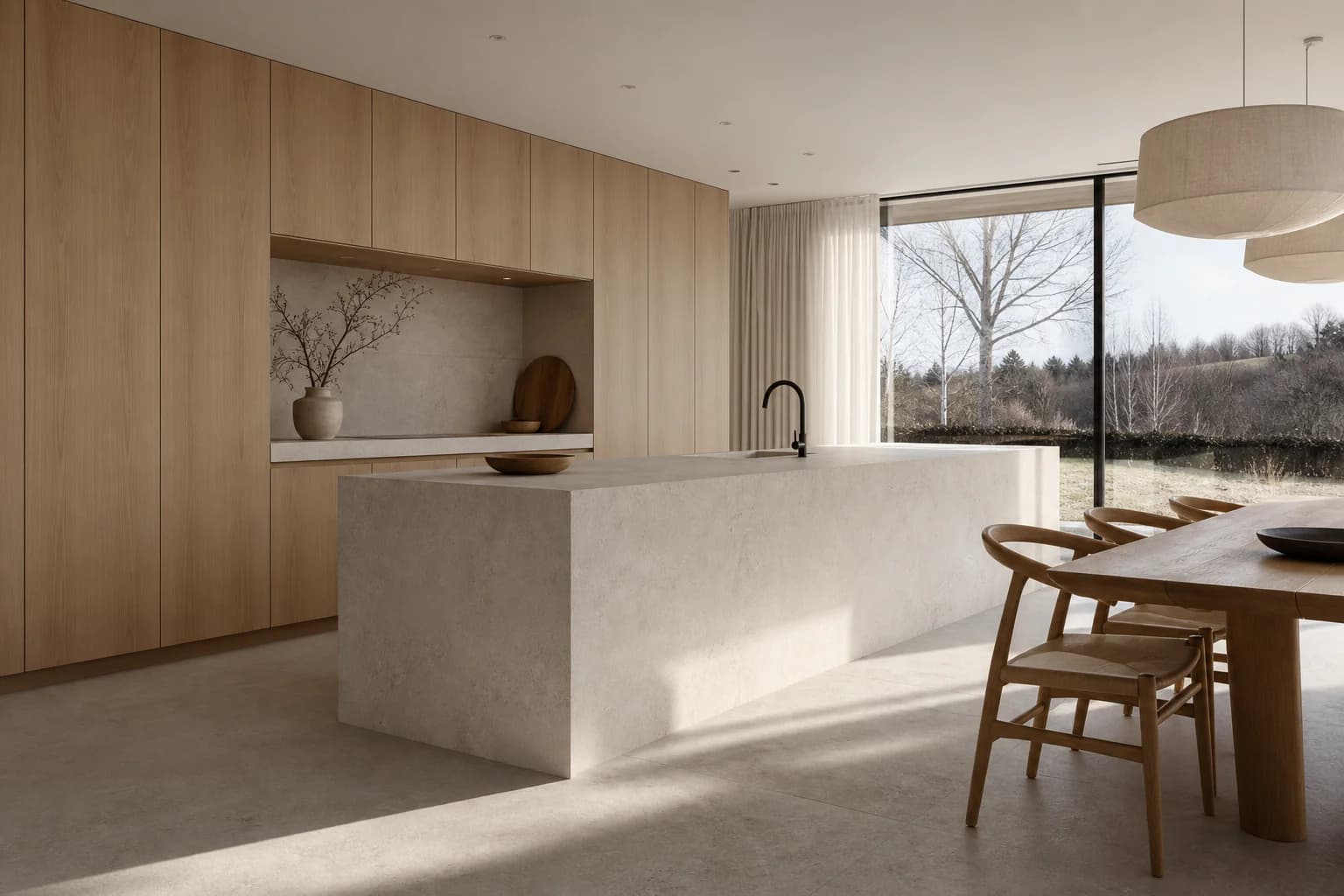
Enhance
Restyle a 3D screenshot while aiming to preserve its camera, framing, geometry, and proportions.
Updated Aug 8, 2026 · 4 min read
Enter a search term.
Enhance turns a 3D screenshot into a finished render. It aims to preserve the source view while applying the project's Composition.
Choose a source image
Enhance requires one explicit source image. The prompt is optional.
Choose the exact source view first. Then add only guidance that changes its finish. Before sending, review the model, available settings, and output count.
- Select Enhance in the Composer.
- Drop an image into Scene to enhance, choose one from CAD Scene, or use the last render.
- Add an optional prompt for changes specific to this send.
- Attach references only when they clarify materials, light, mood, or content.
- Choose the model, supported settings, and output count.
- Confirm the source view.
- Select Send.
- Inputs
- Source image, Composition, and optional prompt or references.
- Aims to preserve
- Instructs the model to preserve camera, framing, proportions, and major geometry.
- Instructs change
- Instructs the model to change materials, light, atmosphere, vegetation, and finish.
The source image is the scene being restyled. It is not the same as a composer reference image. References guide materials, palette, mood, or content.
Before upload and rendering, CAD Scene checks the brief for a hard conflict. It may ask one short question. Your current prompt can override a conflicting Composition field for this render, but it cannot override Enhance camera, geometry, framing, or dimension rules.
A request that appears to belong in Edit opens Review before sending. Select Back to composer to change modes. Select Continue with Enhance to send the original prompt under Enhance preservation rules. CAD Scene never switches modes automatically.
For an actual clarification question, Skip and Send Now sends the original prompt and stores no clarification. It does not bypass the required source image or Enhance preservation rules.
Enhance accepts up to five composer references with every current model. The required source does not count as one of those references.
The Project reference image is also separate. CAD Scene does not insert it into Enhance automatically. Read Image roles and source-image preparation for the three roles.
Prepare your source image
Use the exact camera, angle, and framing you want in the result. Enhance instructs the model to preserve:
- camera position, angle, lens, and perspective;
- overall composition, framing, aspect ratio, scale, and proportions;
- buildings, walls, doors, windows, and major site features.
Enhance is designed to change finish, not design geometry. It instructs the model to change materials, textures, lighting, atmosphere, color, vegetation, sky, and surface qualities.
Source screenshot checklist
Before attaching the image:
- frame the intended final view in your 3D tool;
- keep important geometry visible and unobstructed;
- remove temporary selection marks or guides you do not want interpreted;
- crop an extreme panorama if the model reports an unsupported aspect ratio;
- convert HEIC to JPEG or PNG if your browser cannot decode it.
See the verified comparisons in Prepare Enhance images.
Dimensions and model rounding
Uploads are preprocessed before storage. Images above 2048 pixels on the long edge are reduced proportionally.
Enhance instructs every model to preserve the source composition and aspect ratio. This instruction does not guarantee the original pixel dimensions.
Models with multiple Resolution choices expose supported presets such as 1K, 2K, or 4K. Enhance instructs the model to preserve source proportions, so it does not expose Aspect. GPT image models may also expose provider Quality. Exact controls depend on the selected model.
Resolution sets a target tier, not a promise of the source's exact pixel dimensions. The composition-preservation instruction still applies.
For current quality choices and model behavior, read Models, quality, credits, and daily limits.
Check the result
Compare stable geometry before judging materials. Window positions, roof lines, camera height, and crop should still correspond to the source.
Interactive example
Enhance source-to-render sequence. The surrounding article includes the same guidance in static text.
Static example: Enhance begins with a bare 3D scene. It instructs the model to preserve the camera, framing, and geometry while changing materials, light, and atmosphere.
If the structure drifts, simplify the optional prompt and use a cleaner source. Keep references focused on finish rather than alternate geometry.