
- Published on
Best AI Rendering for Twinmotion Users: Native or Browser?

The best AI rendering tool for a Twinmotion user depends on what must remain editable. Stay in Twinmotion when the live scene, media, phasing, weather, or interactive delivery matters. Choose CAD Scene when one exported Twinmotion view should become a focused still-image study inside a browser Project. Choose D5 Render if you are prepared to move into another real-time scene with broader built-in AI controls. Enscape with Veras fits a model-connected route from a supported CAD or BIM host. Lumion Cloud fits teams already delivering through Lumion. Visualizee fits browser-based image and motion work.
Test two serious candidates on one saved view. Check the camera, openings, materials, correction path, and required delivery format.
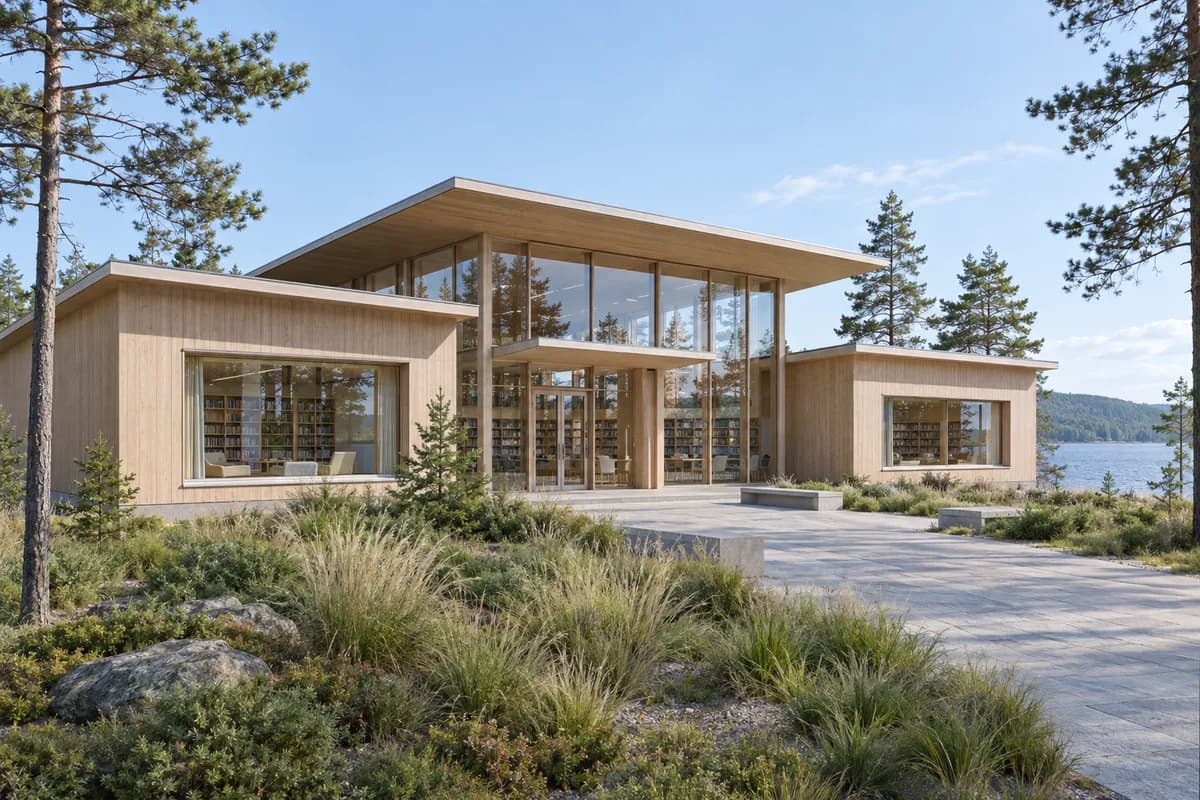 Synthetic source
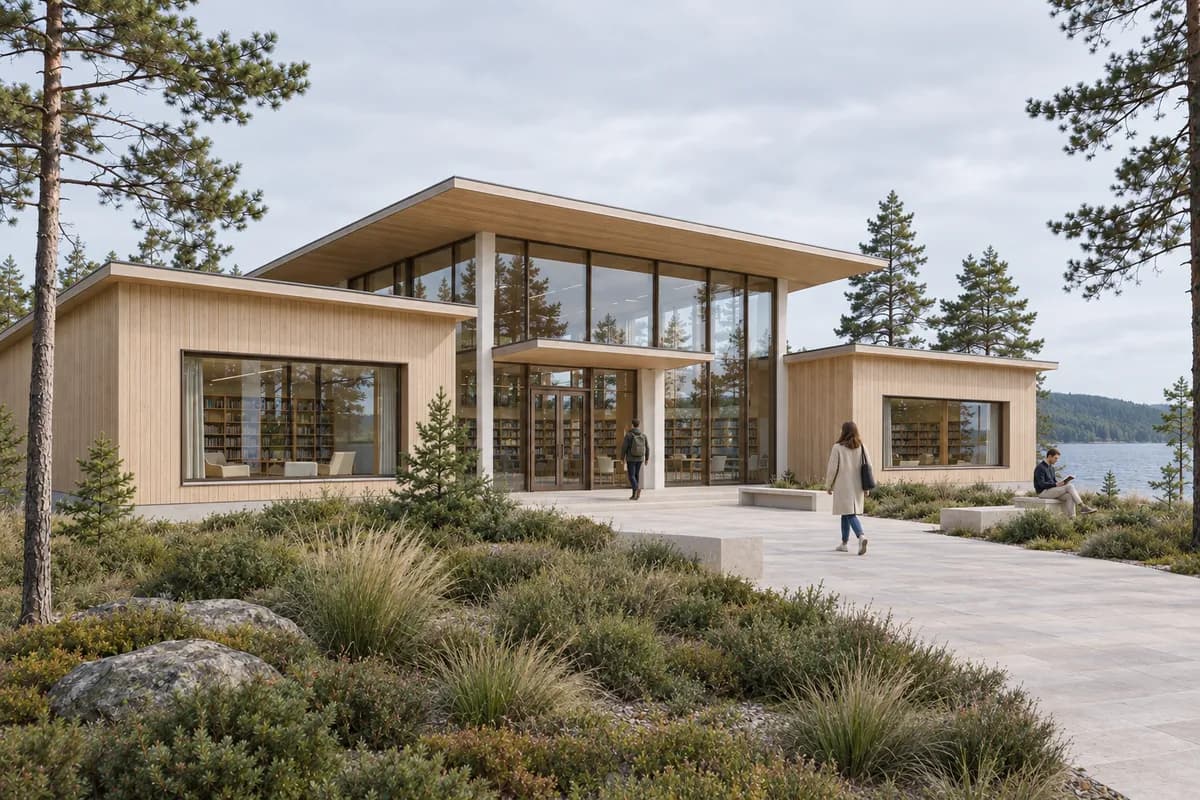 Render study
What is the honest verdict for Twinmotion users?
Start with the deliverable. A live scene needs a scene-based renderer. A fixed image study can use a browser workflow.
| Decision | Best starting route |
|---|---|
| Live scene, phasing, or interactive presentation | Twinmotion |
| Mixed-stack still-image studies | CAD Scene |
| Another real-time scene with broad AI tools | D5 Render |
| Generative options inside a supported CAD or BIM host | Enscape with Veras |
| AI refinement inside a Lumion review path | Lumion Cloud |
| Browser image work with optional motion | Visualizee |
Twinmotion remains the correct answer for many Twinmotion users. Switching tools creates work. A second tool must solve a specific gap.
The practical Twinmotion or AI rendering decision covers one live-scene versus still-image handoff. This guide answers a wider buying question. It compares six routes around that handoff.
How was this Twinmotion shortlist researched?
This review uses official product, documentation, release, and license pages accessed on 2 October 2026. It checks source context, scene control, AI scope, correction work, and delivery.
This is a desk review. We did not run private competitor accounts. Vendor claims about fidelity, speed, and preservation remain vendor claims. Unknown behavior stays unknown. Your own project is the acceptance test.
The latest fixed Search Console window recorded demand for the existing Twinmotion guide. That signal justified a distinct buyer page. It does not prove any tool produces the best image.
What should an AI rendering tool do after Twinmotion?
A useful companion should add something Twinmotion does not already provide. It should also preserve the reason you framed the scene there.
Check seven things:
- Source handoff. Does the tool read an image or a connected model?
- Camera behavior. Does it retain framing, horizon, and perspective?
- Visible geometry. Do roof lines, openings, and repeated parts hold?
- Correction path. Can one issue change without restarting the image?
- Project continuity. Can later studies reuse the visual direction?
- Delivery. Does the job need images, video, VR, or presentations?
- Commercial fit. Do license, hardware, and credit rules suit the studio?
The attractive first output is only one checkpoint. The correction path usually decides whether a tool survives real project work.
Which AI rendering tools fit Twinmotion workflows?
Each route below solves a different handoff. CAD Scene comes first because this is its site. Competing fits remain explicit.
CAD Scene for mixed-stack still studies
CAD Scene starts from an exported Twinmotion image in Enhance. The source constrains camera, framing, visible geometry, and proportions. Generated output can still drift. Compare every result with the saved Twinmotion media view.
Create, Enhance, and Edit share one Project. The Composition also stays at Project level. Its Style, Scene, Lighting, Materials, and Entourage fields apply across every study. Named Edit regions support focused corrections.
Choose CAD Scene when Twinmotion is one source among Revit, SketchUp, Rhino, Blender, Archicad, Vectorworks, or another tool. The image handoff stays the same. CAD Scene does not read the Twinmotion scene and cannot update it.
The screenshot-to-render method explains what an image can constrain. The capture guide explains how to remove overlays and conflicting effects before upload.
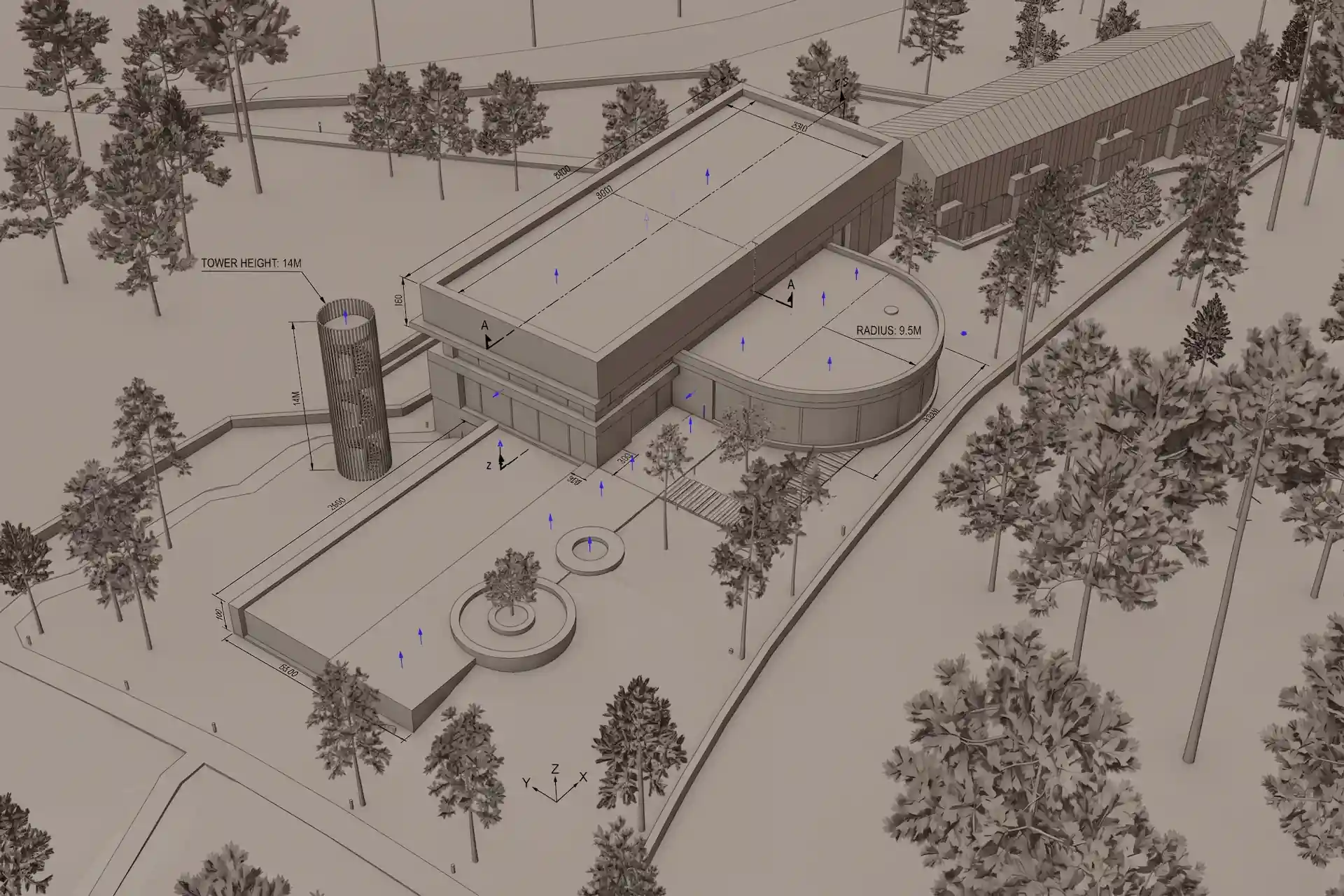
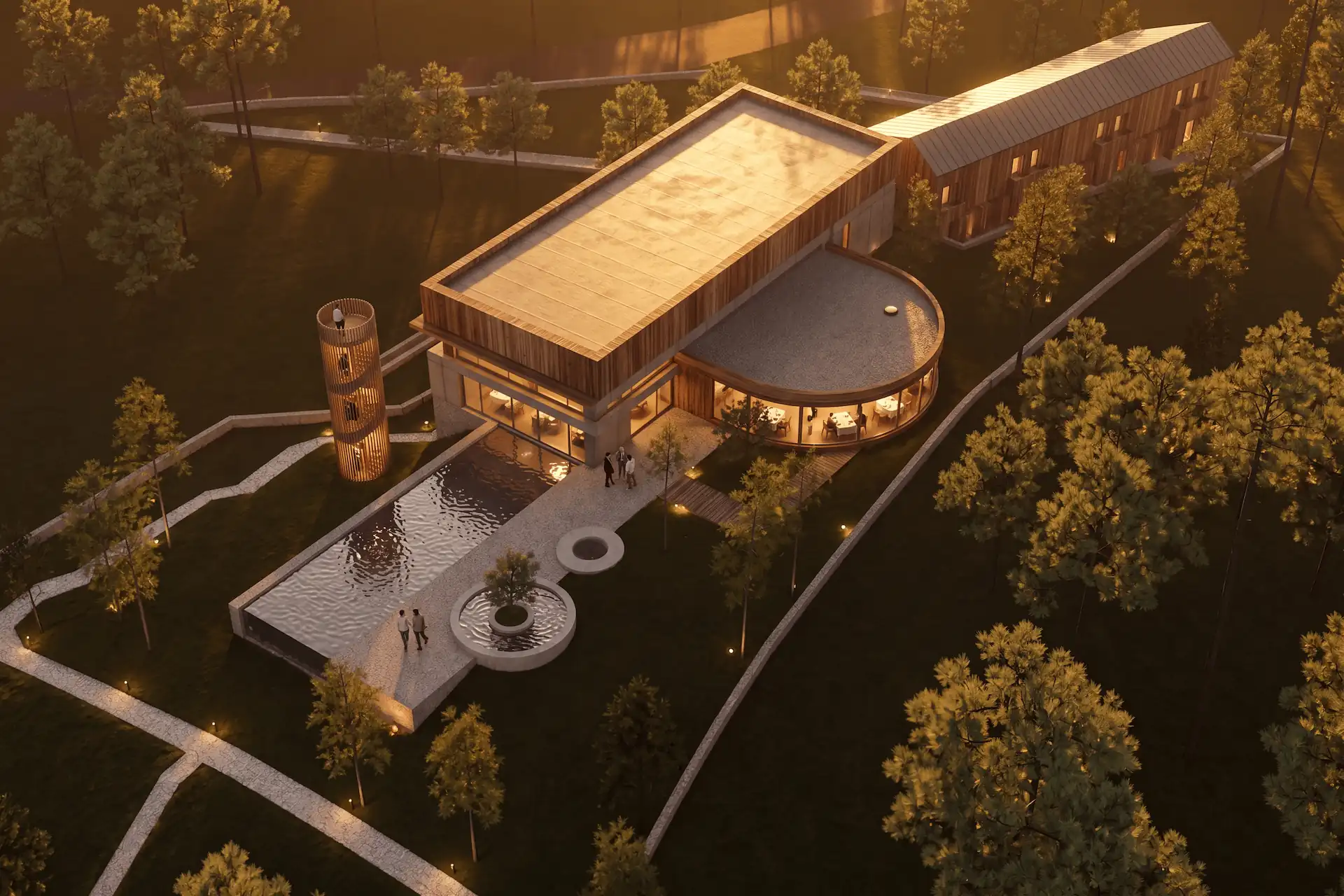
Before / after
Test one Twinmotion view in CAD Scene.
Twinmotion for the live scene
Twinmotion is the strongest choice when the scene remains the working center. Its current workflow covers images, panoramas, video, VR media, presentations, View sets, weather, and phasing.
Twinmotion 2026.1 added Photo Matching and Match Perspective. These tools align a camera with a background image and place the 3D model into that context. Twinmotion also supports NVIDIA DLSS 4 on compatible hardware. DLSS uses neural rendering to improve performance and image quality.
Neither feature is a prompt-based image editor. Stay in Twinmotion when object control, motion, media, or interactive delivery matters more than generative still options.
D5 Render for an AI-rich real-time scene
D5 Render is another scene-based route. Its official feature page lists LiveSync for SketchUp, 3ds Max, Rhino, Revit, Archicad, Blender, and Vectorworks. It also lists a Cinema 4D sync path.
Its AI set includes Scene Match, material creation, texture maps, atmosphere matching, enhancement, style transfer, and inpainting. The tools sit around a real-time renderer with images, video, panoramas, VR, and presentations.
Choose D5 when those AI controls should remain close to an editable real-time scene. This is a workflow change, not a Twinmotion plug-in. Test model import, materials, camera transfer, team setup, and hardware before switching.
Enscape with Veras for host-model context
Chaos includes Veras with current Enscape plans. Veras is also included with current V-Ray and Corona plans. The generative route begins inside supported CAD, BIM, or rendering software rather than inside Twinmotion.
Choose Enscape with Veras when the active Revit, SketchUp, Rhino, Archicad, or Vectorworks model should remain the center. Direct host context can remove a manual image handoff. It does not make Twinmotion media or scene settings portable.
The Enscape and AI workflow decision covers live model context, still studies, outputs, and current plan boundaries.
Lumion Cloud for a connected review path
Lumion Cloud now includes an AI Enhancer. It can refine mood, style, atmosphere, and light from an existing image. Guided controls and an expert prompt route support different levels of direction.
The same Cloud workspace handles versions, comments, approvals, images, video, panoramas, and PDFs. Direct uploads come from current Lumion View and Lumion Pro workflows.
Choose Lumion Cloud when the studio already uses Lumion and wants AI refinement inside its review record. It is not a Twinmotion scene extension. The Lumion and AI concept-render guide explains that connected workflow.
Visualizee for browser images and motion
Visualizee accepts a sketch, 3D screenshot, or photo. Its Render workflow uses the uploaded image as the source for materials, light, and realism changes. Studio supports marked-region edits.
Visualizee also supports motion from a finished image. Choose it when the work needs browser-based stills and short generated clips in one service. Its published preservation statements remain vendor claims. Check the output against the Twinmotion view.
The source-backed CAD Scene and Visualizee comparison covers projects, editing, motion, models, and current commercial terms.
Is a browser tool better than staying in Twinmotion?
Neither route is always better. The source and final deliverable decide.
| Decision point | Browser image workflow | Twinmotion scene |
|---|---|---|
| Source handoff | Exported image | Editable scene |
| Works across source tools | ||
| Object-level scene control | ||
| Prompt-led still options | ||
| Video, phasing, and VR | Product-dependent | |
| Return changes to Twinmotion |
A browser handoff fits when the camera is approved and the next decision is visual. Stay in Twinmotion when the design change should remain editable.
How should you prepare a Twinmotion image for an AI test?
Use one saved media view. Remove anything the next tool should not inherit.
Lock the media view
Save the required camera, crop, focal length, and output ratio in Twinmotion.Remove conflicting effects
Reduce unwanted people, weather, depth of field, filters, and temporary objects.Export one clean frame
Use enough resolution to inspect openings, edges, materials, and entourage.Write one bounded brief
Name the material, light, landscape, and atmosphere changes without rewriting the building.Review against the scene
Check camera, levels, openings, roof lines, material boundaries, crop, and artifacts.
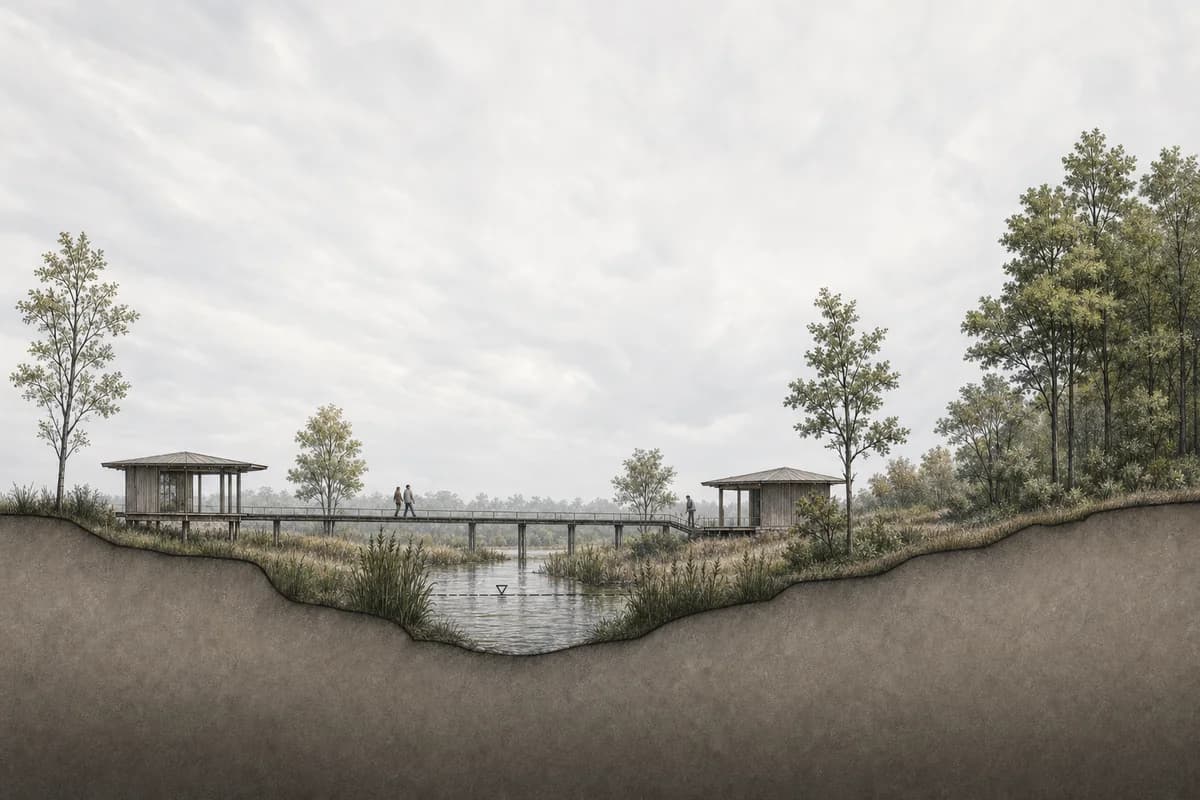
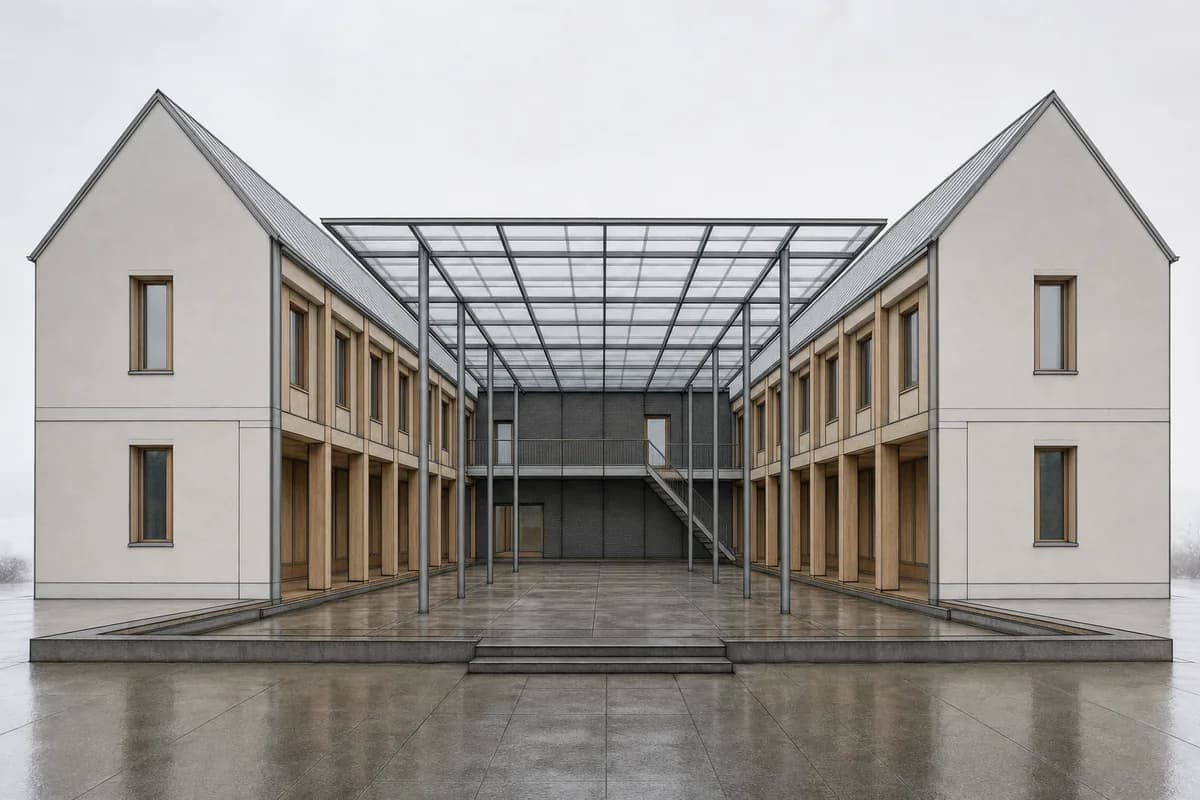
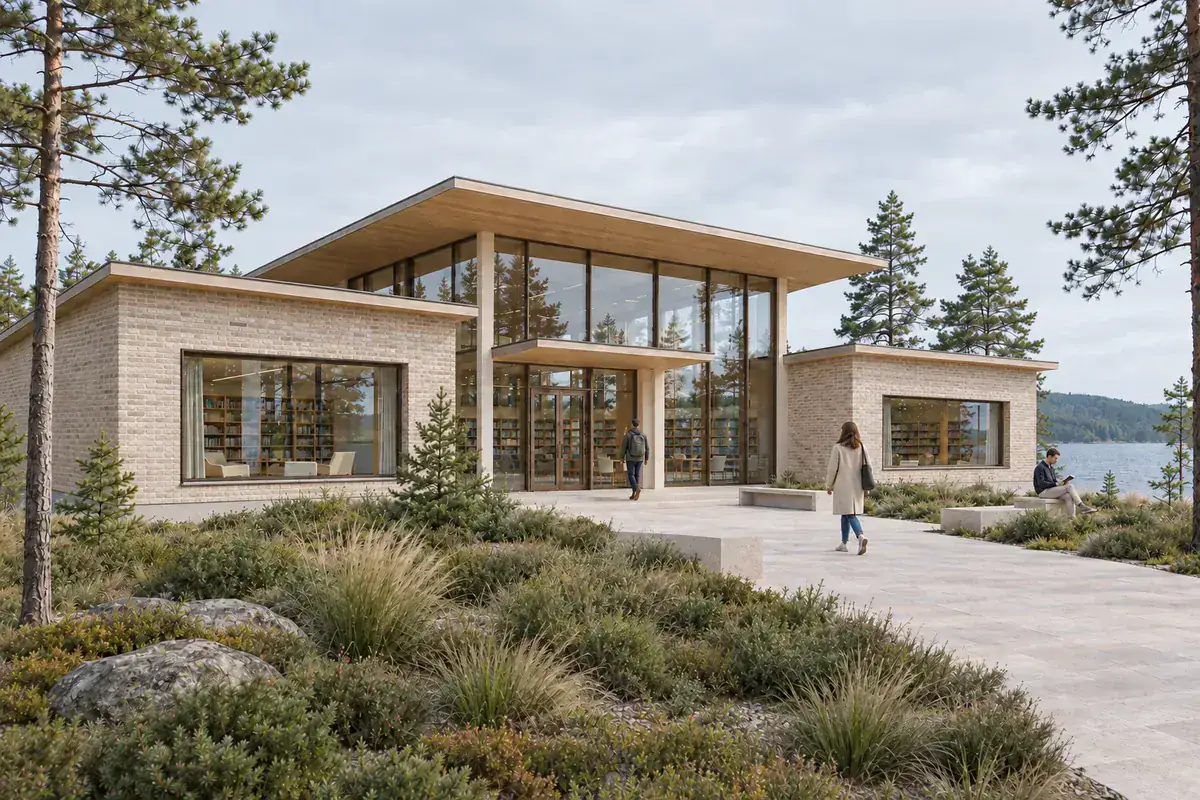
The architecture prompt library can supply a starting direction. Keep the preservation checks from the source view.
Prompt library · 28 promptsSource-preserving conversionsBrowse prompts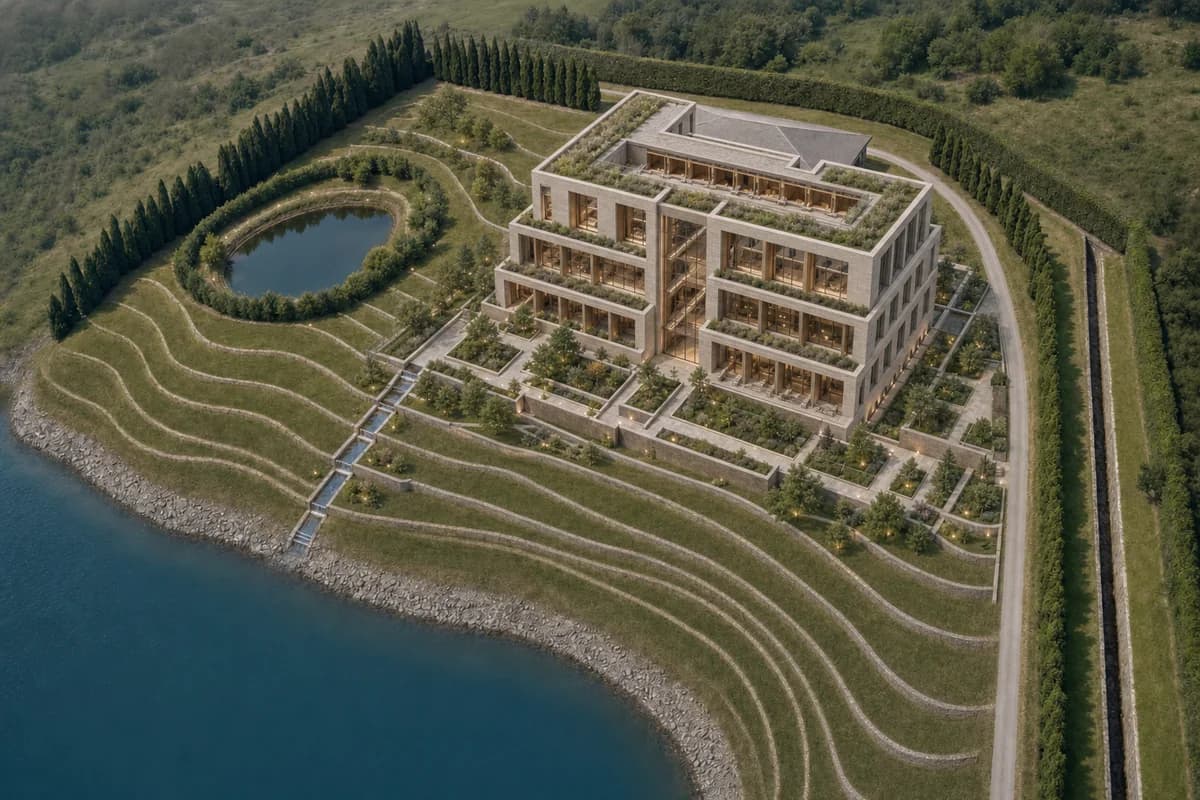
What does a fair tool test look like?
Run the same task through two candidates. Do not compare unrelated gallery images or different project views.
Use one Twinmotion frame and one short brief. Request one material change after the first output. Export at the size needed for review. Record every setup, generation, correction, and delivery step.
Check these outcomes:
- camera height, crop, and perspective;
- roof edges, window rhythm, and openings;
- material boundaries and glazing;
- people, trees, and repeated details;
- the work needed to correct one local issue;
- the final image, motion, or presentation format;
- the real license, credit, and hardware path.
The public retention method gives camera, framing, perspective, and geometry review criteria. It does not publish a cross-tool winner.
How do current license paths differ?
Twinmotion is free for eligible users and organizations below its published revenue threshold. A paid seat is required above that threshold or when Twinmotion Cloud access is needed. The official license page listed $445 per seat per year on 2 October 2026.
CAD Scene uses monthly credits. Hobby is $12 a month with 250 credits. Studio is $35 a month with 1,000 credits. Render cost varies by model and native settings. See the current AI rendering credits and pricing guide.
Other tools use different subscriptions, credits, hardware requirements, and commercial terms. Compare the complete path for your studio. A lower listed price is not better when the accepted deliverable needs another product.
Which route should a small architecture studio choose?
Choose the route that keeps the important project data closest to the work.
- Choose Twinmotion for an editable real-time scene and interactive media.
- Choose CAD Scene for mixed-stack still studies from exported views.
- Choose D5 Render for another real-time scene with broad AI controls.
- Choose Enscape with Veras for AI inside a supported model host.
- Choose Lumion Cloud for AI refinement inside a Lumion review workflow.
- Choose Visualizee for browser stills and optional generated motion.
For a wider category view, use the best AI rendering software guide for architects. The comparison hub covers source-backed specialist decisions.
Does Twinmotion have AI rendering?
Twinmotion supports AI-assisted neural rendering through NVIDIA DLSS 4. Its reviewed 2026.1 documentation does not describe prompt-based image generation inside Twinmotion.
Can CAD Scene edit a Twinmotion image?
Yes. Export a clean media image and use it as the Enhance source. CAD Scene reads the image, not the Twinmotion scene.
Will an AI image tool update my Twinmotion project?
No. A browser image tool outputs a new image. It does not change Twinmotion objects, materials, media, weather, or phasing.
Should I choose D5 Render instead of Twinmotion?
Choose D5 when its real-time scene, AI controls, and source-tool sync fit the studio better. Test import, cameras, materials, hardware, and delivery before switching.
How should I compare two Twinmotion AI workflows?
Use one saved view, one brief, one local correction, and one delivery size. Compare the result with the source and record every required step.
Sources reviewed
- Twinmotion 2026.1 Photo Matching and Match Perspective, reviewed 2 October 2026
- Twinmotion DLSS 4 support, reviewed 2 October 2026
- Twinmotion licensing and pricing, reviewed 2 October 2026
- D5 Render real-time, AI, output, and sync features, reviewed 2 October 2026
- Chaos products that include Veras, reviewed 2 October 2026
- Lumion Cloud AI and review workflow, reviewed 2 October 2026
- Visualizee Render workflow, reviewed 2 October 2026
- CAD Scene Product, Glossary, pricing code, and Help, reviewed 2 October 2026
Table of Contents
- What is the honest verdict for Twinmotion users?
- How was this Twinmotion shortlist researched?
- What should an AI rendering tool do after Twinmotion?
- Which AI rendering tools fit Twinmotion workflows?
- Is a browser tool better than staying in Twinmotion?
- How should you prepare a Twinmotion image for an AI test?
- What does a fair tool test look like?
- How do current license paths differ?
- Which route should a small architecture studio choose?
- Sources reviewed
Authors

- Name
- Vladimir Mindru
Table of Contents
- What is the honest verdict for Twinmotion users?
- How was this Twinmotion shortlist researched?
- What should an AI rendering tool do after Twinmotion?
- Which AI rendering tools fit Twinmotion workflows?
- Is a browser tool better than staying in Twinmotion?
- How should you prepare a Twinmotion image for an AI test?
- What does a fair tool test look like?
- How do current license paths differ?
- Which route should a small architecture studio choose?
- Sources reviewed
Authors
- Name
- Vladimir Mindru