
- Updated on
Best AI Rendering for SketchUp: Plugin or Browser?

The best AI rendering tool for SketchUp depends on the handoff you want. Choose CAD Scene for a browser workbench that also accepts views from other modeling tools. Choose SketchUp's built-in AI Render for quick ideas inside the model on a paid SketchUp plan. Choose Chaos Veras when direct SketchUp model context matters. Choose VizBase for an in-viewport path centered on material changes. Visualizee and mnml.ai suit broader browser workflows. MyArchitectAI offers a lower-setup image route, but its SketchUp plugin remains in development.
Do not choose from a vendor gallery alone. Save one SketchUp Scene. Test the same view, brief, edit, and delivery size in two serious candidates. Check the camera, openings, materials, and total path to an accepted image.
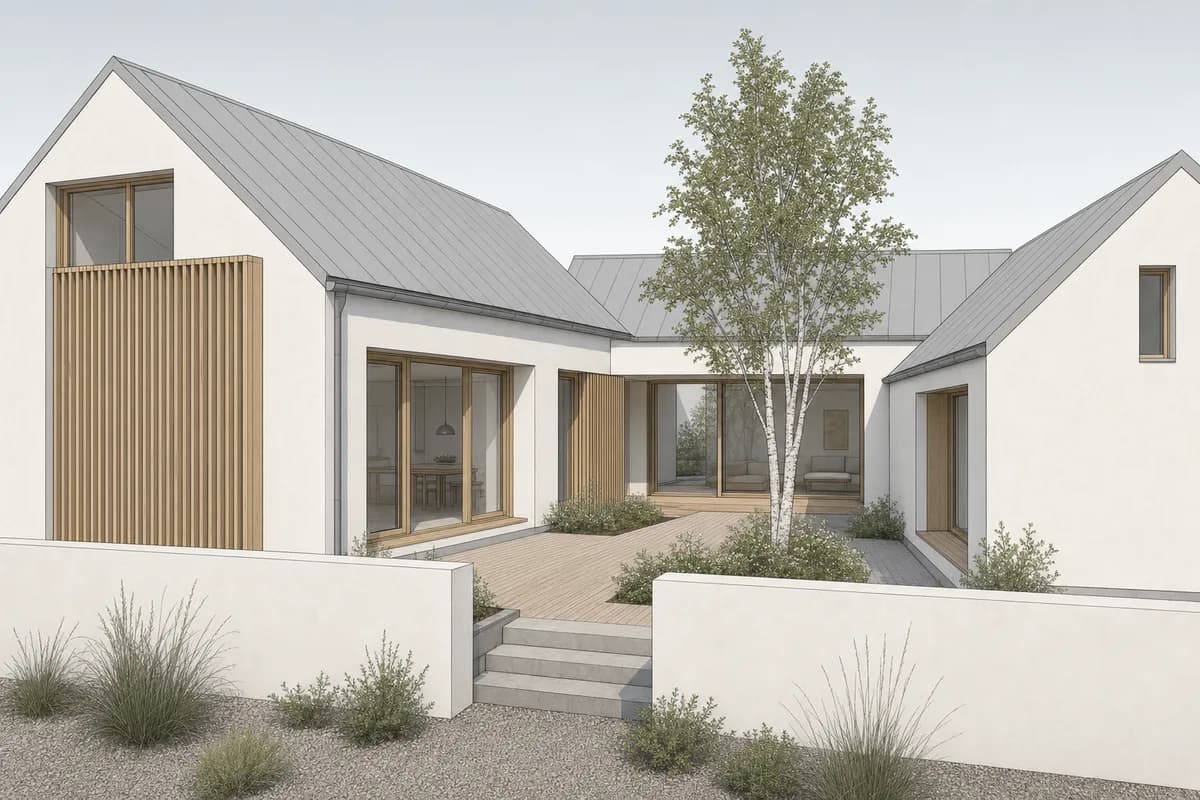 Synthetic source
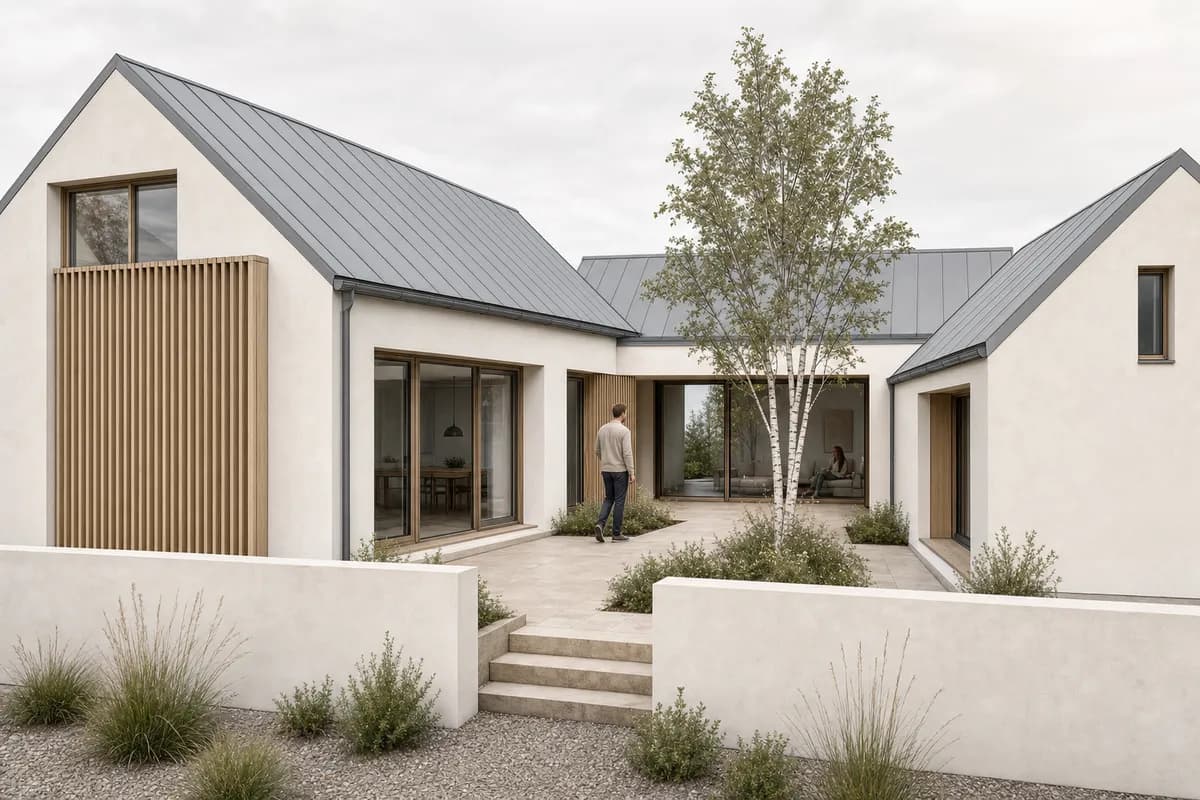 Render study
What is the honest verdict for SketchUp users?
Start with source context. A plugin can read more from SketchUp. A browser workflow can accept one portable image from many tools.
| Decision | Best starting route |
|---|---|
| One mixed modeling stack | CAD Scene browser workbench |
| Quick ideas inside SketchUp | SketchUp AI Render, built in |
| Direct SketchUp model context | Chaos Veras plugin |
| Element-led material options | VizBase SketchUp plugin |
| Image and motion in one project | Visualizee browser workspace |
| Broad visualization toolset | mnml.ai browser suite |
| Low-setup still-image iteration | MyArchitectAI browser workflow |
This is a focused shortlist. It is not a complete market directory. Each listed route has current public documentation and a distinct SketchUp decision. The broader AI rendering software guide for architects covers other team and delivery needs. If you have not chosen a category yet, start with the AI rendering buyer framework.
How was this SketchUp shortlist researched?
The first review ran on 9 September 2026. The current review uses official pages accessed on 11 October 2026. It adds SketchUp's own AI Render and rechecks every vendor source. It checks SketchUp input, plugin status, edit controls, project continuity, and output scope. It also checks CAD Scene against current product code and documentation.
This is a desk review. We did not run private competitor accounts. Vendor statements about fidelity, speed, and source preservation remain vendor claims. Your own model is the acceptance test. Unknown behavior stays unknown.
The page serves a different task from the practical guide to rendering a SketchUp screenshot with AI. That guide covers Scenes, cleanup, export, Enhance, and review. This page helps you choose the tool around those steps.
What should a SketchUp AI rendering tool do well?
A useful tool should respect the view before adding atmosphere. It should also support the correction work that follows.
Check six things:
- Source path. Can it use a clean image, direct model context, or both?
- Camera behavior. Does the output keep the intended framing and horizon?
- Visible geometry. Do openings, roof lines, and repeated elements hold?
- Material control. Can you name finishes without losing their boundaries?
- Edit control. Can one local issue change without a full restart?
- Project continuity. Can later views reuse the same visual direction?
A longer feature list does not repair a moved window. Judge the accepted image and the steps required to reach it.
Which AI rendering tools fit SketchUp workflows?
The strongest options solve different handoffs. The order below starts with a portable browser workbench and the tool SketchUp already includes. It then moves toward plugin and broader routes.
CAD Scene for mixed-stack browser studies
CAD Scene starts from an exported SketchUp view in Enhance. The source image sets the camera, framing, visible geometry, and proportions as constraints. Generated output can still drift. Compare it with the saved SketchUp Scene.
Create, Enhance, and Edit share one Project. The Composition also stays at Project level. Its Style, Scene, Lighting, Materials, and Entourage fields apply across every study. Named Edit regions support focused corrections. Built-in Presets and saved Presets can carry visual direction into later views.
Choose CAD Scene when SketchUp is one source among Rhino, Revit, Blender, Archicad, Vectorworks, or another tool. The same image handoff works across the stack. CAD Scene does not read the .skp model and has no SketchUp plugin.
The screenshot-to-render method explains what an image can constrain. The public retention review method explains how to check it.
SketchUp AI Render for quick in-model ideas
SketchUp now includes its own generative image tool. Trimble's AI Render, formerly SketchUp Diffusion, combines the active viewport with a text prompt or Style Preset. It runs in SketchUp for Desktop, iPad, and Web. On Desktop it installs from Extension Warehouse. Trimble says SketchUp for Desktop 26.1 and later include it natively.
The tools cover a first correction loop. Erase removes unwanted artifacts. Paint applies a new prompt to a selected area. Sketch adds drawn elements. A reference image can set the look. Add Scene overlays a result on the model as a saved Scene.
AI Render needs an active Go, Pro, or Studio subscription. Each image costs 10 SketchUp AI credits. Trimble's AI credits page lists 100 monthly credits on Go, 150 on Pro, and 200 on Studio. That allows up to 10, 15, or 20 AI Render images a month. An optional SketchUp AI add-on adds 1,500 monthly credits. Unused credits do not carry over. Failed generations do not use credits.
Choose AI Render when SketchUp stays open and your plan already carries credits. It suits early mood and option tests. Two limits matter for review sets. On Desktop, the AI Render window size sets output quality. Trimble also warns that ultra-wide or above-4K monitors can distort results. An exported view gives you one fixed source file to compare later. AI Render also stays inside SketchUp, so it cannot serve a mixed tool stack.
Treat its output as a study, like any generated image. Check openings, roof lines, and materials against the saved Scene.
Chaos Veras for direct SketchUp context
Chaos Veras is the stronger plugin-first choice. Its current product page lists SketchUp among the supported design tools. It also offers a web app. The SketchUp route can begin from the active model rather than a manual image handoff.
Veras supports image generation, presets, references, and selected edits. Its 4.5 release adds a Smart selection mode that isolates an object or material for editing. It also extends into video and image-to-3D work, with editable scenes that can return to SketchUp. Choose it when one model-connected route matters more than a portable screenshot process.
Direct context is not an accuracy guarantee. Check small openings, repeated parts, material edges, and changed geometry. The source-backed CAD Scene vs Chaos Veras comparison covers integrations, controls, output, and current commercial terms.
VizBase for material-led SketchUp work
VizBase publishes a native SketchUp plugin workflow. Its panel captures the current view and returns the result inside SketchUp. The same account also connects to its browser history. VizBase says the plugin sends a flat image of that view. It removes the export step rather than adding model data. The plugin starts at a paid tier and supports SketchUp 2021 and later.
The product centers element detection, material descriptions, and marked Refine edits. VizBase notes that Refine redraws the whole frame, guided by the mark. That can fit interior finish studies, but check the full image after each edit. Choose it when the main task is comparing surfaces on a SketchUp model.
VizBase makes source-preservation claims. Its own guide also says small fixtures and repeated joints can drift. Inspect masks, mullions, beams, and adjacent finishes on your own model. The CAD Scene vs VizBase comparison records the current source notes and unresolved plan details.
Visualizee for a broader project thread
Visualizee accepts SketchUp screenshots in its documented Render workflow. It can use a sketch, model screenshot, or photograph as the source. Studio then supports local regions and branching image work.
Choose Visualizee when the project also needs larger image batches or motion. Its current public pages do not document a native SketchUp plugin. The input is an image rather than a live model connection.
The CAD Scene vs Visualizee comparison covers its project, batch, edit, model, and output differences.
mnml.ai for a broad visualization suite
mnml.ai accepts exported views from SketchUp and other modeling tools. Its product page says views arrive as images, with nothing to install. The suite extends beyond still rendering. Current public pages cover exterior, interior, masterplan, landscape, staging, animation, editing, and finishing.
Choose it when one subscription must cover several visualization tasks. Test the specific tool and credit path needed for your deliverable.
The CAD Scene vs mnml.ai comparison records the wider suite decision and source caveats.
MyArchitectAI for a low-setup browser route
MyArchitectAI accepts common image formats exported from CAD software. Its browser workflow emphasizes quick setup, still-image iteration, and later editing.
The official SketchUp plugin roadmap remains marked In Progress. Do not buy it today for a plugin that has not shipped. Choose the current browser workflow only if that handoff fits.
The CAD Scene vs MyArchitectAI comparison covers current image inputs, editing, project controls, and the plugin status.
Is a SketchUp plugin better than a browser workflow?
Neither route is always better. The useful question is what should remain connected after the camera is framed.
| Decision point | Browser screenshot | SketchUp plugin | SketchUp AI Render |
|---|---|---|---|
| Source handoff | Exported image | Active model or viewport | Active viewport |
| Works across source tools | |||
| Host setup | No plugin deployment | Install and version checks | Built in or one extension |
| Model context | Visible pixels only | Product-dependent model context | Viewport snapshot |
| Best fit | Mixed software stack | SketchUp-centered studio | Quick ideas on a paid SketchUp plan |
Choose a plugin when SketchUp remains open through every option study. Choose AI Render when quick ideas in the model are enough and your plan carries credits. Choose a browser route when consultants and staff supply images from several tools. Some studios use more than one. They keep an in-model route for fast ideas and a browser workbench for shared image review.
Prompt library · 28 promptsSource-preserving conversionsBrowse prompts
How should you prepare one fair SketchUp test?
Save the source before opening any rendering tool. SketchUp Scenes can retain the camera, field of view, visible tags, style, shadows, and section planes.
Save the intended Scene
Fix the camera, field of view, crop, visibility, style, and shadow state.Remove temporary marks
Hide axes, guides, selections, dimensions, tool panels, and misleading entourage.Export one controlled source
Use a raster 2D Graphic when the browser route needs repeatable dimensions.Write one short brief
Name materials, light, landscape, and atmosphere without redesigning the building.Request one local correction
Change one finish or object after the first acceptable render.
SketchUp currently exports raster views through File → Export → 2D Graphic. Its options include pixel dimensions, line scale, and anti-aliasing. Use the SketchUp Screenshot Export Planner for a repeatable capture plan.
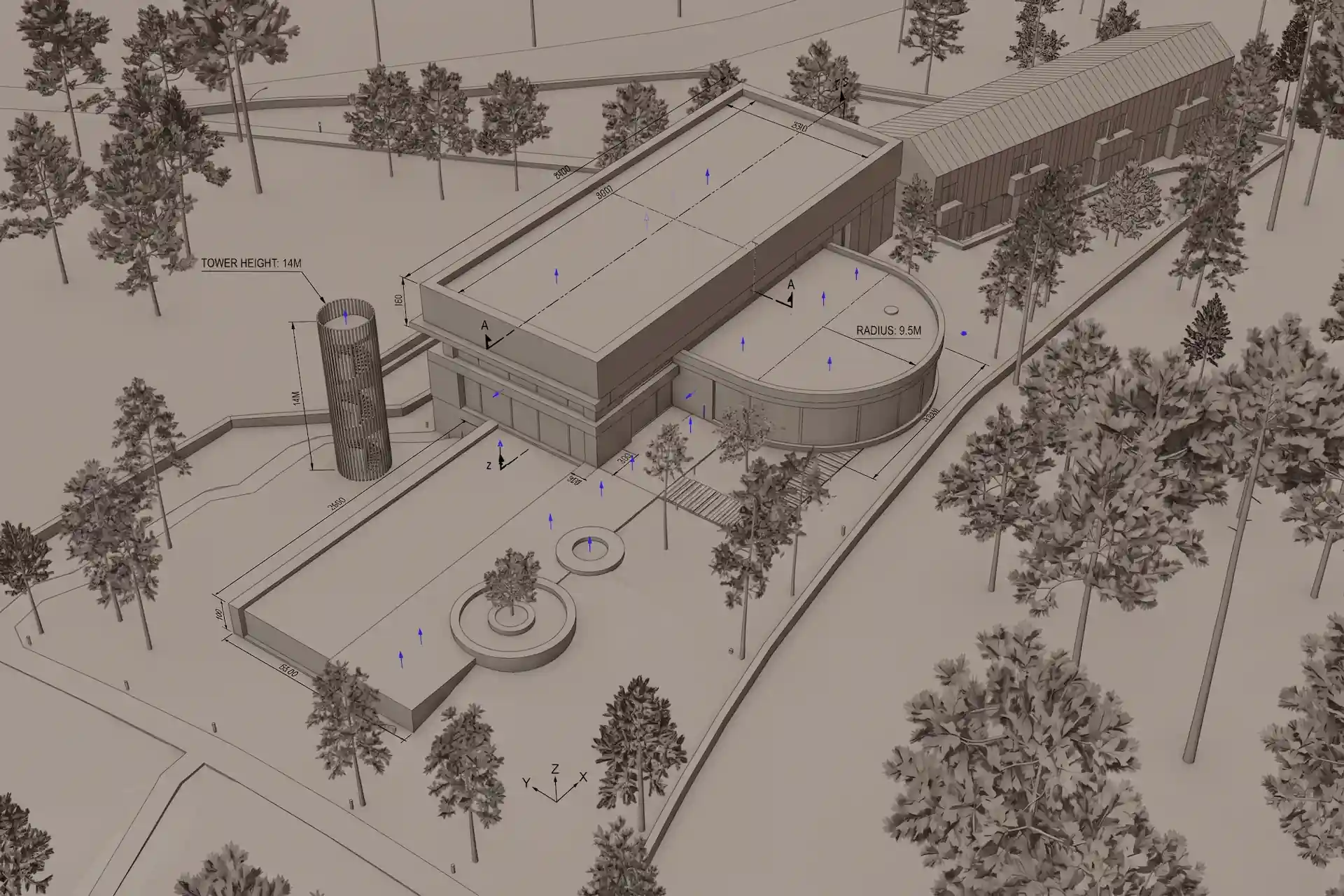

Before / after
Test one clean SketchUp view in CAD Scene.
What should you check in each result?
Check source adherence before realism. Place the saved model view beside the render. Review the camera, crop, major edges, openings, floor levels, and repeated parts.
Then inspect the requested finish:
- glazing should stay inside the intended openings;
- timber and masonry should stop at plausible boundaries;
- roof edges should not gain false trim;
- planting should not cover design evidence;
- people and cars should keep believable scale;
- a local edit should leave unrelated areas acceptable.
Then run the local correction from your test. Ask for one finish change. Check that the camera, openings, people, and planting hold.
First render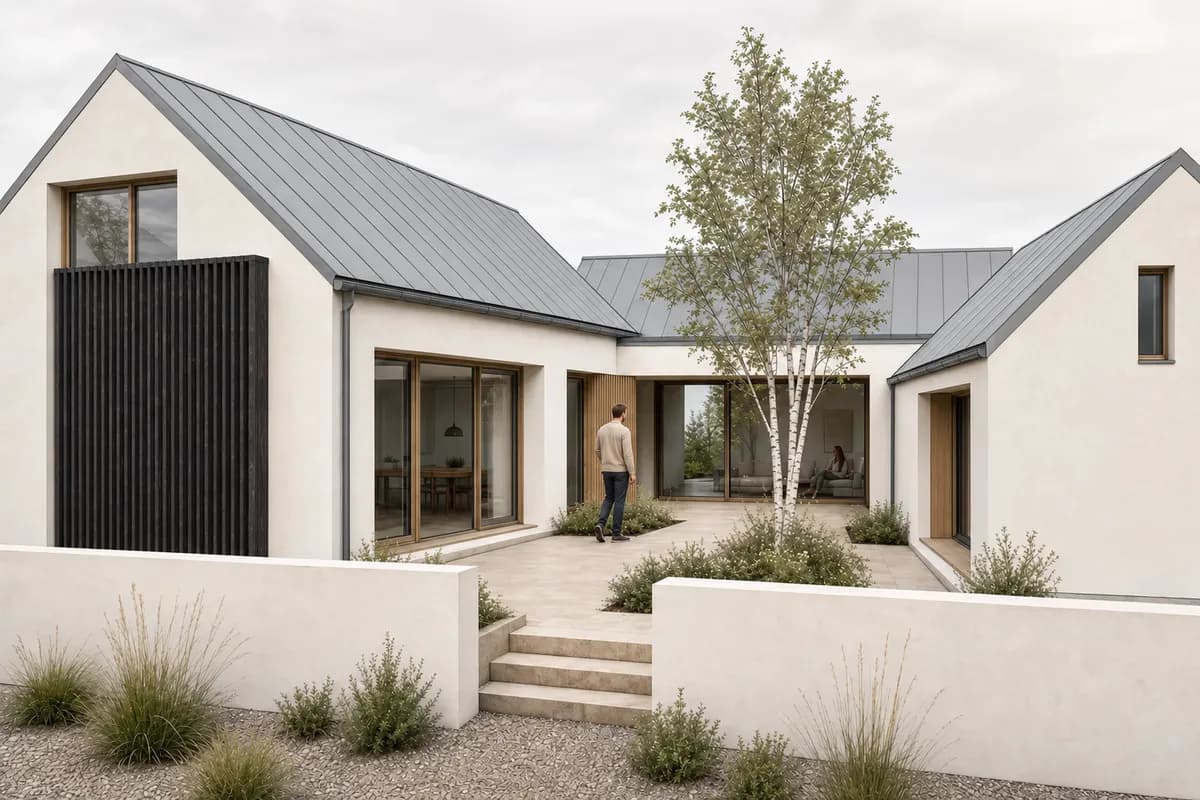 One local edit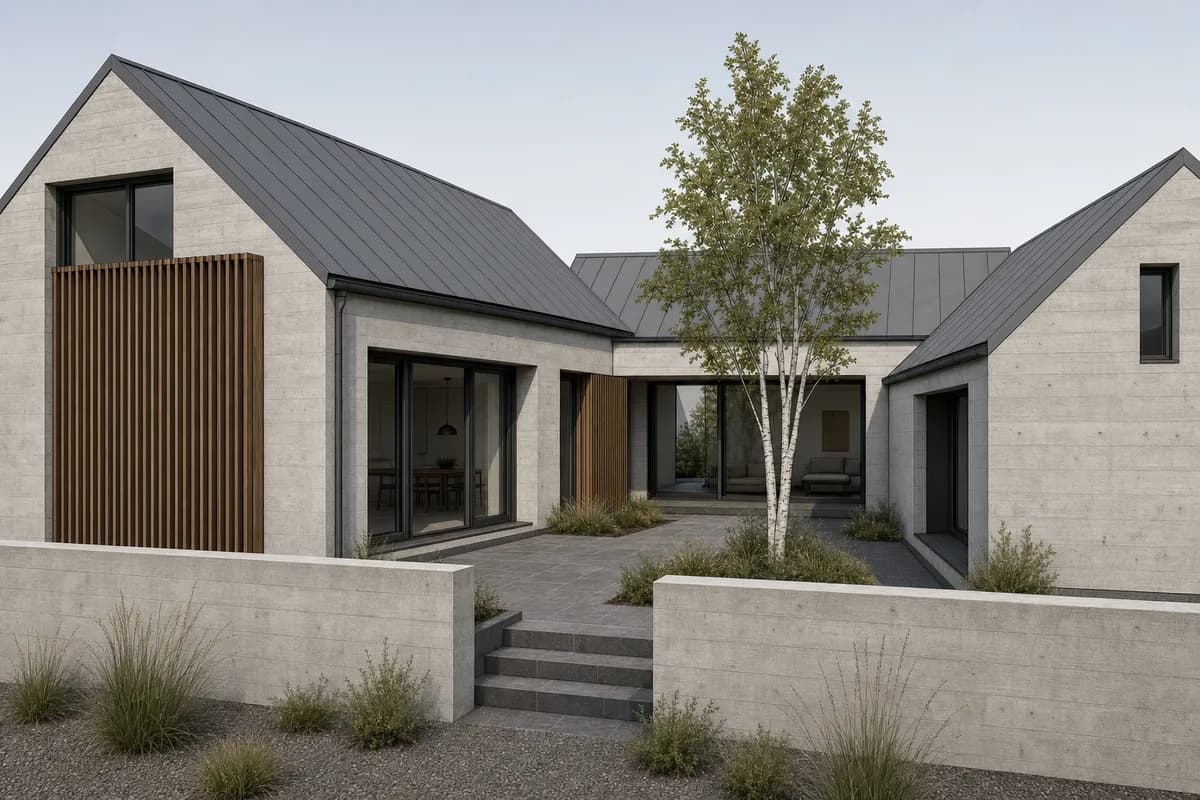
Record the full approval path. Count initial options, local edits, reruns, upscale, export size, and review time. A striking first image can still be the wrong tool if every correction restarts the scene.
How should you compare SketchUp AI rendering prices?
Price the accepted image, not the cheapest plan card. Credit units, image allowances, output rights, upscale, seats, and plugin access differ.
CAD Scene uses model-dependent credits. Quality and Resolution can change the cost. The Composer shows the exact total before submission. Current plans and top-ups live on the pricing page. The AI rendering pricing guide explains the credit model.
Estimate monthly render credits
Choose one current setup and the number of images you plan to generate. The estimate reads CAD Scene's live pricing matrix.
Generation only. Existing rollover credits can change plan fit. Current top-ups range from 50 to 450 credits. The Composer shows the final cost before every send.
SketchUp AI Render draws on the monthly credits in your SketchUp plan, listed above. For competitors, use the dated comparison pages linked above. Then confirm the live vendor card and checkout. This article does not copy competitor prices, because those figures can change before the workflow does. The free AI rendering guide explains how to judge trial limits.
Sources reviewed
- SketchUp Scenes, reviewed 11 October 2026
- SketchUp raster image export, reviewed 11 October 2026
- SketchUp AI Render overview, getting started, and using AI Render, reviewed 11 October 2026
- SketchUp AI credits and SketchUp AI plans and FAQ, reviewed 11 October 2026
- Trimble SketchUp AI launch announcement, 10 December 2025, reviewed 11 October 2026
- Chaos Veras product and SketchUp support, reviewed 11 October 2026
- VizBase SketchUp plugin walkthrough, reviewed 11 October 2026
- Visualizee Render workflow, reviewed 11 October 2026
- mnml.ai product and compatibility, reviewed 11 October 2026
- MyArchitectAI SketchUp plugin roadmap, still marked In Progress, reviewed 11 October 2026
- CAD Scene Product, Glossary, Help, and pricing code, reviewed 11 October 2026
What is the best AI rendering tool for SketchUp?
Choose CAD Scene for browser-based studies across a mixed modeling stack. Choose SketchUp AI Render for quick ideas inside the model. Choose Chaos Veras when direct SketchUp context matters. Choose VizBase for an in-viewport material workflow. Test the final two on one saved Scene.
Does SketchUp have built-in AI rendering?
Yes. SketchUp AI Render, formerly SketchUp Diffusion, runs in SketchUp for Desktop, iPad, and Web on paid Go, Pro, and Studio plans. Each image costs 10 SketchUp AI credits. Use it for quick ideas inside the model. Export a view when you need a fixed review source or a mixed tool stack.
Do I need a SketchUp plugin for AI rendering?
No. Paid SketchUp plans include AI Render, and SketchUp can export a clean raster view for a browser workflow. A third-party plugin is useful when staying inside SketchUp and carrying product-specific model context matter more.
Will an AI renderer keep my SketchUp camera?
A source-guided tool can use the saved view as a constraint. Generated output can still drift. Compare camera height, perspective, crop, and subject scale against the saved Scene.
Should SketchUp edges stay visible in the source?
Keep restrained edges when they clarify openings and surface boundaries. Remove heavy profiles, extensions, guides, axes, and selections that could become false architectural detail.
How should I compare two SketchUp AI renderers?
Use one saved Scene, one source image, one brief, one local correction, and one delivery size. Compare source adherence, edit behavior, total cost, and the work needed to approve the image.
Table of Contents
- What is the honest verdict for SketchUp users?
- How was this SketchUp shortlist researched?
- What should a SketchUp AI rendering tool do well?
- Which AI rendering tools fit SketchUp workflows?
- Is a SketchUp plugin better than a browser workflow?
- How should you prepare one fair SketchUp test?
- What should you check in each result?
- How should you compare SketchUp AI rendering prices?
- Sources reviewed
Authors

- Name
- Vladimir Mindru
Previous Article
Next Article
Table of Contents
- What is the honest verdict for SketchUp users?
- How was this SketchUp shortlist researched?
- What should a SketchUp AI rendering tool do well?
- Which AI rendering tools fit SketchUp workflows?
- Is a SketchUp plugin better than a browser workflow?
- How should you prepare one fair SketchUp test?
- What should you check in each result?
- How should you compare SketchUp AI rendering prices?
- Sources reviewed
Authors
- Name
- Vladimir Mindru