
Architecture Render Prompt Builder
Move from the current view to Project direction, physical detail, review, and a final enhanced prompt. Each checkpoint narrows the brief. You confirm the rate-limited AI pass after reviewing the assembled wording.
The guided draft stays in your browser. Confirm and enhance sends the completed brief to OpenAI only after you approve the final pass.
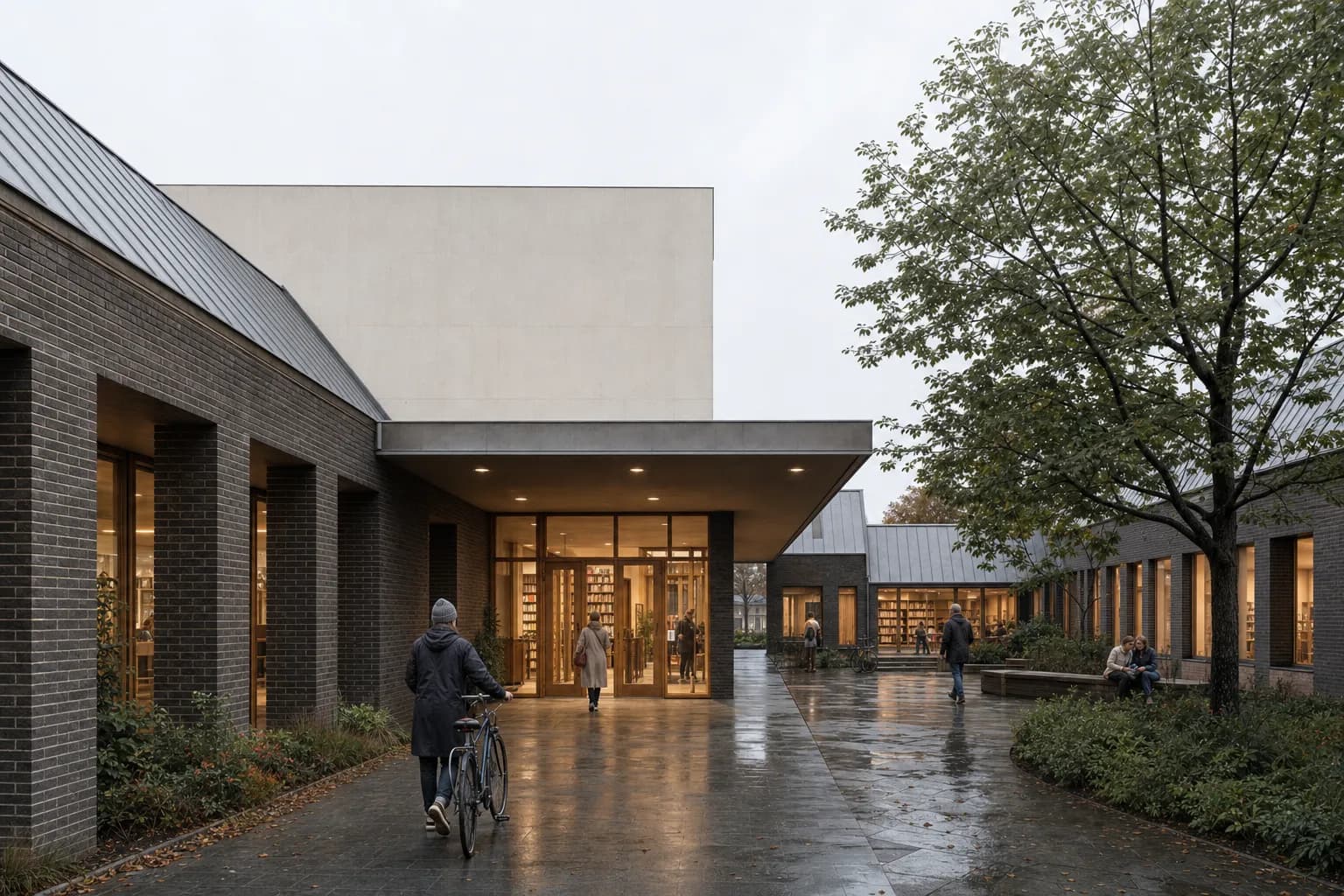
Build the brief through five checkpoints
Each checkpoint narrows one decision. The guided draft stays in your browser. You confirm the shared, rate-limited AI pass only after reviewing the assembled prompt.
- ViewFrame the view
- DirectionSet direction
- DetailAdd physical detail
- ReviewReview the draft
- FinishUse your prompt
Checkpoint 1 of 5: Frame the view
What should the prompt describe?
Start with the subject and view. Name the space, camera relationship, crop, and image task. Then add physical decisions the model can show. The checkpoints prevent a vague one-line request from reaching the final pass.
Read the architecture render prompt guide for camera, material, activity, and constraint examples. Use the reviewed prompt library when you need a complete starting brief.
What belongs in the five fields?
Style, Scene, Lighting, Materials, and Entourage hold direction that should continue across a Project. The current camera and view belong in the prompt or source image.
Review the Composition field boundaries before saving reusable direction. Then follow the Create mode guide to use the brief in CAD Scene.
Architecture prompt builder questions
Does the prompt builder send my brief to a server?
The first three checkpoints and the assembled draft run in your browser. If you select Confirm and enhance, that draft and its six fields are sent once to OpenAI. CAD Scene disables Responses storage. OpenAI data controls and retention policy still apply.
Do I need to fill all five Composition fields?
No. Fill only the fields that affect the image. Empty fields stay out of the generated prompt. A clear subject and view are still required.
What is the difference between the prompt and the Composition?
The prompt describes the current view and task. Style, Scene, Lighting, Materials, and Entourage are Project settings for direction that should continue across studies.
How many AI enhancements can I use?
Anonymous visitors share three AI uses across the Prompt Builder and Board Planner. Signing up expands the shared fair-use allowance to 50 uses per day.
Take the reviewed brief into a Project
Use Create for a new image. Keep durable direction in the Composition, then describe the current view in the prompt.
Start freeYour first renders are free. No credit card.
Related tools
Continue the same architecture task without re-entering the brief.
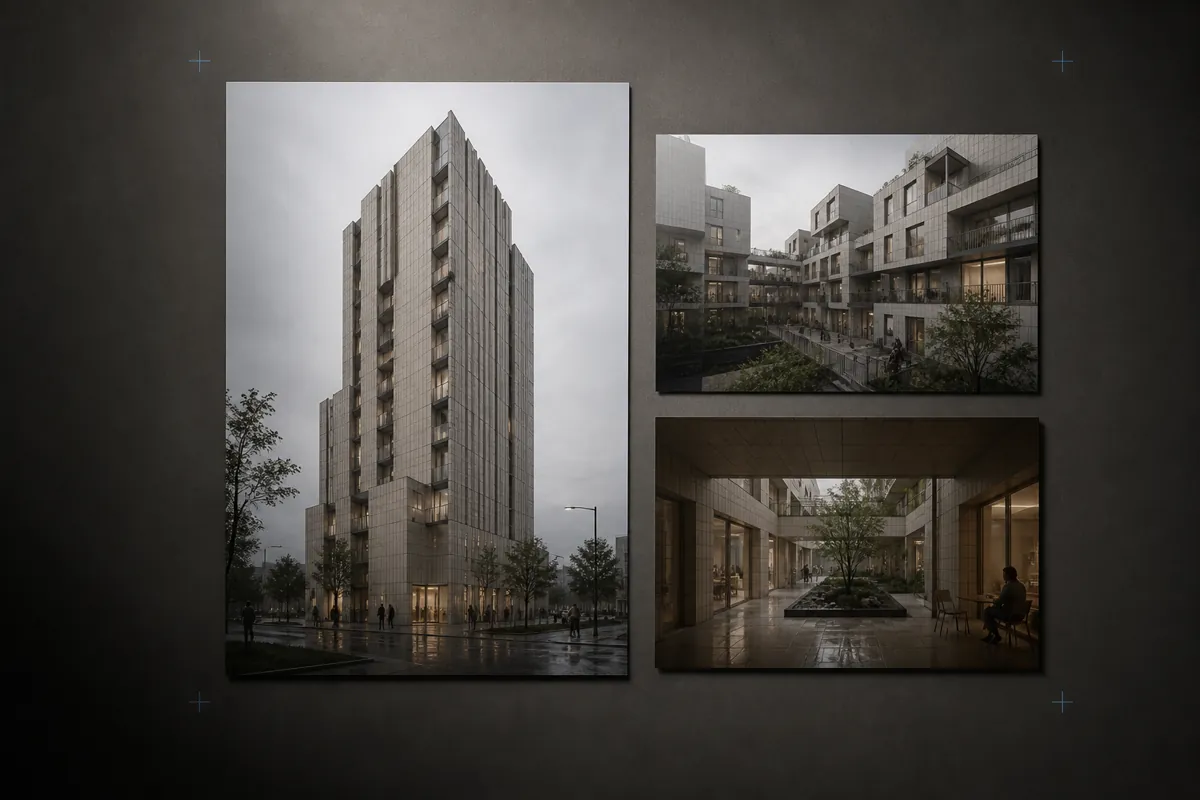
Architecture Prompt Library
Browse reviewed architecture render prompts by source, program, place, light, and material.
Open tool →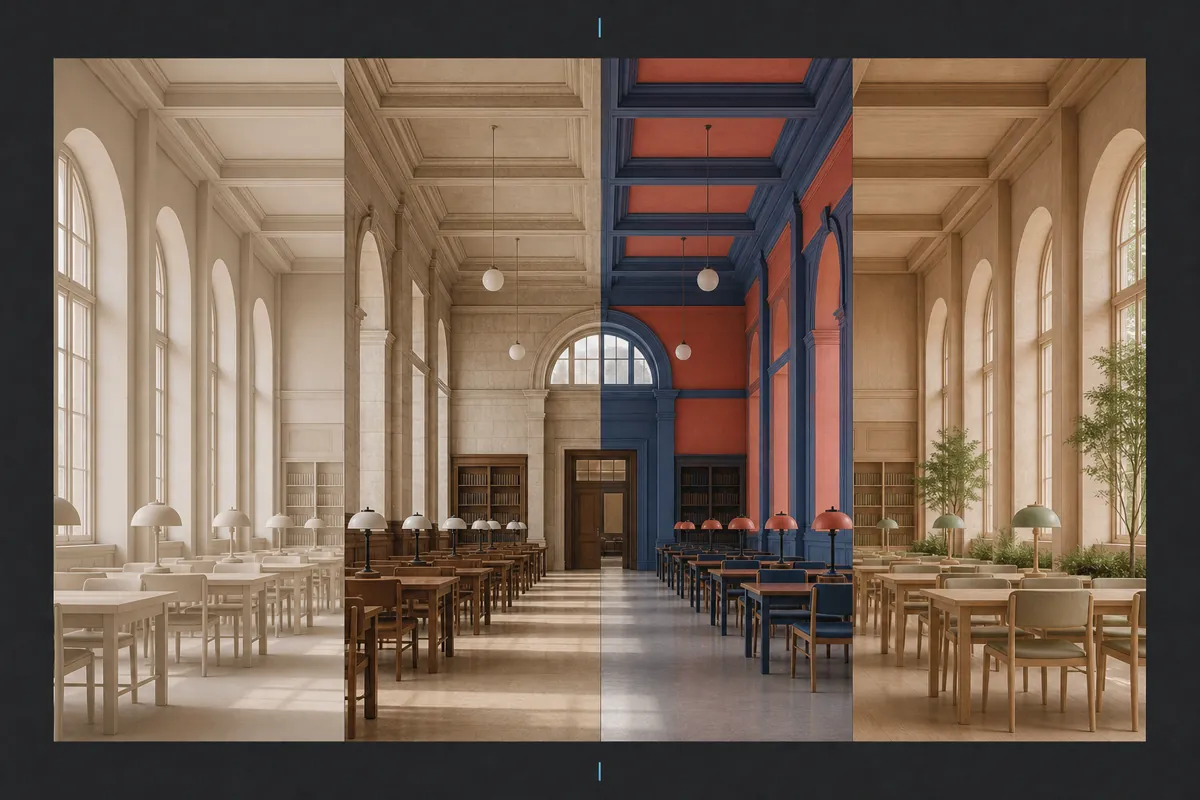
Architectural Rendering Style Atlas
Compare architectural rendering styles on one scene and find the right visual direction.
Open tool →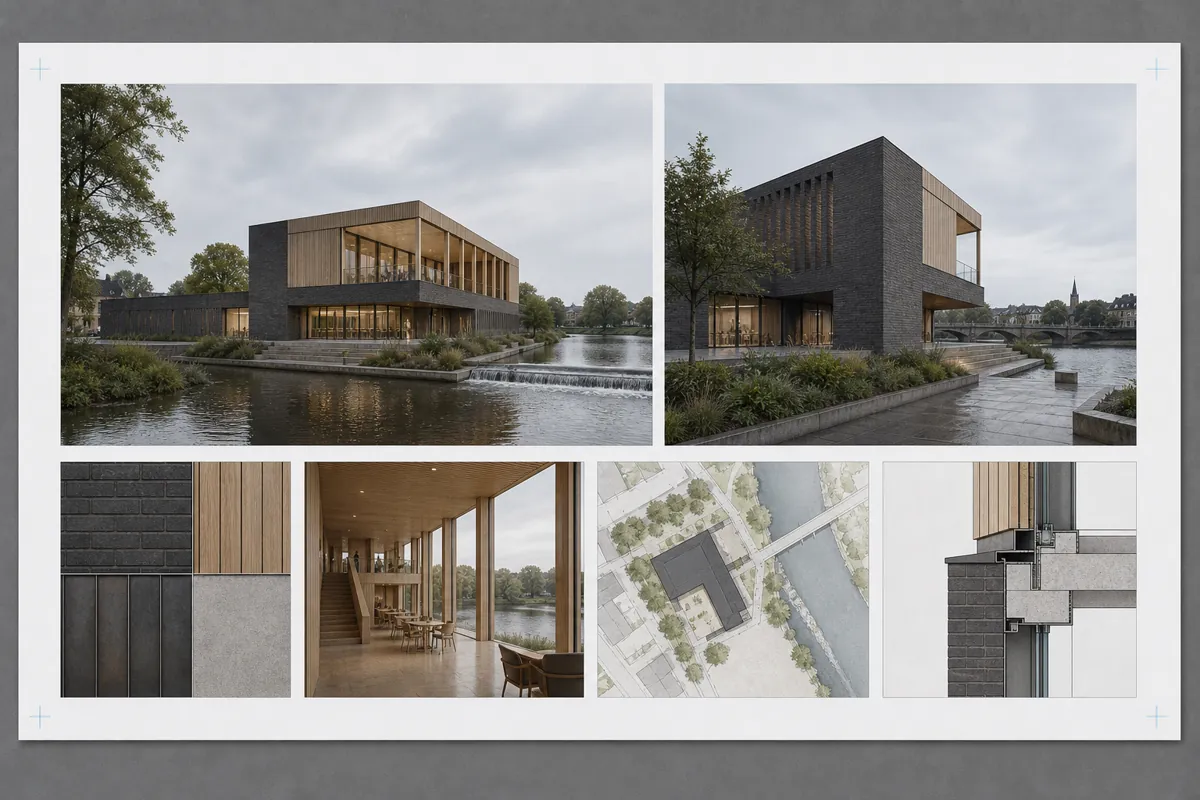
Client Presentation Board Planner
Plan the hierarchy, views, image slots, text, and exports for an architecture presentation board.
Open tool →