
Optimize Renders for Architecture Boards
Review a complete render set before handoff. Assign each image by its board role, approve the WebP copies, then download one named ZIP with a source-to-output manifest.
Every image stays on your device. The optimizer preserves aspect ratios and never enlarges a smaller source.

Build a clean board-image handoff
Review the source set, assign each image by its board role, then approve the WebP files that belong in one named ZIP.
Drop render images here, or click to browse
PNG, JPG, or WebP. Up to 24 images, 24 MB each, and 100 MB per batch. Nothing is uploaded.
What should you optimize for a board?
Assign Lead to the dominant board image, Supporting to secondary views, and Detail to small crops. Use the board size and aspect ratio calculator to estimate those slots first.
Keep the uncompressed masters. Treat these WebP files as placement and review copies.
When should you keep a full-resolution file?
Keep the source for print delivery, later crops, and close material review. The client-review rendering guide covers what to check before a presentation.
Need a single conversion instead? Use the Image to WebP converter. Prepare source screenshots with the clean capture guide.
Image optimization questions
Are the images uploaded to CAD Scene?
No. Selection, resizing, WebP encoding, and ZIP creation happen in your browser. The tool does not send the image files to CAD Scene.
Which size should I use for an architecture board?
Assign Lead, Supporting, or Detail to each image. The tool uses a 3,200, 2,400, or 1,600 pixel longest edge for that role. Confirm the final placed size, print density, and printer requirements.
Does the optimizer crop or stretch an image?
No. It preserves each source aspect ratio. Images larger than the selected long edge are scaled down. Smaller images are not enlarged.
Why can an optimized WebP be larger than the source?
A source may already be compressed efficiently. The tool excludes a larger result from the ZIP by default. Include it only when you need the role-based dimensions.
What happens to orientation and image metadata?
The output follows the visible source orientation. Canvas encoding does not carry embedded camera, location, or author metadata into the new WebP copy.
Make the renders before you compress them
Create, Enhance, and Edit architecture images in one Project. Keep the full Render, then prepare copies for the board.
Start freeYour first renders are free. No credit card.
Related tools
Continue the same architecture task without re-entering the brief.
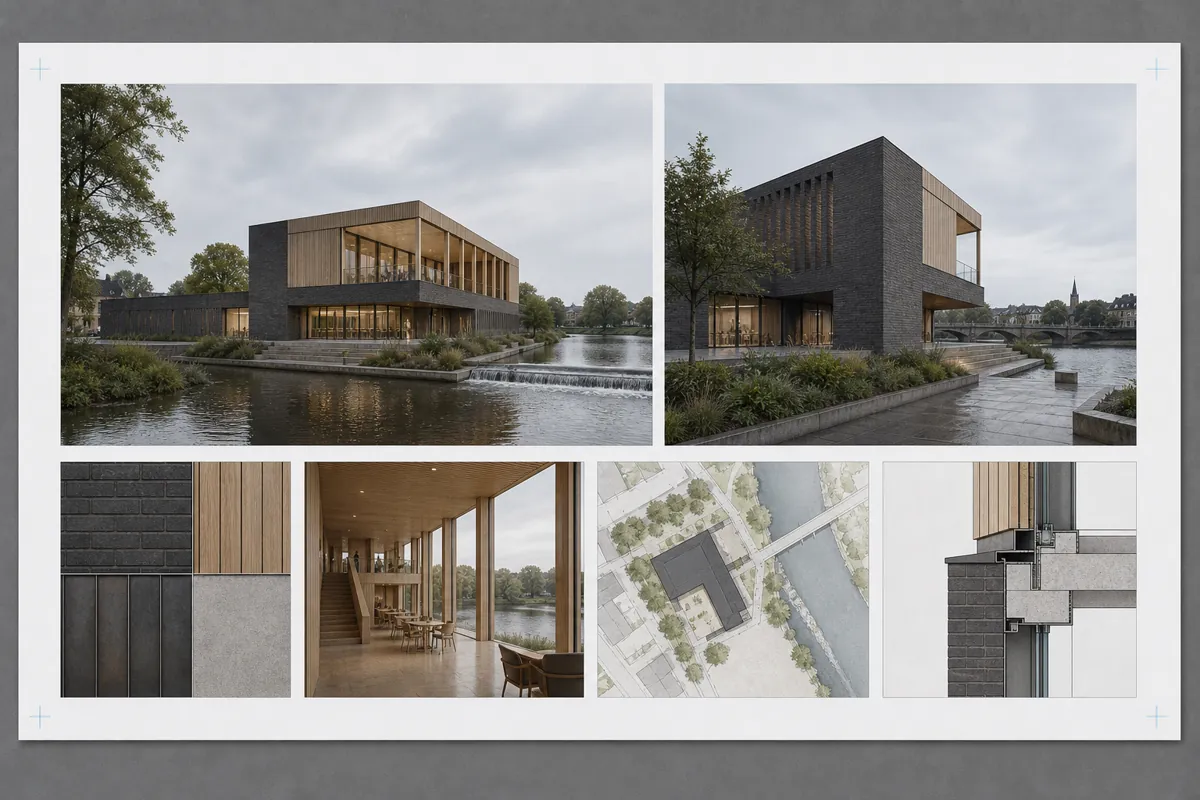
Client Presentation Board Planner
Plan the hierarchy, views, image slots, text, and exports for an architecture presentation board.
Open tool →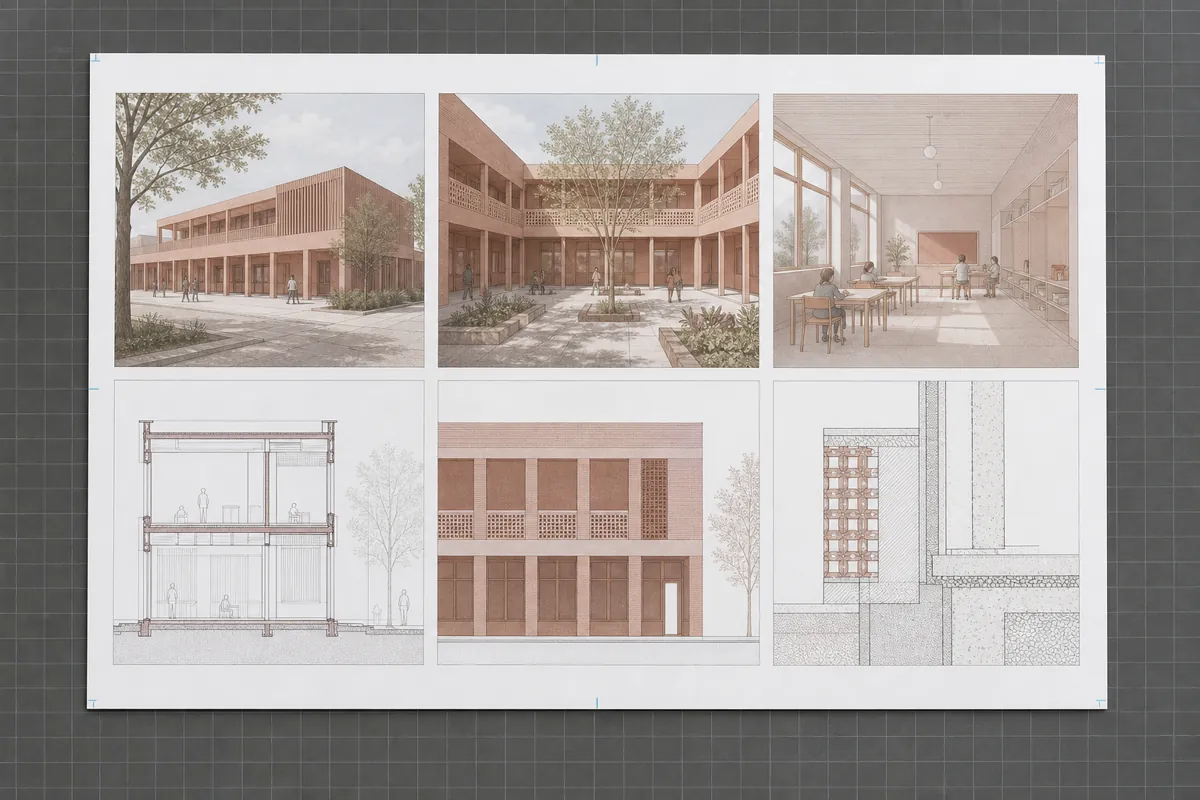
Board Size & Aspect Ratio Calculator
Calculate sheet pixels, printable area, equal cells, and useful render ratios.
Open tool →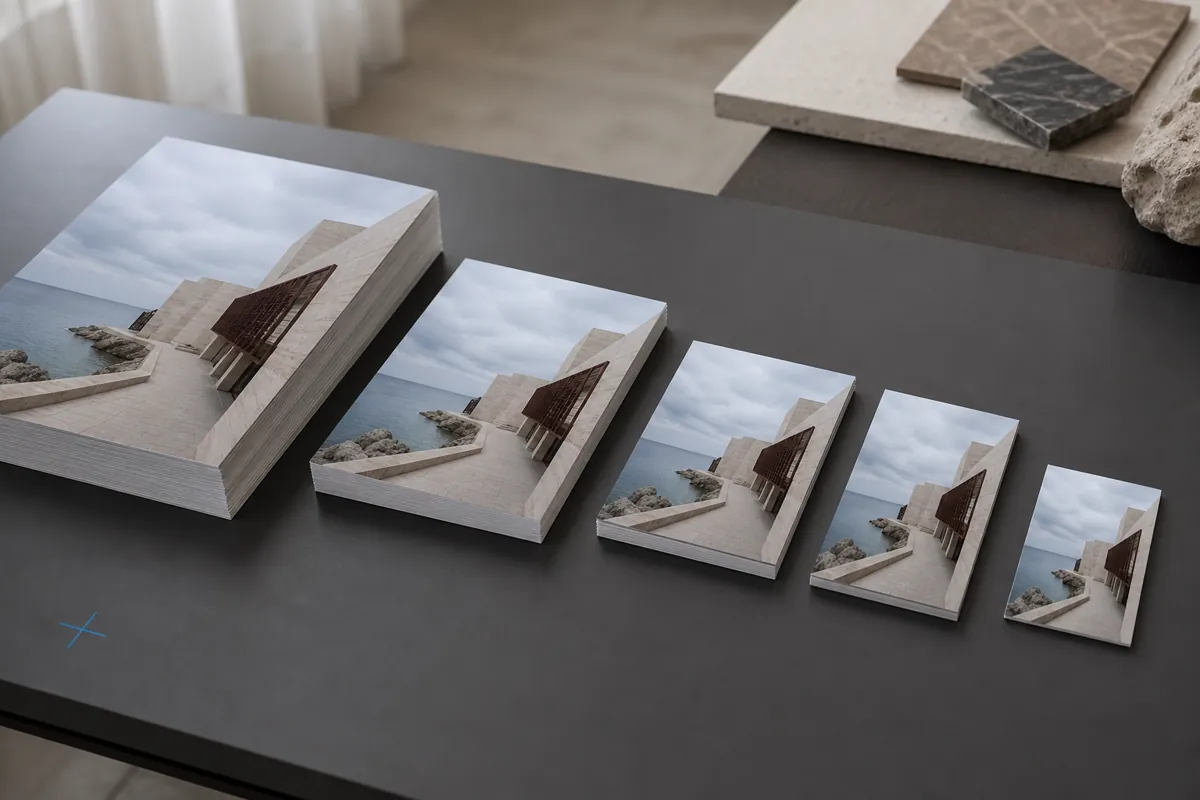
Image to WebP Converter
Convert PNG, JPG, and GIF files to smaller WebP images without uploading them.
Open tool →