
Sketch to Render: Turn a Concept Sketch into a Finished Image

Sketch to render turns a concept sketch into a photorealistic image in seconds. You draw the idea, add a short brief, and the AI returns a finished render that respects your lines. It lets you test light, materials, and mood early, when the design is still a drawing.
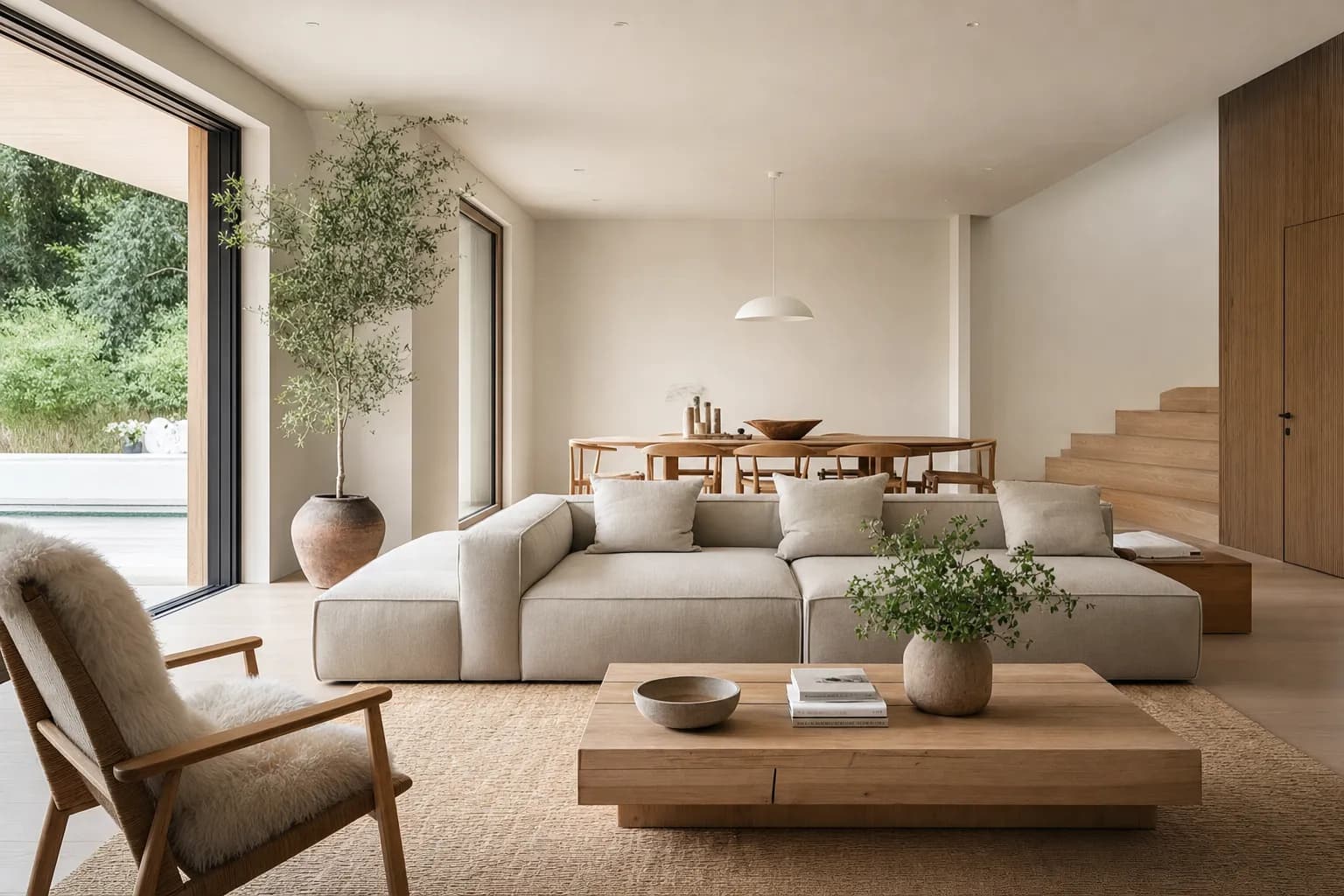
What is sketch to render?
Sketch to render is AI rendering that starts from a drawing instead of a 3D model. The sketch sets the composition and the main forms. Your brief sets the materials and light. The AI fills in a realistic image that follows both.
It suits the earliest stage, where you want to see a mood before you model anything. It is not a replacement for your design work. It is a faster way to look at an idea.
The workflow
Draw a clear sketch
Confident lines, a readable silhouette, consistent perspective. Hand or digital both work.Capture it cleanly
Scan or photograph without heavy shadows across the page.Render with a short brief
Name the building type, materials, and light. Keep the composition you drew.Explore, then refine
Generate a few directions, pick the strongest, refine it one change at a time.
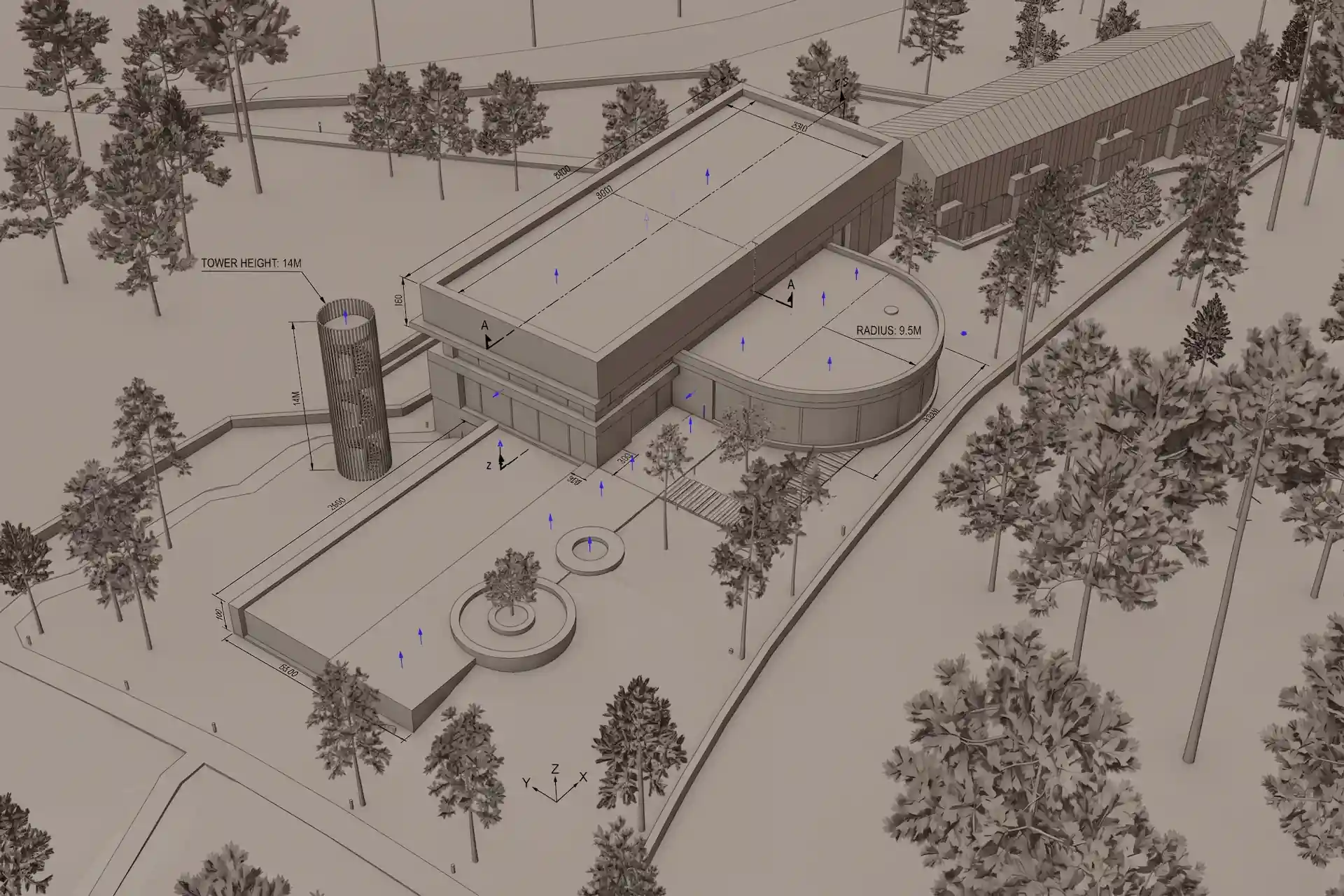
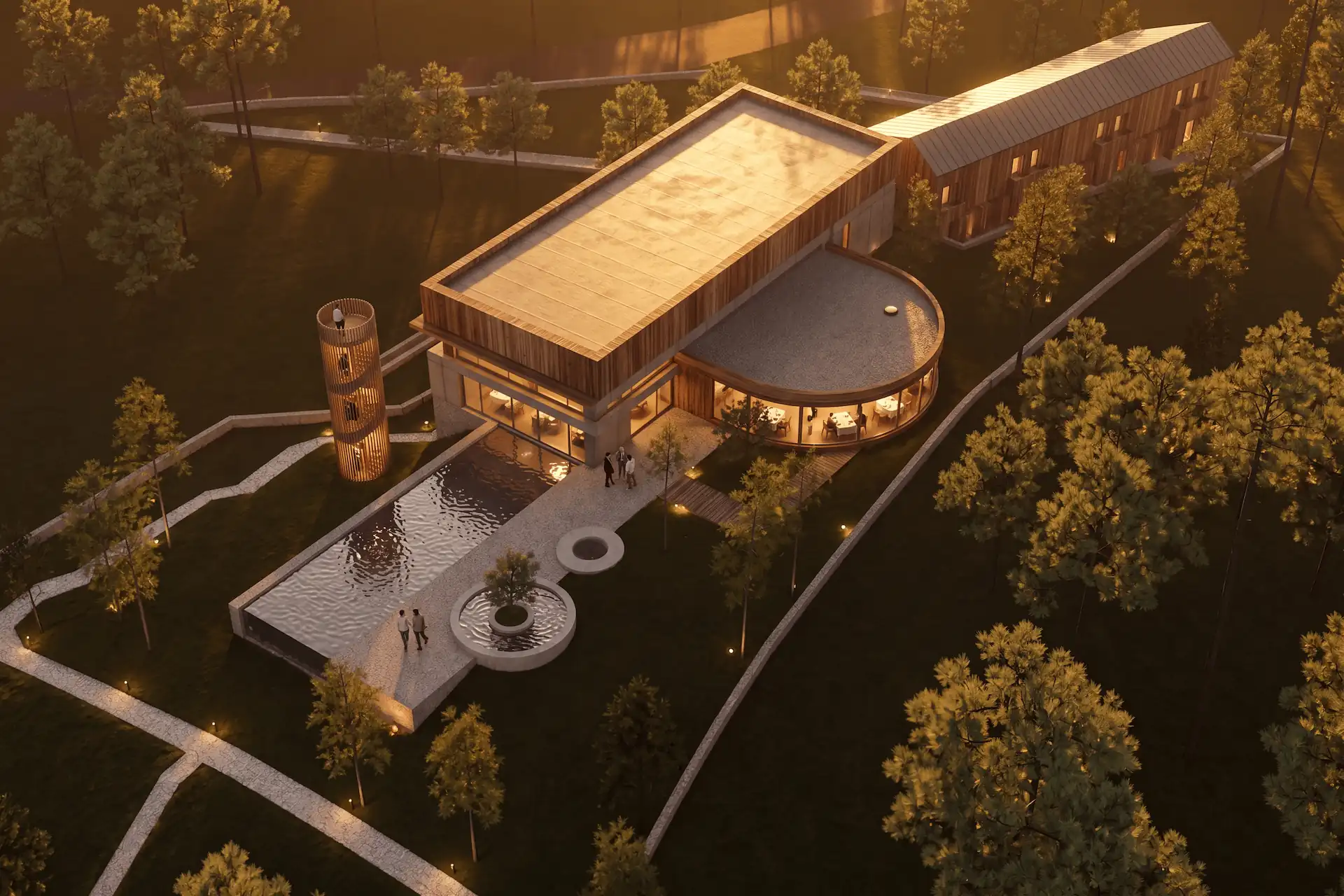
The drawing-to-render prompt examples pair source constraints with specific materials and light.
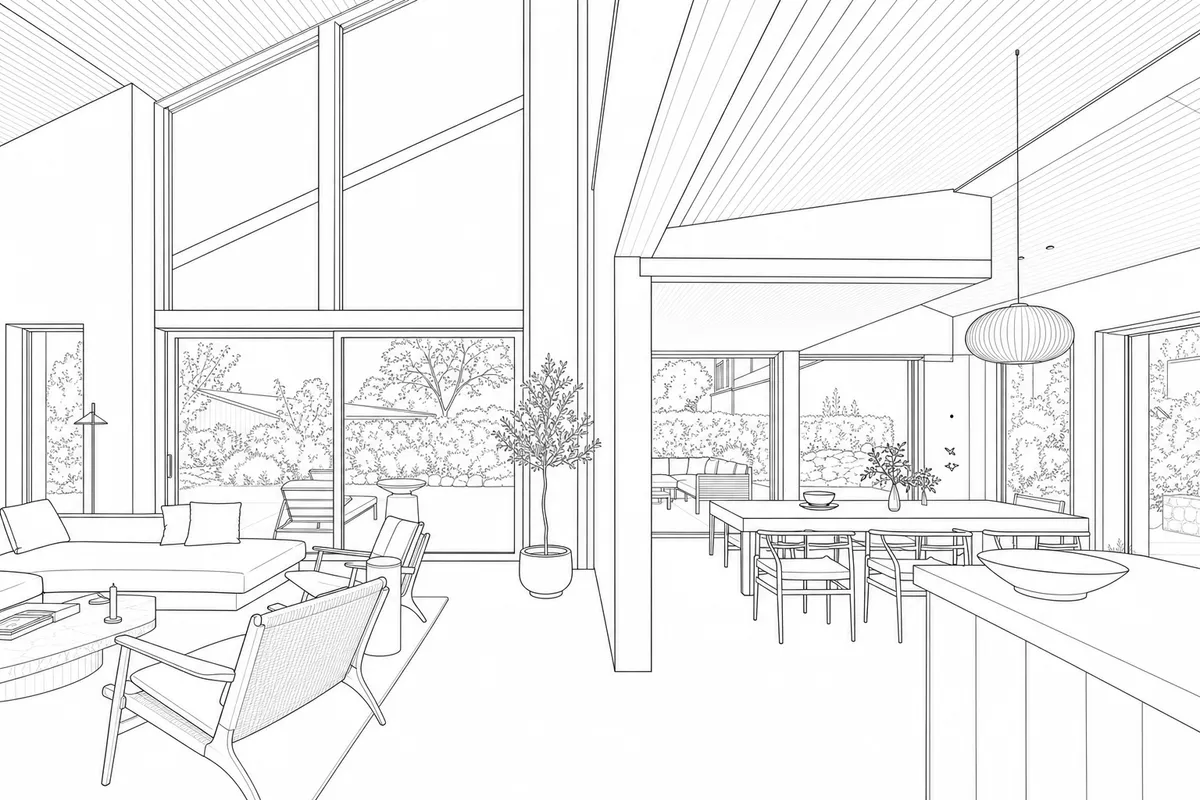 Sketch
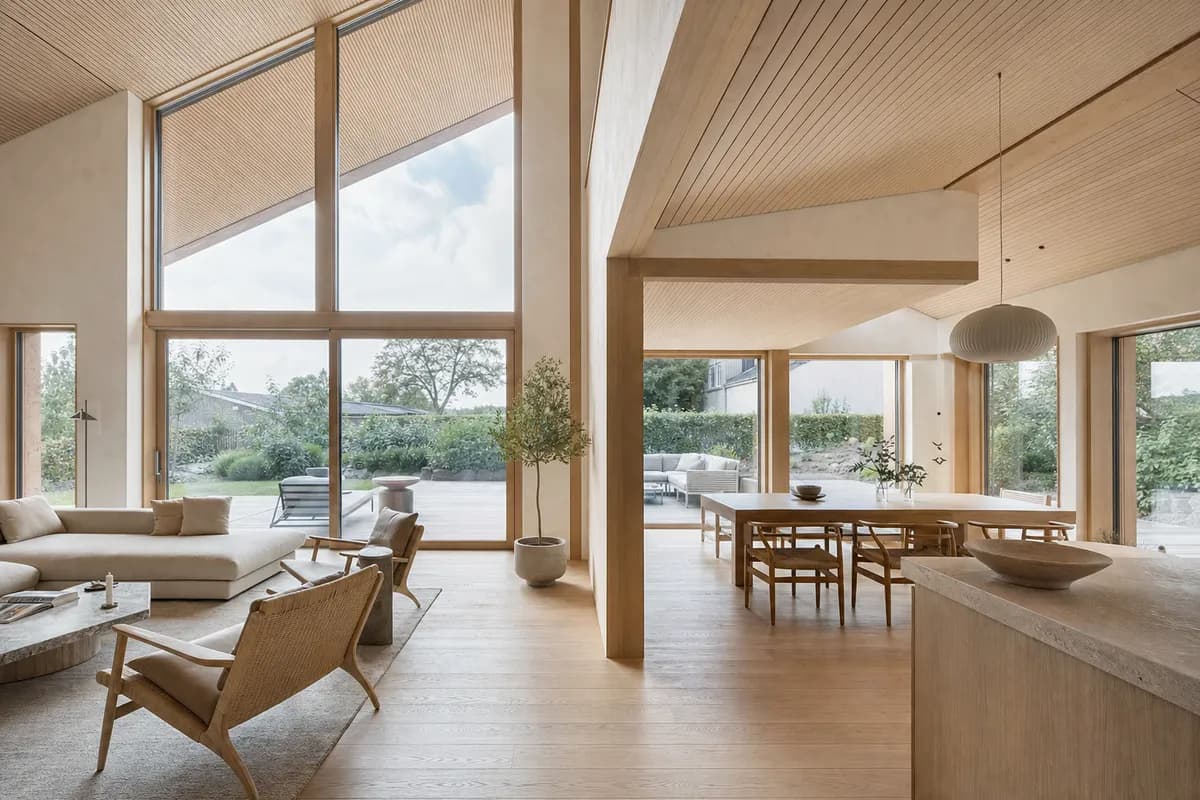 Rendered
Sketch to render or model to render?
Both start from a base and a brief. The difference is how much the geometry is locked. Pick by stage.
| Sketch to render | Model to render | |
|---|---|---|
| Best stage | Early concept | Design development |
| Geometry locked | Loosely | Tightly |
| Creative range | Wide | Focused |
| Input | A drawing | A screenshot or model view |
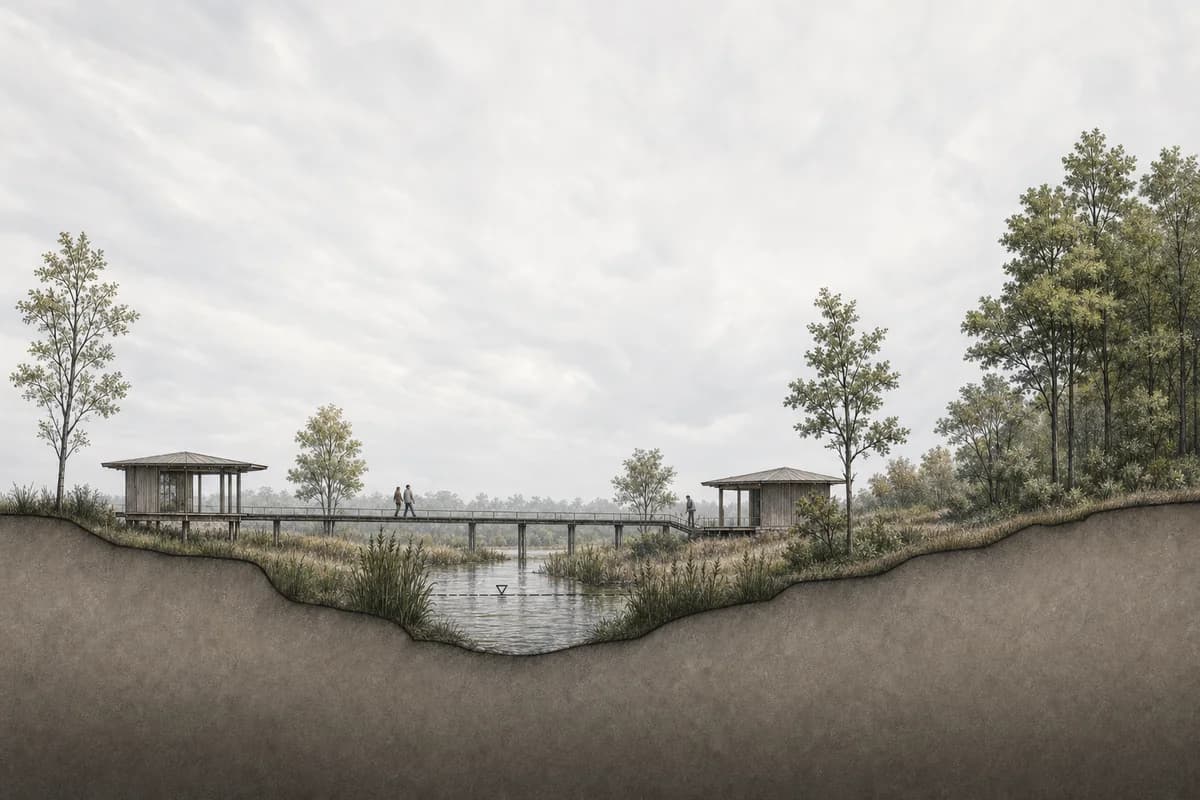
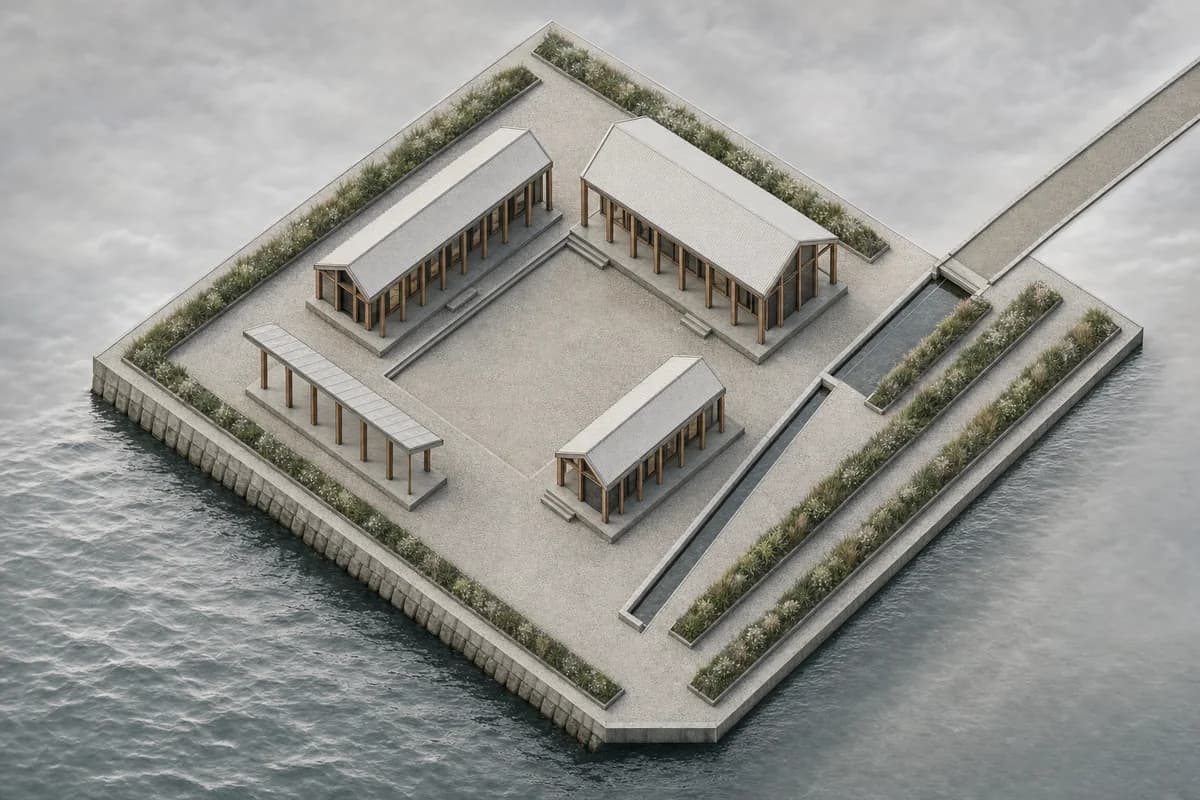
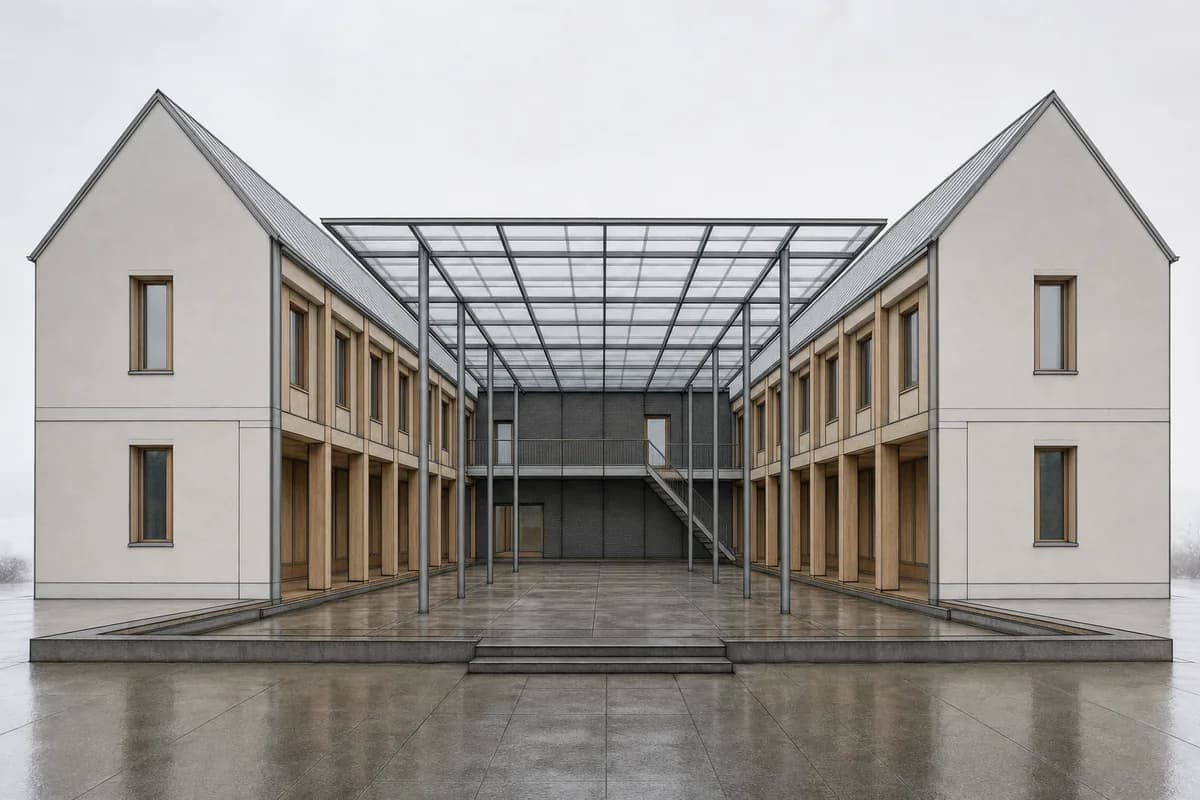
Explore options, then refine
Generate a few variations to test directions. Compare them, pick the strongest, and refine it one change at a time. This keeps exploration fast and the final image controlled.
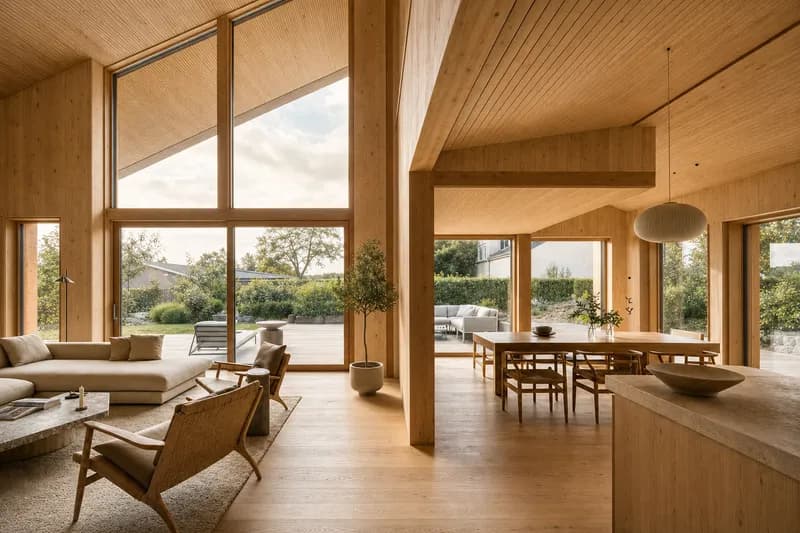
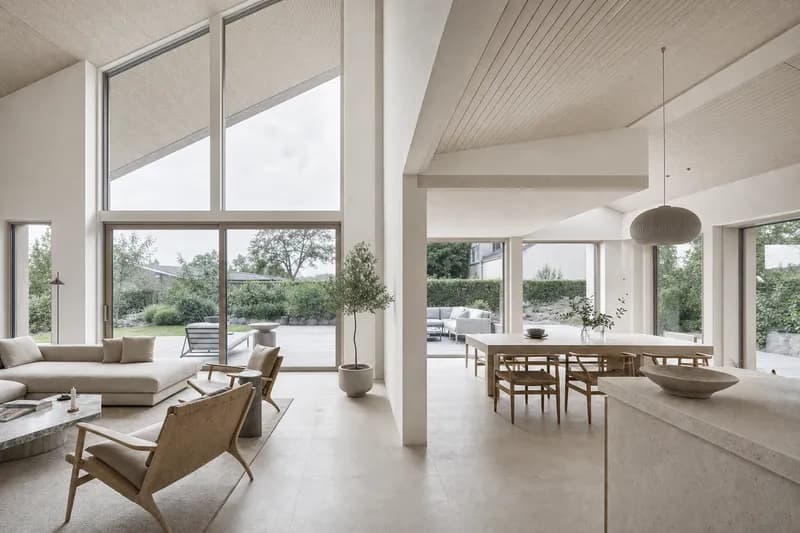
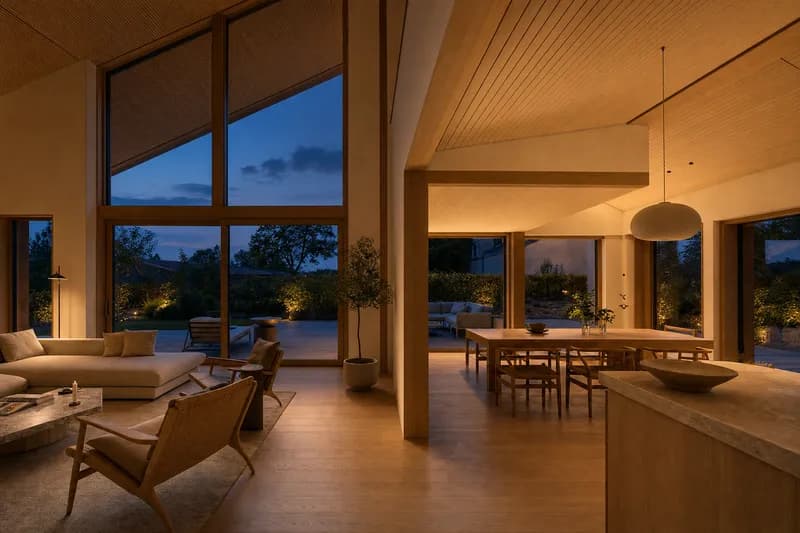
Once the design firms up, switch to rendering from a model. See how to render a SketchUp screenshot, the guide to AI architectural rendering, and rendering styles explained.
Does the render keep my sketch composition?
Yes, when you keep the framing and describe the result rather than a new scene. Clearer sketches produce more faithful renders.
Hand sketch or digital, which is better?
Both work. What matters is a clear silhouette and consistent perspective, captured cleanly.
How many options should I generate?
A few. Explore directions, then pick one and refine it one change at a time.