
Presets, Style Atlas, and choosing a style
Compare complete five-field Presets and apply one to a project.
Updated Jul 14, 2026 · 3 min read
Enter a search term.
A Preset is a named bundle of all five Composition fields. It carries Style, Scene, Lighting, Materials, and Entourage together.
The Style field is only one part of that bundle. Changing the Style field does not apply or create a Preset.
| Preset | Style field | |
|---|---|---|
| Scope | All five fields | One field |
| What changes | Complete Composition | Architectural language only |
| Reusable by name | ||
| History | Preset versions | Style field versions |
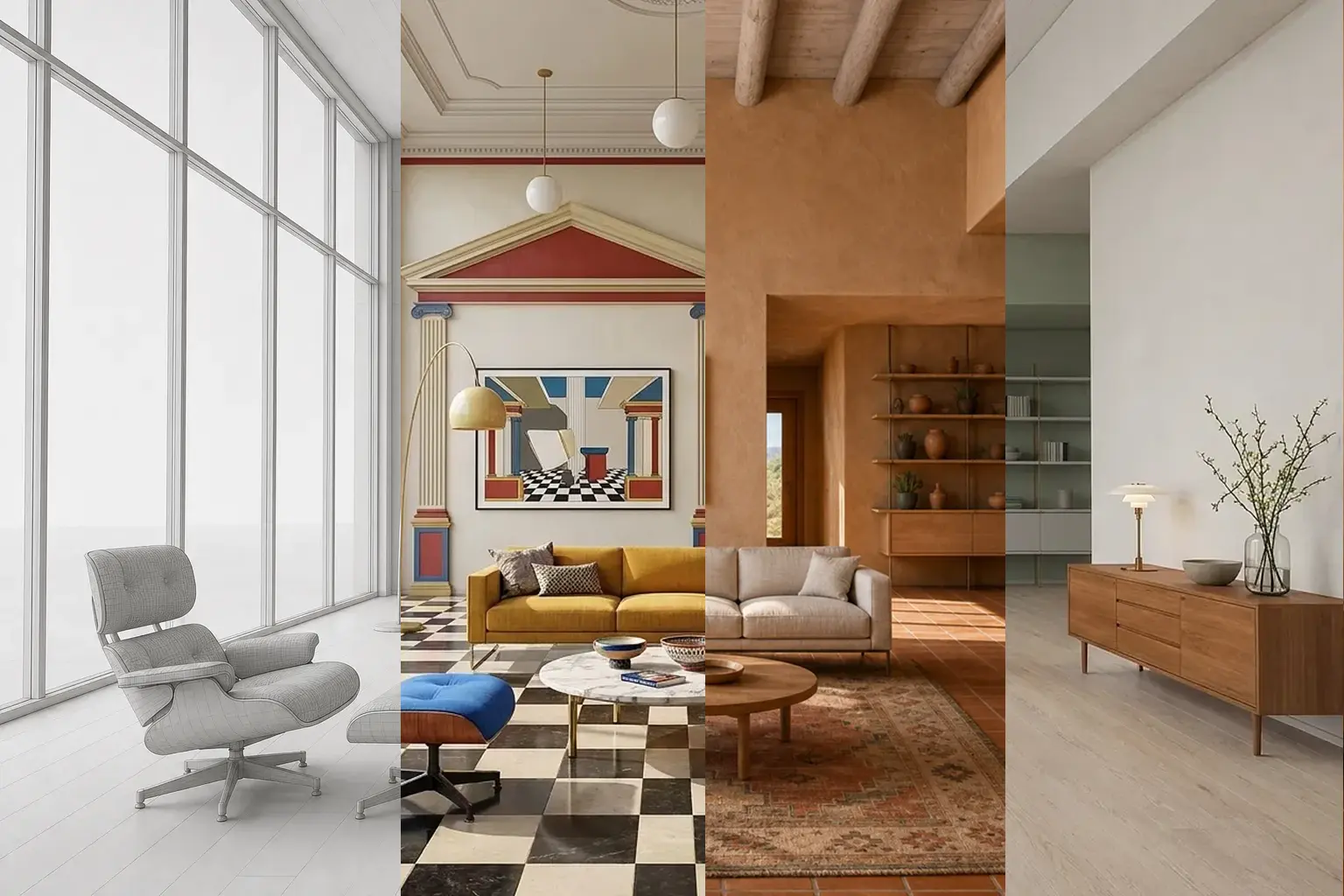
Four Presets set four complete directions. Compare material palette, spatial mood, and light before applying one.
Choose a Preset
Open the Overview tab and select Pick preset. The Preset library has two groups:
- Built-in presets are read-only Presets supplied by CAD Scene.
- My presets are Presets you saved from your own projects.
New-project setup opens this library on Built-in presets. The Project tab opens it on My presets so saved work stays close at hand.
The library supports search. Built-in entries also support visual tags. Expand an entry to read its complete five-field brief before applying it.
Use the Style Atlas
The Style Atlas shows all 62 canonical built-in Presets. Every entry uses the same bare scene and camera. This makes the visual language easier to compare.
Each built-in Scene paragraph supplies program-neutral environmental context. It stays useful across interior and exterior studies. The current render prompt or source image supplies the specific program, geometry, placement, and camera.
Each Atlas page explains its defining cues, suitable project types, and complete Composition. For example:
- Nordic Calm uses restrained materials and diffuse light.
- Brutalist Concrete emphasizes mass and raw surfaces.
- Tropical Modern combines open planning and dense planting.
- Organic Modern favors soft forms and tactile finishes.
Interactive example
Compact Style Atlas. The surrounding article includes the same guidance in static text.
Static comparison: Every Atlas option renders the same scene and camera. Compare broad mood, material character, and light before adapting the complete five-field Preset to the actual project.
Without the interactive explorer, start from three questions:
- Should the image feel warm, cool, quiet, or dramatic?
- Which materials must carry the architectural idea?
- Does the setting need regional or historical specificity?
Choose the closest complete direction. Then edit the five fields for the actual site, season, and brief.
Apply a Preset
Applying any Preset overwrites all five current fields. Past renders keep their original settings snapshots.
A built-in Preset applies its five fields once. It is read-only and has no Preset version history. Applying it clears any active saved Preset. Existing projects keep their current Scene text until you apply a Preset again.
A saved Preset applies its latest version. It also becomes the project's active Preset. The active Preset name identifies where Save as version will append the next five-field snapshot.
Applying a Preset records the change in each field's history. Review the fields before the next render. A Preset is a starting point, not a lock.
Save your own Preset
Use More preset actions, then Save as preset. Give the current Composition a name and optional note. CAD Scene creates version 1 from all five current fields.
When a saved Preset is active, use Save as version to append the current five-field state. Manual field edits do not create a Preset version automatically.
Use Browse versions to compare or reapply an earlier snapshot. See field versions and Preset versions for the difference.