
Architect's reference
AI rendering terms, defined clearly
This glossary separates general rendering concepts from CAD Scene controls. It covers 3D model capture, Project settings, image roles, named Edit regions, Render actions, credits, and review limits.
Reviewed 2 October 2026 against current product documentation.
47 terms shown
Workflow and inputs
Starting material, render modes, and image roles.
- AI architectural rendering
Creating or revising an architectural image with a generative image model. The input can be words, a sketch, or a captured 3D view.
It supports visual communication. It is not construction verification.
Read the practical guide- Viewport screenshot
A captured view from a CAD or 3D application. It carries the visible geometry, camera, framing, overlays, and image proportions.
Prepare a clean screenshot- 3D model
One project-scoped model in the 3D models library. Its current active version opens in Viewer for inspection and capture.
The model stays authoritative for geometry. A saved Viewer capture is a separate image.
Upload and inspect a 3D model- Model setup
A Viewer correction pass for source units, up axis, Front orientation, and recentering.
Applying a correction clears geometry-relative saved Views. Existing captures remain.
Correct model setup- Capture mode
The Viewer workspace that locks the camera, hides helpers, and turns its crop into an exact PNG at the selected output size.
Capture a model view- Viewer capture
A PNG saved from Capture mode. It remains in the Project and can become the source image for Enhance.
Deleting the source 3D model does not delete its saved Viewer captures.
Save and Enhance a capture- Create
The CAD Scene mode that starts from a written scene description. It does not require a source image.
Use Create- Enhance
The CAD Scene mode that restyles a source image while asking the model to retain its camera, angle, framing, proportions, and major geometry.
Enhance aims to preserve the captured view. It does not rebuild a live 3D model.
Use Enhance- Edit
The CAD Scene mode that changes marked regions of one source image. One prompt references every unique Region name.
Generative models can still introduce small differences outside a mark.
Use Edit- Edit region
One named connected area of marked pixels and its bounds. Rectangle or Brush adds pixels, and Eraser removes them.
Each unique Region name must appear as a distinct reference in the Edit prompt.
Mark an Edit region- Overlapping Edit regions
Independent named Edit regions whose bounds share editable pixels. Their names and spatial instructions remain separate.
The union mask contains each painted pixel once. Shared boundaries are not pixel-perfect layers.
Review overlapping regions- Source image
The image being restyled in Enhance or changed in Edit. It is selected in the mode panel and sent as a direct render input.
A source image is not a Project reference image or Composer reference image.
Compare image roles- Project reference image
One optional image in Project settings that can generate the five Composition fields. The image itself is not sent with later renders.
It seeds persistent text. It is not a render source.
Use a Project reference image- Composer reference image
An image attached to one Composer message as visual guidance for style, materials, content, or mood.
It guides one send. It does not replace an Enhance or Edit source image.
Use Composer references- Region name
A stable, editable reference for one marked Edit area. Names such as Region A connect each mark to one instruction in the Edit prompt.
A Region name is control metadata, not requested text inside the image.
Name Edit regions
Project direction
The shared context that keeps related studies coherent.
- Project
The named container for one design effort. It holds Project settings, studies, and renders.
Organize Projects- Project settings
The persistent render context shared by every study in a Project: Composition, the Project reference image, and Project render defaults.
Review Project settings- Project render defaults
The model and supported Render settings that seed new Composer sessions across one Project.
The app-wide Default model seeds new Projects only. Composer changes do not rewrite Project render defaults.
Set Project render defaults- Composer session settings
The model and Render settings used by one mounted Composer. They begin from Project render defaults and persist for that session.
Session changes do not save back to the Project automatically.
Compare defaults and session settings- Composition
The five project-wide text fields combined: Style, Scene, Lighting, Materials, and Entourage.
Composition is the complete set. Scene is one field inside it.
Set the Composition- Style field
The Composition field for the overall visual language, such as era, movement, regional character, palette, and finish.
The Style field is one field. A Preset contains all five fields.
Write the Style field- Scene field
The Composition field for reusable environmental context, such as climate, landscape, urban character, and broader atmosphere.
It does not set a camera, viewpoint, room program, or building geometry.
Write the Scene field- Lighting field
The Composition field for time of day, direction, shadows, weather, atmosphere, and visible artificial light.
Write the Lighting field- Materials field
The Composition field for important surfaces and finishes, including texture, color, and reflectivity.
Write the Materials field- Entourage field
The Composition field for people, planting, vehicles, signage, furniture, and activity around the architecture.
Write the Entourage field- Study
An ordered thread of messages and renders inside one Project. Every study shares the same Project settings.
A Study keeps one view or option separate without creating another Project.
Organize studies- Preset
A named, reusable bundle of all five Composition fields. A saved Preset can keep immutable versions.
A Preset is not only a rendering style or the single Style field.
Choose and save Presets- Built-in Preset
A read-only five-field Preset supplied by CAD Scene. Applying one copies its fields into a Project as a starting point.
Compare built-in Presets- Field version
A recorded checkpoint for one Composition field in one Project.
A Field version records one field. A Preset version records all five.
Use Field versions- Preset version
An immutable snapshot of all five Composition fields under one saved Preset.
Built-in Presets are read-only and have no Preset version history.
Use Preset versions- Use as composition
A finished-Render action that reads the image, generates all five Composition fields, and lets you choose which fields replace Project settings.
It uses the Composition-generation credit rate. Past Renders keep their stored snapshots.
Use a Render as Composition
Renders and controls
Generation settings, results, history, and later actions.
- Render
One generated image and its stored record, including the prompt, model, settings, credit cost, and Composition snapshot.
Review Render history- Render job
The durable server-side generation state for one output image. Parallel outputs have independent jobs.
Understand job outcomes- Render settings
The model and its supported native choices, including Quality, Resolution, and Create Aspect where available.
Available controls depend on the selected model and mode.
Choose Render settings- Aspect ratio
The proportional relationship between image width and height. Create can expose model-supported ratios. Enhance and Edit follow the source proportions.
Choose Create Aspect- Resolution
A model-supported requested output size such as 1K, 2K, or 4K. The measured finished dimensions can differ from the request.
Compare output settings- Quality
A provider-native generation setting exposed only by models that support it. It is separate from a reviewer judgment about image quality.
Compare Quality and cost- Variants
Parallel images requested by one Composer send. They share the prompt and settings selection but have separate jobs and charges.
Variants are chosen before Send. Variations start later from a finished Render.
Use parallel Variants- Variations
A later configured send started from one finished Render. It repeats the original inputs while allowing supported model, setting, and count choices.
Variations create new renders. They do not duplicate an existing file.
Create Variations- Generation details
The read-only record of a Render’s stored model, validated settings, cost, Composition snapshot, references, requested size, and output size.
Read Generation details- Image operation
A one-click Modify, Relight, or Effects preset applied to a finished Render. It creates a new Enhance Render.
The operation reuses the source Render’s model, settings, and Composition snapshot. Sample previews do not predict the result.
Compare image operations- Upscale
A resize that increases output dimensions. CAD Scene’s free Lanczos 4K upscale does not run another generative model.
Upscaling changes dimensions. It does not add a new design pass.
Use the 4K upscale
Review, cost, and limits
Terms that affect evaluation, presentation, and spend.
- Credit
The unit CAD Scene uses to charge generation actions. Render cost varies by model and supported native settings.
One credit does not equal one Render.
Plan credit use- Render estimate
The “up to N renders” ceiling shown beneath paid plan and top-up credit amounts. It uses the lowest current per-image rate.
It is not a default-setting estimate or guaranteed output count. The Free plan has no render estimate.
Understand render estimates- Failed-render refund
The return of the charged credits for a failed or successfully cancelled Render job. Sibling jobs settle independently.
A later Retry or Variation is a new charged submission.
Understand refunds- Client-review render
An image used to discuss design intent, atmosphere, materials, or options with a client.
It can support a design conversation. It is not construction evidence or a verified record of dimensions.
Prepare renders for client review- Geometry retention
How closely a generated result keeps the visible massing, openings, edges, proportions, camera, and framing of its source image.
A preservation instruction is not a measured guarantee. Compare the result with the source.
Review screenshot-to-render evidence
Definitions are not operating steps
This page owns concise definitions and distinctions. The Help Center owns current controls, requirements, and recovery steps. For tool choice, read the AI rendering software guide.
Scope and limits
A definition does not prove geometry accuracy, grant commercial rights, or make an image construction evidence. Test a real scene. Check the current Terms of Service and your project obligations before client use.
Put the terms to work on one scene
Start with words or a clean 3D screenshot. Keep each study inside one Project.
Start freeYour first renders are free. No credit card.
Related tools
Continue the same architecture task without re-entering the brief.
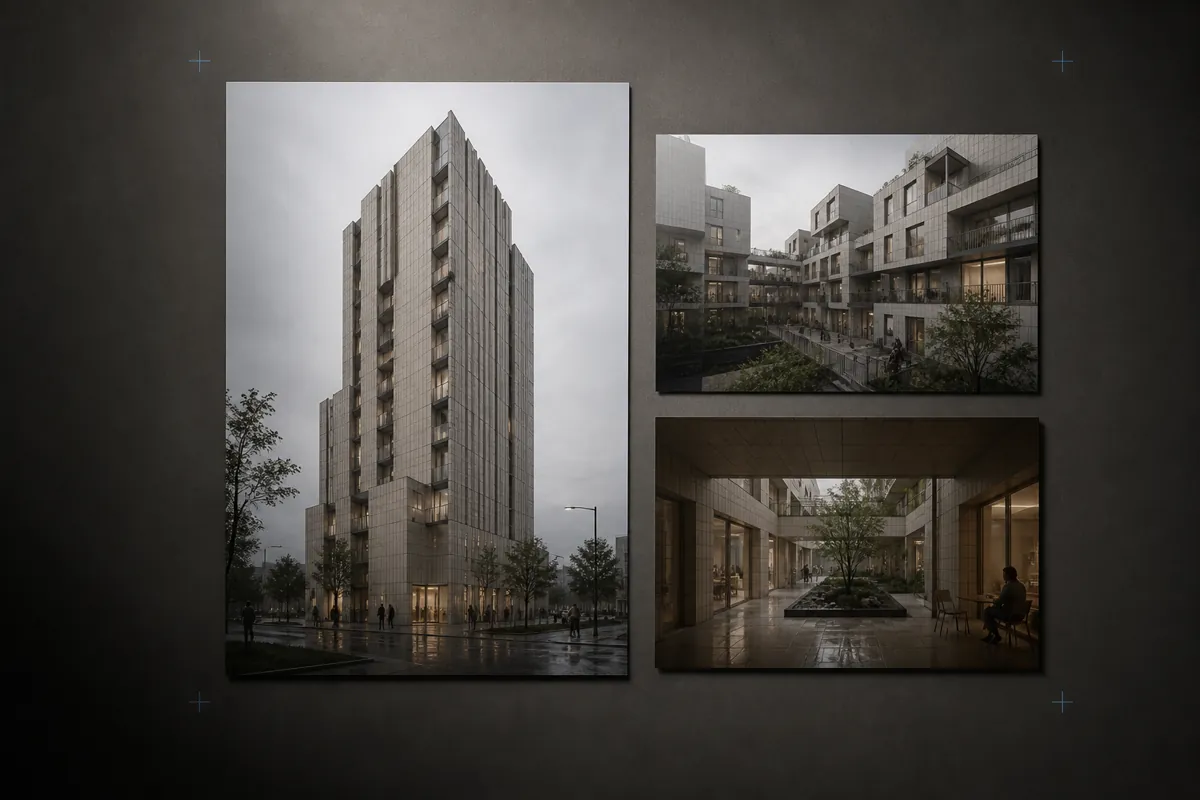
Architecture Prompt Library
Browse reviewed architecture render prompts by source, program, place, light, and material.
Open tool →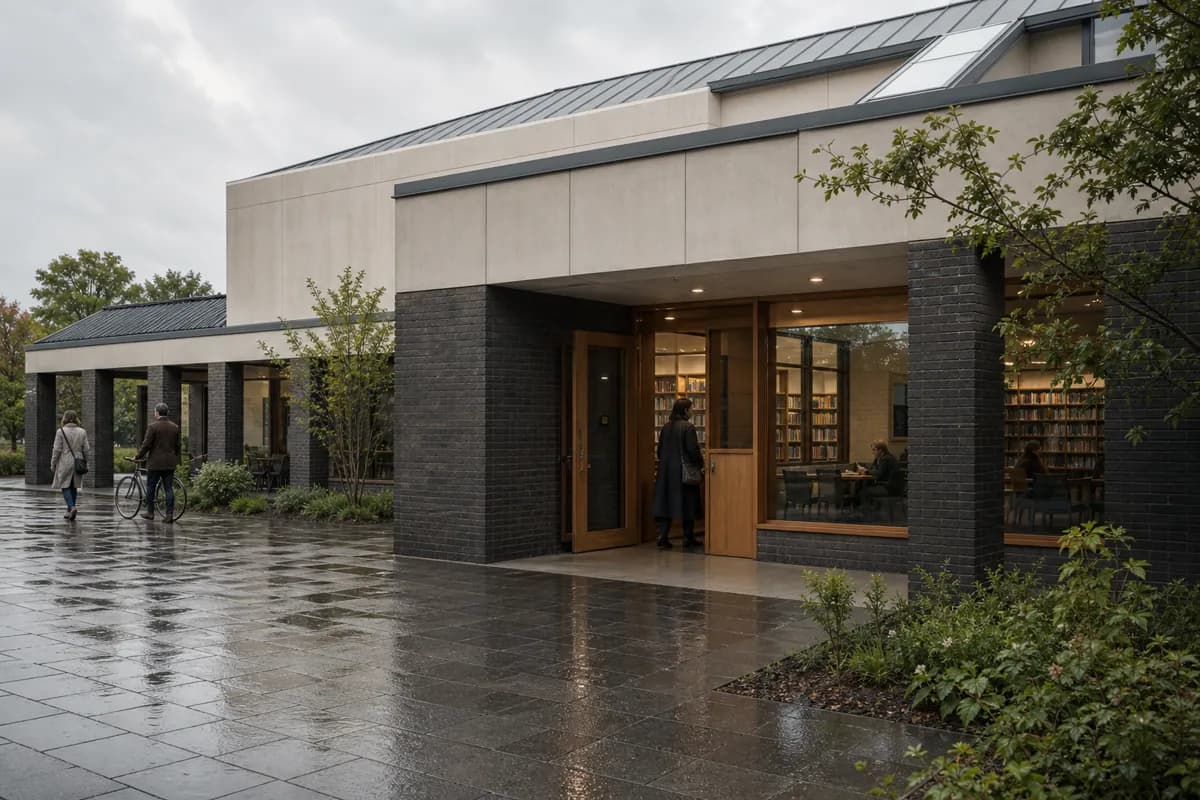
Architecture Render Prompt Builder
Build a render brief through guided checkpoints, then optionally refine it with AI.
Open tool →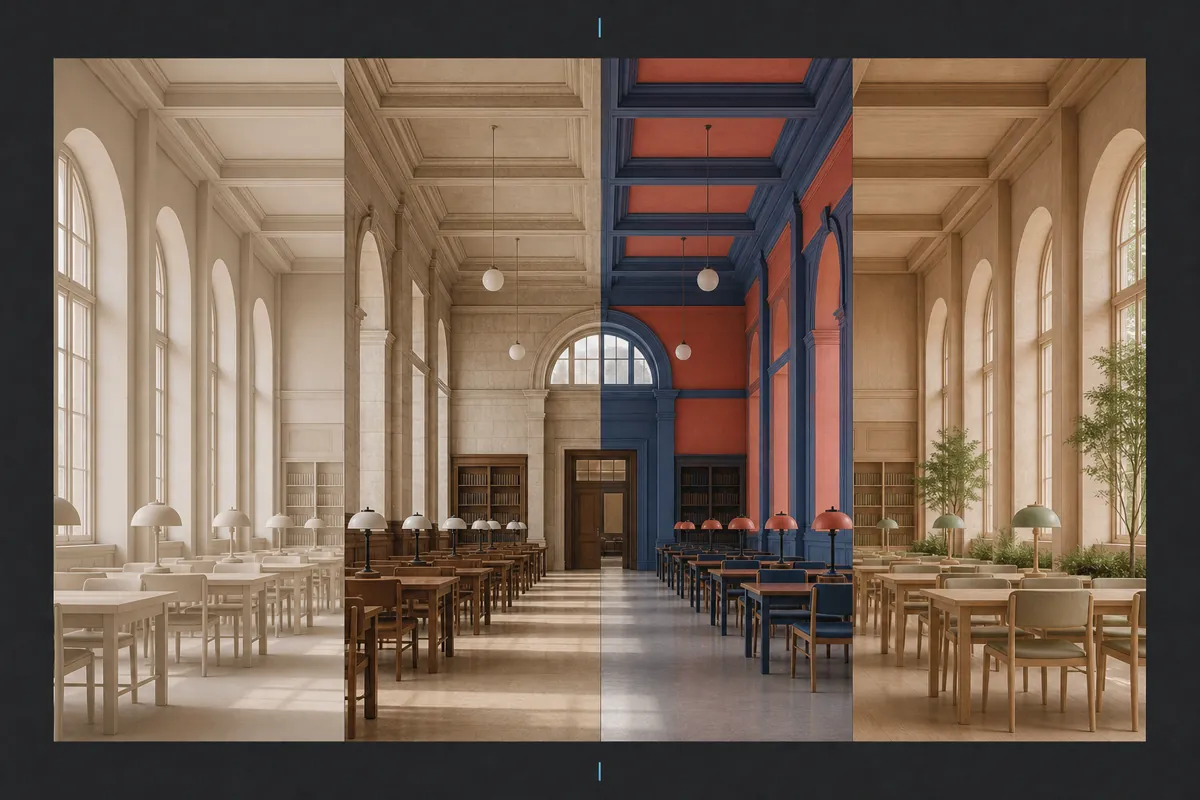
Architectural Rendering Style Atlas
Compare architectural rendering styles on one scene and find the right visual direction.
Open tool →